Performance & RWDImplementing Off-Canvas Navigation For A Responsive Website
The varying viewports that our websites encounter on a daily basis continue to demand more from responsive design. Not only must we continue to tackle the issues of content choreography — the art of maintaining order and context throughout the chaotic ebb and flow of the Web browser — but we must also meet the expectations of users. They’re not sitting still.
With the likes of Firefox OS (Boot to Gecko), Chrome OS and now Ubuntu for phones — an OS that makes “Web apps” first-class citizens — delivering native app-like experiences on the Web may become a necessity if users begin to expect it. Many in our field have argued for a degree of separation between the Web and native platforms for both technical and philosophical reasons. They’re certainly wise to heed caution, but as consumer devices continue to blur the boundaries, it’s worth thinking about what we can learn from native app design.
A Demonstration
In this article, I’ll be walking through a build demo that centers on two topics. The first is responsive design patterns that embrace the viewport and that improve content discoverability beyond the basic hyperlink; in this case, off-canvas navigation. The second is the complexities of implementing such ideas in an accessible and highly performant manner. These are two topics that I believe are at the heart of the Web’s future.
With that in mind, let’s get building.
The Accessible Base
All good things begin with a solid foundation of semantic HTML and widely supported CSS. In theory, this baseline should function as a usable experience for all browsers that visit our website. (It might also be the final experience in less-capable browsers.)
As a starting point, I’ll use a technique very similar to Aaron Gustafson’s “Smart Mobile Navigation Without Hacks.” It requires no JavaScript to function.
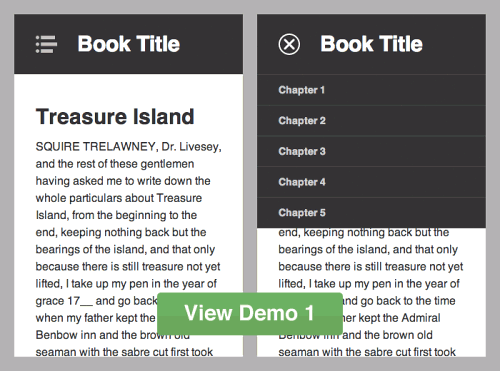
Step 1 of the responsive off-canvas menu. Short link: bit.ly/offcanvas1
- View demo 1
Be sure to view on a mobile or small screen, and take a while to inspect the code. Although our final design will be significantly different, starting simple is vital; retrofitting accessibility isn’t trivial.
The HTML body looks like this (I’ve stripped a few attributes for semantic clarity):
<header id="top" role="banner">
<h1>Book Title</h1>
<a href="#nav">Book navigation</a>
</header>
<nav id="nav" role="navigation">
<h2>Chapters</h2>
<ul>
<li><a href="#">Chapter 1</a></li>
<li><a href="#">Chapter 2</a></li>
<li><a href="#">Chapter 3</a></li>
<li><a href="#">Chapter 4</a></li>
<li><a href="#">Chapter 5</a></li>
</ul>
<a href="#top">Return to content</a>
</nav>
<article role="main">
<!-- [main content here] -->
</article>
You could consider the HTML alone, with little to no styling, as being “breakpoint zero.” If it’s not logical at this stage, then accessibility will not improve.
Demo 1 Breakdown
- Media queries are based on a viewport width of
45em(that’s content-dependent). Above this breakpoint, the navigation is permanently visible. I prefer em units because they allow breakpoints to maintain a relationship with text size. Lyza Gardner explains in detail in her post “The EMs Have It: Proportional Media Queries FTW!” - I’m using both
min-widthandmax-widthmedia queries to scope CSS. This adds a bit of complexity. Most people prefer a “mobile-first” build, using only progressively largermin-widthqueries. The downside with that technique is the amount of resetting required if an element has noticeably different visual states. Neither method is right or wrong. - The crux of this initial stage is the :target pseudo-class selector, utilized to show and hide the navigation. Only IE8 and lower lack support. However, this is a non-issue if you serve a semi-fluid desktop style sheet to old IEs. Jake Archibald, Nicolas Gallagher and Stuart Robson can tell you more.
As the demo takes shape, I’ll continue to introduce the main development principles. There’s a long way to go yet…
Going Off-Canvas
For some websites, the above may suffice — but not for us! We’re experimenting with off-canvas patterns and striving for that native experience. Because we cannot ignore older browsers, it’s now time to progressively enhance.
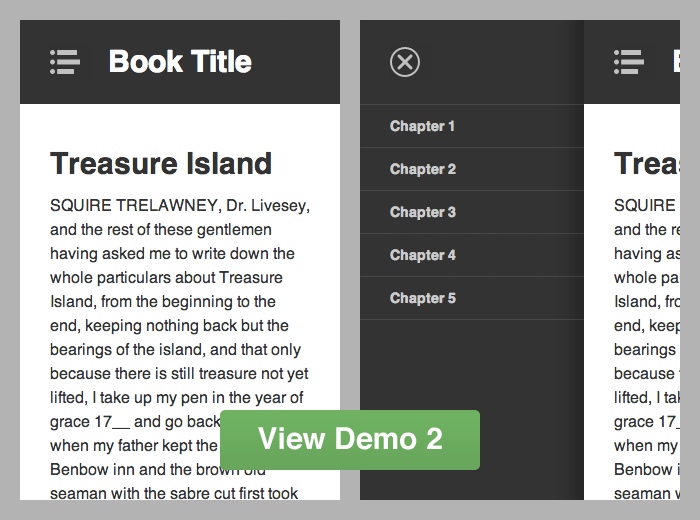
Step 2 of the responsive off-canvas menu. Short link: bit.ly/offcanvas2
- View demo 2
You will see the restyled navigation with basic functionality.
Demo 2 Breakdown
- I’m adding the class
js-readyto the document element after the DOMContentLoaded event fires. The selector.js-readyis used as a hook to safely restyle the navigation off-canvas. If for whatever reason JavaScript doesn’t load, then the original functionality from demo 1 still exists. - To show and hide the navigation, I’m toggling a class of
js-navon the document element when the user clicks (or taps) the relevant buttons. This simply applies a style ofleft: 70%to the#inner-wrapelement (#outer-wrapis used to hide any overflow and to avoid scrollbars).
This is a fairly basic enhancement, but importantly it remains usable before JavaScript is ready. It’s also notable that no inline styles are written with JavaScript; only classes are used to manage states.
Jumping between open and closed navigation states makes for a jarring user experience. Users need to understand — or even see — how an interface has changed. This is often the point where developers let the Web down. To be fair, building user interfaces is incredibly difficult. What I’m going to show below is far from perfect, but it’s certainly a step in the right direction.
So, we have the set-up. Now let’s add transitions.
Transitioning (The Wrong Way)
I’ll start by getting it all wrong, because this is how I would have done it a few years ago, and learning from mistakes is important.
The responsive off-canvas menu using jQuery .animate for transitions. Short link: bit.ly/offcanvas3
jQuery is a resource that many front-end developers begin with to learn JavaScript. Personally, I am a big fan (never blame the tools), but unfortunately jQuery has a habit of making things look deceptively simple. It masks complexity and, with that, understanding.
Transitioning our off-canvas navigation with jQuery is very easy:
$('#nav-open-btn').on('click', function() {
$('#inner-wrap').animate({ left: '70%' }, 500);
});
$('#nav-close-btn').on('click', function() {
$('#inner-wrap').animate({ left: '0' }, 500);
});
Visually, this achieves the effect we’re after, but test it on mobile and watch the frame rate stutter. Performance is dreadful.
This method is bad for several reasons:

![]()
- jQuery’s
.animateincrements the element’sstyleattribute on every animation frame (as can be seen in the GIF above). This forces the browser to recalculate the layout. - It leaves inline styles in the DOM that have very high specificity and that will override our well-maintained CSS. This is a big issue if the viewport is resized and triggers different breakpoints.
- A separation of concerns is lost because styles are defined in JavaScript files.
Overall, it’s a performance and maintainability nightmare. There is a better way.
Transitioning With CSS
Putting the jQuery experiment aside, I’m now building from the second demo again, this time using CSS transforms and transitions. These enable us to smoothly animate the off-canvas navigation with great performance.
The final responsive off-canvas menu using CSS transforms and transitions. Short link: bit.ly/offcanvas4
- View final demo
Performance has drastically improved compared to the jQuery example.
Final Demo Breakdown
- Returning to CSS, I’m once again using the
.js-navclass to toggle the navigation, while making no actual style alterations with JavaScript. - I’m progressively enhancing with the classes
.csstransforms3dand.csstransitions(applied to the document element by Modernizr). - Instead of moving the navigation with negative positioning (
left: -100%), I’m using thetransformproperty:transform: translate3d(-100%, 0, 0). - CSS transitions are used to animate
transformchanges:transition: transform 500ms ease. And I’ve added a few more transforms to enhance the visual effect.
With the help of Modernizr, this will fall back to demo 2 if browser support is lacking for CSS transforms and transitions. (In theory, I could fall back to jQuery animation, but it’s really not worth it.) When you download Modernizr, you can include only the feature detection that you need. It also includes the HTML5 shiv for IE. All in all, it’s a very useful script.
The benefits here are immense. First and foremost, by transitioning elements with 3-D transforms, the browser can generate render layers that are hardware-accelerated. Secondly, there’s no need for JavaScript to worry about style or media-query breakpoints. JavaScript need only interpret user interaction and apply classes to maintain states — CSS defines the visual changes.
We can look deeper into performance by using Chrome’s Developer Tools. The results below are from the desktop browser, but for mobile performance you could use USB Remote Debugging on Android devices.
jQuery Animation Performance
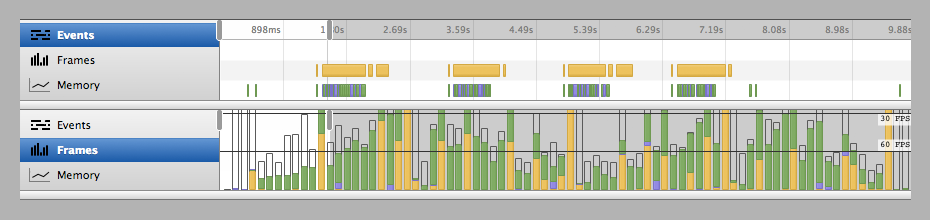
The four events above represent the opening and closing of the navigation twice. In the diagram, yellow represents the JavaScript running, purple is the rendering (recalculating the style and layout), and green is the painting to the screen. On mobile, we’d be shooting way below that 30 FPS line. I also tested on an iPhone 3GS and could literally count 3 FPS with my own eyes — it’s that slow!
CSS Transition Performance
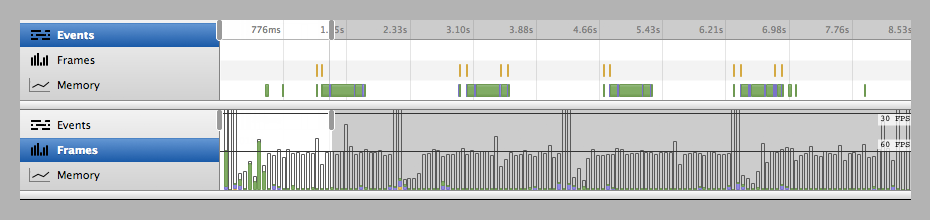
What a difference! The only JavaScript that exists is there to manage user interaction before and after the transition. The green we’re seeing is the minimum that the browser needs to repaint the transition at a respectable frame rate, using GPU acceleration.
Possible Concerns
As with all new Web standards, nothing is inherently perfect.
In WebKit-based browsers, the font smoothing may switch to antialiased from the default subpixel-antialiased when CSS transforms or transitions are applied. This could result in visually thinner text, which many designers actually prefer — but not something you should “fix.”
Flickering can also occur if an element goes between transform and no-transform. To avoid this, always start with a default like translate3d(0,0,0) on an element that will move later, so that the render layer is composed and ready.
The Next Step
Enhancing further, we could detect and take advantage of touch gestures, like swiping, to really bring this implementation closer to par with its native counterparts — “closer” being the operative word, but I do believe the gap is closer than many would have us believe.
It’s also — in my opinion — a gap that we need to bridge.
There are other clever ways to increase interaction speed. Mobile browsers tend to wait around 300 ms to fire click events. Google’s Ryan Fioravanti has a great article on “Creating Fast Buttons” to reduce this latency.
Transition easing can radically change the visual effect and the user’s perception of what’s happening. Whether elements need to spring, bounce or accelerate into action, Lea Verou has a useful cubic bezier resource to generate custom easing functions.
Hopefully, this article has shown the improvements that can be made if we take extra care to understand the technology we’re using.
Download The Code
So, there we have it: a three-tiered responsive, interactive, off-canvas menu. I’ve set up a GitHub repository where you can view all the code. Have a play with it; there are a few bits and pieces I haven’t covered to avoid bloating this article.
Further Reading
To really understand why the techniques highlighted above are my preferred solution, I point you in the direction of these resources:
- “All You Need to Know About CSS Transitions,” Alex MacCaw
MacCaw gets into the specifics of CSS transitions and JavaScript. - “Why Moving Elements With translate() Is Better Than pos:abs top/left,” Paul Irish
A superb video and article examining the different movement techniques. - “Improving the Performance of Your HTML5 App,” Malte Ubl
Looks deep into the intricacies of performance. - “CSS3 vs jQuery Animations,” Siddharth Rao
This article puts both methods head to head. - “Understanding Hardware Acceleration on Mobile Browsers,” Ariya Hidayat
Goes under the hood with a technical review. - “Let’s Play With Hardware-Accelerated CSS,” Martin Kool
This article also introduces us to hardware acceleration. - “Scrolling Performance,” Paul Lewis
Looks at a related scenario.
(al)


Ethan
January 15th, 2013 9:57 amExcellent thanks guys. I was just in the process of implementing an off screen animation and used jQuery.
Michael Benin
January 15th, 2013 9:59 amhttps://github.com/benbarnett/jQuery-Animate-Enhanced
https://github.com/gnarf37/jquery-requestAnimationFrame
Dropping in these two plugins should achieve what is accomplished in this article using CSS, and furthermore will utilize RAF.
It would be interesting for you to run the same tests against JS/jQuery with these jQuery plugins.
David Bushell
January 15th, 2013 11:45 amHi Michael,
Thanks for the suggestion, it would definitely speed up the jQuery version. I’ll update the GitHub repo soon with another demo using these plugins. I’m not convinced they’ll be faster than my final implementation, but let’s see!
Edit: demos below!
David Bushell
January 15th, 2013 2:45 pmHi again!
I’ve wrote a very detailed response testing these two plugins.
In the GitHub repo I’ve included demos for jQuery animate enhanced and jQuery requestAnimationFrame that you can test.
Basically you can’t combine both plugins. The animate-enhanced plugin does improve performance similar to my demo. The jquery-requestAnimationFrame plugin isn’t going to do much good in this circumstance. Both add a lot of code weight and complexity.
This was fun to test — thanks for the links!
Chris Kluis
January 15th, 2013 10:04 amHave you considered using the off-canvas approach 100% of the time regardless of the size of the browser?
This would provide for a less cluttered header and could almost turn every page into a landing page (where visible menu options are limited helping to guide action).
Yet, given the prevelance of this menu style today – almost everyone would understand its purpose so it doesn’t hide options from those that want it.
David Bushell
January 15th, 2013 12:06 pmThat’s a bold idea!
I’d like to see more chances taken like that. Perhaps for tech savvy people like us it would be intuitive. Certainly with apps it’s a common design people are use to. Are expectations of a website different?
stokesga
January 16th, 2013 2:54 amCurrently working on something like that. Still a way to go.
http://www.stalledtime.com/stalledtimeV2/index.html.php
Graham
April 8th, 2013 5:03 amThis is a fantastic example. I like how you’ve gone for the + sign, and the way that it’s one of two things on the landing page. My eyes were immediately drawn to it ……after checking out your logo for a a few seconds (NICE!). I also like the way it animates from the corner, it’s very effective, works great for photography designs. I do think you should incorporate the blog into that site. I read on concrete5′s website, their ethos is that blog is a verb not a noun! therefore its about delivering the information and including certain features with it. It doesn’t have to look like a “blog”. I suggest building this as a child theme for wordpress, or parent if you can be on with the hassle utilise the four corners for things like recent posts and archive links then have featured posts on a carousel with your theme it would look great.
Ashenkase
January 15th, 2013 10:05 amI don’t get it, are the pages supposed to change (transition) from off-canvas when you click on the menu (chapters) items? If so, the demos are not working, I was expecting to see a new page slide in.
Stephan
January 15th, 2013 10:13 amI think the demo is only for showing the transitions speed (jquery compared with css). Switching the pages’ content isn’t focused. It’s depending on yourself.
*edit*
After reading your post a few times, I think I didn’t get your question, did I?
Moving back the content area is shown by clicking the close button.
Dylan Valade
January 15th, 2013 10:51 amYou need to resize your browser so it’s at a mobile dimension. Then the responsive layout changes and hides the menu buttons.
The CSS implementation is very smooth. Well done.
David Bushell
January 15th, 2013 11:48 amHi Ashenkase,
The pages don’t transition, it’s only the navigation that transitions into view. If you’re viewing in a desktop browser make sure to resize it small enough to see (at wider breakpoints the navigation is always visible). Or better yet give it a test on a mobile phone :)
Dominic Lloyd
January 15th, 2013 10:15 amI’ve never been much of a fan of RWD up until now, because, for more complicated (than a blog) sites, navigation has always been a stumbling point in my eyes. Your solution is quite frankly the best I have seen by a country mile.
David Bushell
January 15th, 2013 2:51 pmThanks Dominic.
It’s nothing too original so I can only take credit for researching and presenting a fairly solid implementation (I’m sure there are holes to find!). One problem that still remains is the breakpoint at which the off-canvas navigation becomes active. Without some nasty JavaScript the breakpoint can’t adjust for the number (and width) of menu items.
Kevin L.
January 16th, 2013 3:53 amRegarding the Breakpoint issue; (eventually) can’t you use viewport units (vw, vmin, or vh) and/or em-based calculations (assuming em-based media queries)?
I’ve tried to do Aaron Gustafson’s method which took a while to (I thought the omitted styles and markup, especially the header markup, were sort of necessary to truly understand what was going on), as well as Tim Pietrusky’s excellent “Responsive Menu Concept” article on CSS-Tricks covering how to do off-canvas-navigation as well (http://css-tricks.com/responsive-menu-concepts/).
Overall, I didn’t find breakpoint issues come about using viewport units, and I don’t recall that being too much of an issue using em units (though I tried at most 10 list items)…
Ethan
January 15th, 2013 10:20 amA little extra detail which I think makes the experience better is adding a transparent anchor over the portion of the page that slides off screen. Using jQuery to set it’s height to 100% makes it so that if the user interacts with content on the off screen part like scrolling, buttons, forms etc it causes the off screen portion to slide back in.
I hope that makes sense. Similar to how facebook wont let you scroll vertically or interact with the content when you’re using the off screen menu.
David Bushell
January 15th, 2013 11:55 amHi Ethan,
I understand what you mean. It should actually detect a click/tap event on the off-screen content and slide back in, no invisible anchor needed. Have you tested? If it doesn’t work let me know what device+browser combo you’re using :)
I was tempted to implement swipe gestures but I didn’t want to make it overly complicated. Hammer.js is an awesome lightweight library that’ll do most of the hard work, for anyone wanting to experiment further.
Ethan
January 16th, 2013 5:53 amI added hammer.js in and it works great. Do you have any solutions for how to keep the off screen menu visable? I have a site that’s fairly long and I’ve been exploring fixed position solutions to keep it visible. another level of complexity is that the side out menu is sometimes longer than the window. I tried a fixed 100% height div with overflow scroll but that starts to get weird after you scroll to the bottom and then try to go back up etc.
Beber
January 29th, 2013 3:12 amI’m actually trying to accomplish the same thing. Any new insights on this?
Paul
May 19th, 2013 8:43 pmHi Ethan
Did you manage to rewrite the menu in Jquery not JS?
Ethan
January 16th, 2013 8:09 amI switched my project over to CSS so it’s smoother but is there a way to eliminate the jumping to the anchor? Using Return False; will stop the css from targeting.
Tom Evans
April 8th, 2013 1:52 amHi,
Fantastic article, just what I have been looking for! I’m trying to build an epic template for bootstrap (will release to all when finished) with everything from responsive off canvas nav to cookie directive (for the EU people, annoying law but oh well). I have been trying to get the detect a click/tap to close the nav on an iphone/ipad (safari and chrome) to work but can’t for the life of me. My idea is to remove the close button completely to be more like the facebook app or mashables website. I don’t really think overlaying a div to act as a click is the correct way to do it. Was wondering what your thoughts are? You can check the process of the template at: views.tom.mixture.io if you are interested
Simon
January 15th, 2013 10:42 amOne of the best Smashing articles lately!
I was just trying to figure out some good solutions for mobile navigation, thanks!
GoodBytes
January 15th, 2013 1:30 pmHi David, this is by far the best article that I’ve read on Smashing Magazine in months. I must admit that it took me some time to get this working in my own app, but you definitely saved me hours finding this out by myself.
Thanks a lot for the clear examples and article, it’s definitely a winner.
Daniel Montgomery
January 15th, 2013 3:17 pmVery nice work here.
All of these ideas are in a constant flow and it’s nice to see a good overview of the benefits and drawbacks of this menu approach. I’m going to have to revisit CSS transitions and see if I can’t use them more.
It’s a bit depressing to see so much “should already have” features and then go back to developing for IE8 (and IE7).
Alex James Bishop
January 15th, 2013 3:55 pmAn excellent and well detailed article David. Performance and responsiveness are vital to a good user experience on mobile devices so it’s great to see the ‘on-page’ performance benchmarks.
Loading times, use of bandwidth, and battery usage are also a major concern for user experience on mobile devices; I’d be interested to see how the stats for these benchmarks compare on the example vs a page with some custom written javascript as opposed to loading the whole jQuery library.
When comparing pages I’ve seen using OCL vs native apps the one thing that always sticks out for me is that in native apps the menus scroll separately to the main content – often freezing the vertical position of the main content while allowing the off canvas portion to be scrollable, and I think behaviour like this is important to consider from a UX perspective.
Again great article, and it’s good to see OCL get some more ‘mainstream’ spotlight, hopefully it means all the really talented folks out there will come up with some great things even a monkey like myself can use!
Ed Melly
January 24th, 2013 3:56 amRegarding freezing the main content, this should be pretty trivial to add in (based on whether the js-nav class is present) – check out Disney.com (http://disney.com/?intoverride=true) for a great example. They add position: fixed to the main content and give it a semi-transparent overlay (another nice touch to make it clear that you’re only able to interact with the nav).
Piet
January 15th, 2013 4:49 pmHi David, thanks for the clear and interesting write-up!
I have been looking at Zurb’s Foundation lately, they also offer this off canvas navigation. Can you tell me which one they use? The “wrong” way or the “right” way?
Thanks.
David Bushell
January 16th, 2013 3:56 amHi Piet,
I would never say there is a definitive “right” way. I mean, my jQuery example is definitely bad practice, but it terms of delivering the best experience there are several techniques to understand.
I checked out the ZURB foundation off-canvas stuff. They get a lot right. They toggle classes and use CSS transitions. They’re transitioning negative margins and positions. That has decent performance but will be noticeably slow if the page has a heavy DOM. Using 3D transforms is by far the faster performance method — at least *today* (browsers improve all the time). See the “further reading” links at the end of my article for the technicalities of GPU acceleration.
DMA
January 15th, 2013 7:00 pmA great article, David. This is exactly the kind of quality that makes me want to come back to Smashing again and again.
It’s really nice to see the author so involved in the comments too. Thanks for the great work.
Back to the topic, I was also looking at implementing this sort of solution using jQuery despite my previous first hand experiences with it’s various inefficiencies with animation. It’s great to see your solution and exactly how it improves performance.
Sami
January 16th, 2013 1:55 amBeautiful navigation and a great article!
However, there’s a minor annoyance what at least I get with with both desktop and mobile Safari. The header flashes slightly after animation is done. Luckily there’s a fix for this. If you set “-webkit-backface-visiblity” to “hidden” that should do it. Like this:
article, aside, details, figcaption, figure, footer, header, hgroup, nav, section, summary { display: block; -webkit-backface-visibility: hidden; }
Gerd
January 16th, 2013 7:49 amReally good article!
A demo for multi-level-navigation would have made it perfect.
It would be nice, if anyone has an Idea, how to realize something like this (without JS):
http://webdesign.tutsplus.com/tutorials/site-elements/big-menus-small-screens-responsive-multi-level-navigation/
neil paterson
January 16th, 2013 2:17 pmi have downloaded this and will have a good long look. its something i have wanted to add to my site but have had now idea where to start.
http://www.worldofnosh.com
Sam Jarvis
January 17th, 2013 9:01 amI’ve found an issue with this in any current webkit browser. If you have elements inside an element that has been translate3d’d from off canvas, to on-canvas, it won’t re-flow the contents of the translate3d’d element.
This is likely a performance enhancement implemented by webkit, will post a fix as a reply.
Sam Jarvis
January 17th, 2013 9:21 amRight, this only occurs when you have two wrappers using translate3d.
Marco Barbosa
January 18th, 2013 1:58 amHey David,
Very efficient demo.
Though some would argue that you shouldn’t use #ids in the CSS :D
I’d like to see this demo with vm and wm units.
Thanks for sharing!
Avangelist
January 18th, 2013 3:07 amHi David, I think this is a great example of how you can start to bring in navigation patterns than have been applied by native apps. Last year I had a lengthy debate with a developer about this being really ‘hard’ to implement, you’ve shown it isn’t it just takes time to wrap your head around how you are structuring the content.
It’s going to take me a while to reverse engineer your examples, something I am finding quite often when looking at examples that use media queries, I think this is a very elegant concept.
philippe
January 18th, 2013 4:35 amReally good article and awesome demo ! Thanks for the share !
Brian
January 18th, 2013 8:17 amThis is a really good post. One of the hardest things to translate to a mobile screen is navigation – on our site we have this huge sprawling menu which obviously doesn’t scale down very well.
We came up with a solution inspired by the slide-in style, but instead it slides down with a fade in sub menu. This allows to hide links that could be obtrusive at first glance from view, but keep them accessible at the same time.
Abigail Sinclair
January 19th, 2013 1:21 amI’ve been scratching my head over how to handle navigation in a couple of websites I’m building and this has given me something great to work with, thanks!
Will definitely be downloading this to play with later.
Rozani
January 19th, 2013 3:18 pmHow about handling two menus?
I mean like #nav and #sub-nav.
I have try but no idea how to do it.
Brandon Brown
January 21st, 2013 4:38 pmI took this concept and added a few of my own things to it, leaving attribution to the author :) http://brandonbrown.io/
Franck
January 23rd, 2013 6:57 pmI just don’t get it.
I tested the final demo on my PC (on the latest versions of IE, Safari, Chrome and Firefox) and on my HTC Wildfire as well … and nowhere did I see a transition on menu closing/opening.
Did I miss something or what?
saskia
January 24th, 2013 2:07 amThis is a really good article. Thx for sharing!
Kevin
January 24th, 2013 10:13 amI just wanted to let you know that this inspired me to make a template of sorts for this type of website. I went about it in my own way, and came up with this: https://github.com/kthornbloom/Responsive_Template
Gerd
February 18th, 2013 5:36 amThanks! Exactly what I was looking for!
Dilawer Pirzada
January 24th, 2013 9:01 pmWhat the heck, the demos URLs are not working in Google Chrome Browser…
Ed Melly
January 25th, 2013 8:00 amI noticed that in IE9 (10 is fine), the menu will open and close correctly, but only once. Clicking on the nav button after that, nothing happens
I can’t figure out the problem, but it’s think it’s due to the fact that after the initial open/close the nav_open variable is never being set to false – I guess it’s a quick fix, any ideas?
Besim Huskic
January 25th, 2013 8:59 amGreat article, wonderfully informative.
I was playing around with it, and was going to use it in a project of mine that requires a responsive nav. However, I noticed that it’s not fixed, and with a larger menu it’s not as user friendly to utilize.
Besim Huskic
January 25th, 2013 1:36 pmI just realized the reason the position fixed does not work is because transform resets position: fixed.
Konstantin Baev
February 6th, 2013 11:49 amI’ve found 2 broken links in the “FURTHER READING” part of the article.
Malte Ubl’s article is http://www.html5rocks.com/en/tutorials/speed/html5/
Paul Lewis’a article http://www.html5rocks.com/en/tutorials/speed/scrolling/
instead of broken links
Fix it, please
Trevor Saint
February 8th, 2013 9:24 amExcellent article David. My first attempt at this, I indeed did it using JS and it worked but was very choppy, this approach is a delight. Thank you for this article.
Ryan Greene
February 17th, 2013 8:22 pmThis is great, but i still cannot find examples or figure out how to make this close the side menu when a link is clicked. So for example, you open the side menu, there are 5 links in the menu, you click one and then it should close the menu and load the new page, or even just load the new page with the menu closed. The other problem i am seeing, if you simply load a new page with this, the top left “nav” button is no longer functional. ….Any ideas?
Nico
February 19th, 2013 6:29 amGreat overview of advantages of using CSS vs JS, with maintainability & performances comparison.
A few months ago I created the same effect by using the “checkbox” trick as explained here : http://css-tricks.com/the-checkbox-hack/ (a no-javascript solution)
You can take a look at my try on JSfiddle : http://jsfiddle.net/nicooprat/Aahqh/
Ben
February 21st, 2013 3:58 amHi all,
The CSS approach does seem very appealing, however in IE (whatever the version) it bugs. the hidden menu overlaps the page during the transition… Darn IE but so many people still use IE…
Benjamin David
February 24th, 2013 7:33 amIf like me you are experiencing a blinking issue on webkit when clicking on the menu button, you can find a fix here :
http://stackoverflow.com/questions/6332485/transformscale-causing-blinking-when-hovering
Paul
March 5th, 2013 4:34 pmHi,
I’ve got a little problem. When using page anchors, the header seems to disappear.
Have a look here – http://www.portplus.com/storage/paul/mobile-test/
Click on “Treasure Island” which will take you down the page.
I have tried everything. It seems it’s got something to do with this section below and the attached JavaScript function:
id=”nav-open-btn”
Can someone please help???
funzeye
June 8th, 2013 7:12 amI have the same issue, calling a page anchor using the offset menu causes the entire page to move up, almost completely hiding the navbar.
Did you figure out a way around it?
pavlov
March 17th, 2013 8:30 amAbout Transitioning (The Wrong Way).
I have an alternative way, it is fast too and it works if the “-webkit-transition” is not available. (with no animation):
css .ease-left{-webkit-transition: left 0.5s ease;} //css animation
and
js to open left block: $(‘.side-out’).css(‘left’, ’240px’); // not js-animation
html:
<div class=”side-out ease-left” style=”left: 0px;”>
<div class=”side-in”>
<div class=”side-item side-left-out”>
left
</div>
<div class=”side-item side-main-out”>
content
</div>
</div>
</div>
(for compatibility use also transition, -moz-transition, -ms-transition, -o-transition)
Graham
April 8th, 2013 5:16 amFirst of all great writeup and nice research, I just hope this is still alive enough for a quick response. I’ve been scratching my head for two days, I don’t understand js all too well I’ll be honest, but personally I don’t see why it is needed at all. You say here it’s used as an event handler and listens for activity. Surely with pure CSS3 you can click a button and a menu can come from the left. I know it’s got to be possible.
The next thing that gets me is do I need to worry about IE if I am only intending on this being a feature on mobile phones???? I don’t think it matters if older browsers like IE don’t support the CSS3 option because realistically they shouldn’t be looking at the mobile menu. Am I right of have I missed something major?
Burkhard Rosemann
April 9th, 2013 3:19 amWhat would it look like on the right side? I’m trying to add a sidebar to the right (off canvas) in addition to the menu left.
Dean
April 10th, 2013 12:39 amHi David,
Thanks for this great article. Just a quick question, is there a simple way when the menu is open that you can scroll down and that the main content remains fixed (so only a if you had a long list of links only the menu scrolls)?
An example of what I mean can be seen at:
http://disney.com/?intoverride=true
Thanks
Burkhard Rosemann
April 11th, 2013 10:19 pmYea, I need that too. disney page is awesome
Mark McManus
April 13th, 2013 4:59 amThis is just a quick one. What would I need to do if I wanted the off canvas menu to close after a menu item is clicked? The reason being, I have a single page design that uses a scroll to script, therefore, the page does not refresh and the off canvas menu stays open, unless, of course, you click inside the body or close the menu.
Any suggestions would be greatly appreciated as I am just starting out with JS and my knowledge is limited.
Thanks.
Scott
April 13th, 2013 9:37 amGreat article, will definitely use this on 1 of my projects. One thing i’ve noticed though is that in chrome the text for the menu items becomes blurry in the last example when transitions are used. Any body else noticed this?
Francesco
April 15th, 2013 6:26 amMaybe I missed it… but is there a reason not to apply the CSS3 transition property to the normal positioning (left: 70%, demo 2) and use it only together with transform3D? I understand there are browsers still in use (Opera, Android <=2.3) that support transitions but not transform3d, wouldn't the experience be better on those browsers?
Also, is there really a reason to detect transitions with Modernizr in this case? We're not providing any fallback, so we might as well just add the code, it will work where it'll work and won't cause problems elsewhere.
Or not? :-)
xopoe
April 15th, 2013 6:51 pmgreat article.
my only problem is that the entire off canvas nav momentarily appears while rest of page loads… can’t figure out what i might have done wrong.
hannenz
April 16th, 2013 7:48 amExcellent!
0leg
April 24th, 2013 10:25 pmGreat article, great examples.
I understand that it was written to demonstrate the effectiveness of css transitions vs jquery, but it seems that a lot of people here struggle to apply this example to their sites (including myself) because of the usability flows:
1. When you scroll down the article and then decide to use the menu, you have to go all the way up because
a. The toggle button is at the top.
b. Say we made the nav button static, but there won’t have much use because the side bar content has scrolled along with the content
2. I plugged in anchor links to the menu and used them to scroll through the content of the example article. When I manually scroll back up, the top of the page is missing (the part where the nav button is).
3. The decorative arrow pointing at the “current” menu selection does not really change when I click on some other chapter link.
4. And last but not least, close-btn is useless because the side bar nicely moves off canvas when I click on content area or nav-btn. When I removed close-btn, the side bar stopped opening.
This sidebar framework would be priceless if the side bar content was not scrolling along with the page content. If side bar has long content it could be scrollable but independently from the main content.
And cosmetic suggestions:
Getting rid of close-btn and having just nav-btn (the menu icon may change to cross when side bar is open)
The white arrows point to the current menu item indicating current location (whether a page or area of page)
And at the end I’d like to point out at codrops push menu http://tympanus.net/codrops/2013/04/17/slide-and-push-menus/.
UPDATE:
found what i wanted http://www.berriart.com/sidr/
thomas drotar
May 9th, 2013 1:05 pmsorry to be such a bother today but…I can’t catch a break. i am designing a responsive website.
when the meta takes it to phone view I have 4 icons that appear for the slide nag menu. their address is
no-svg .close-btn { background-image: url(“../img/close-btn.png”); }
i am using dreamweaver cs6. when i preview in Safari, Chrome, Firefox, there they are. when i load it onto the server they disappear. I’ve spent two hours resetting their address to absolute, etc, etc. no luck.
any insight from you would be greatly appreciated. the site is
http://www.johnbehring.tv
Mike
May 15th, 2013 7:56 amHas anyone been able to fix the flashing issue on iOS devices on zoom?
If you zoom the step 4 page on a iPhone, it will flicker on resize. This is similar to an issue I have encountered when trying to create a very similar navigation, and have been unable to fix with backface visability, perspective and transform3d. It seems to work fine on smaller pages, but when it reaches a certain height, the main body content will flicker.
Hibb
June 1st, 2013 11:11 amGreat article.. If I understand correctly, then this technique is limited to a maximum of three columns (one menu on both sides of the content panel); any menu must at all times be right next door.
If I want to have multiple content pages, this technique won’t work as well, right?
Does anyone know whether z-index also forces a reflow? Because if not, I could use that to toggle between content-divs.
Sincerely,
Baptiste
June 10th, 2013 6:43 amThat’s an absolutely amazing solution – but i wonder : would it work with a multi-level menu, with nested lists ? Would there be any technical limitation preventing that approach to work ?