Setup A Ubuntu VPS For Hosting Ruby On Rails Applications

Email Newsletter
Weekly tips on front-end & UX.
Trusted by 200,000+ folks.


 Register!
 Flexible CMS. Headless & API 1st

Let’s assume you have built a nice little Ruby on Rails application on your local development machine. Now it’s time for the application to go live. But where should you host this application? You know that you (or your client) do not have much money to spend, and so you look at the options. You notice right away that managed hosting of applications tends to be relatively expensive. Heroku is a good option, but it doesn’t give you storage space, and more importantly, it lacks full control. Luckily, you have a suitable alternative: a VPS.
This tutorial will help you get through the steps required to set up an Ubuntu VPS that is capable of hosting (multiple) Ruby on Rails applications. This tutorial builds on part 1, “Set Up An Ubuntu Local Development Machine For Ruby On Rails.” We recommend that you follow that part first and use the same Ubuntu local development machine that you set up there to walk through this part.

Wait… A VPS?
VPS stands for virtual private server. It is a virtual machine offered by Internet hosting companies. With a VPS, you get your own virtual slice of real estate that lives with other virtual slices on one physical server. This virtual machine is capable of running an operating system, a Web server and database software. A VPS comes with full control (or root access) and, with most hosting companies, at a very reasonable price. And because a VPS is capable of running multiple Ruby on Rails applications, the costs of the VPS can be spread.
Quick Overview
In this tutorial, we’ll log into the VPS, add a new user and configure SSH connections so that the VPS is more secure. Then, we’ll install Ruby and RubyGems using the Ruby Version Manager (RVM) script. In turn, we’ll install Rails and Capistrano using RubyGems. And then we’ll install Passenger and take care of the Nginx Web server installation. The VPS will also feature a PostgreSQL database.
At the time of writing, the latest versions are Ubuntu Server 10.10, Ruby 1.9.2 and Rails 3.0.7. These steps were also tested on Ubuntu Server 10.04 and the upcoming Ubuntu Server 11.04 release.
During this tutorial, we will make extensive use of the Linux command line. A short glossary at the end of this tutorial describes the relevant Linux commands.
Up And Running
First, find a suitable host and purchase your VPS (if you don’t have one already). Make sure the host allows you to install Ubuntu on a VPS; most hosting companies will because it is a popular choice for VPS’. I chose a 512 MB VPS, which should be sufficient to run multiple small Ruby on Rails applications.
For those without a VPS, you can still follow along using virtualization software like VirtualBox. VirtualBox is open-source software and available in the Ubuntu Software Center or via the official website. Make sure when setting up your virtual machine that your network adapter is set to “Bridged” (Right click → Settings → Network → Attached to: Bridged Adapter). This way, your virtual machine will get its own IP address on your local network. Just install a fresh copy of Ubuntu Server, select “OpenSSH server” during installation, and skip the next two steps. You can log in directly via the VirtualBox window or, if you know the IP address of the server, via SSH.
Log into your VPS host’s control panel, and install a fresh copy of Ubuntu Server. Make sure to submit a safe “root” password, and boot the VPS.
Log Into Your VPS
We’ll log into our VPS using SSH. SSH stands for secure shell and is a network protocol. It enables computers to communicate via an encrypted connection.
I assume you know the IP address of your VPS (if not, look it up in your host’s control panel), and that “root” is the default user, and that you know the “root” password, and that SSH is installed.
While using the domain name of the VPS is technically possible, we will log in using the VPS’ IP address. Setting up the domain name of your VPS is very context-specific and beyond the scope of this tutorial.
Now open up a terminal window on your Ubuntu local development machine, and log into your VPS:
$ ssh default-user@vps-ip-addressFor example:
$ ssh root@123.456.7.890You might have to type yes and then provide the “root” password. In about a second, you should be logged in.
Secure Your VPS
For security reasons, you should do as little as possible as “root.” So, we’ll create a new user and assign administrative rights to it. To make use of its administrative rights, the user needs to explicitly invoke the “sudo” command, which adds a security layer to the system administration. First, create a new user:
$ adduser your-user-nameFor example:
$ adduser johndoeProvide a safe password (filling in the user details is optional). Now, make the new user a member of the “admin” group, which grants the user administrative rights (by invoking the sudo command).
$ adduser your-user-name group-nameFor example:
$ adduser johndoe adminSecuring your SSH (server) configuration is the next step. Because every Unix system has a “root” user by default, you should disable “root” from logging in using SSH. This makes your system less vulnerable to brute force attacks.
$ nano /etc/ssh/sshd_configSet PermitRootLogin to no, and reload the SSH configuration so that the changes take effect. Although “root” will be disabled from logging in in future, the current “root” user connection will be maintained.
$ /etc/init.d/ssh reloadNow, log out of your VPS as “root,” and log back in as the new user.
$ logout
$ ssh your-user-name@vps-ip-address
For example:
$ ssh johndoe@123.456.7.890The system is more secure now that a new user has been created and “root” has been disabled from logging in via SSH. Some of the upcoming steps repeat the steps we took in part 1 of this tutorial, while also getting us up to date and installing RVM, Ruby, RubyGems and Rails.
Get Up To Date
Now, let’s get up to date. The first three commands below will, in turn, update the package lists, upgrade currently installed packages, and install new packages and delete obsolete packages. You’ll end up with a VPS that is fully up to date. The final command will reboot the VPS, which is good practice after updating a lot of packages.
$ sudo apt-get update
$ sudo apt-get upgrade
$ sudo apt-get dist-upgrade
$ sudo reboot
Prepare Your VPS For RVM
Wait a minute or so for the VPS to reboot. Once it has, log back into the VPS from a terminal window.
$ ssh your-user-name@vps-ip-addressFor example:
$ ssh johndoe@123.456.7.890The RVM script needs some packages in order to be installed, namely Curl and Git. Curl is a tool to transfer data using a range of protocols (such as HTTP and FTP). And Git is “a free and open-source, distributed version control system designed to handle everything from small to very large projects with speed and efficiency.” Git is the choice for version control among most Ruby on Rails developers.
$ sudo apt-get install curl
$ sudo apt-get install git-core
Install RVM
Now we can install RVM. RVM stands for Ruby Version Manager and is “a command line tool that allows you to easily install, manage and work with multiple Ruby environments, from interpreters to sets of Gems.” The following command takes care of installing the script. RVM will be installed in the home directory of the currently logged-in user:
$ bash < <(curl -s https://rvm.beginrescueend.com/install/rvm)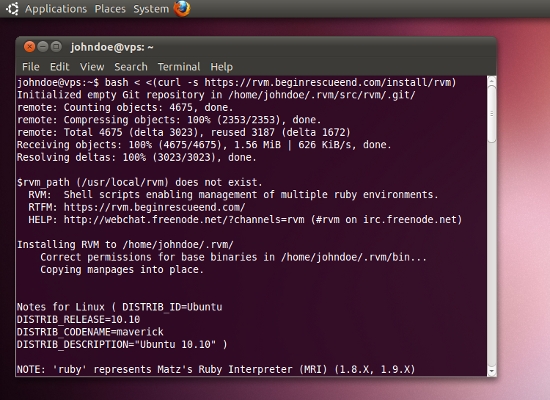
Navigate to the home directory, and edit the user’s bash profile. This ensures that the RVM script is loaded every time the corresponding user logs in. To edit the bash profile, we use Nano. Nano is a simple command line text editor, and we will use it again in this tutorial.
$ cd
$ nano .bashrc
Add the following line to the end of the user’s bash profile.
[[ -s "$HOME/.rvm/scripts/rvm" ]] && . "$HOME/.rvm/scripts/rvm"Load the script into the current shell session by reloading the user’s bash profile. This way, the rvm command will be made available.
$ source .bashrcYou can verify whether the RVM script is working by entering the following command:
$ type rvm | head -1If everything is set up correctly, the shell should return that “rvm is a function.” If it doesn’t, please go over to the RVM website and look under “Troubleshooting Your Install” to see how to make it work.
Prepare Your VPS For Ruby And RubyGems
RVM comes with a handy tool for seeing the dependencies needed to compile and install Ruby and RubyGems from source.
$ rvm notesLook at the dependencies listed under the regular version of Ruby, and install these. Some packages might already be installed.
$ sudo apt-get install build-essential bison openssl
libreadline6 libreadline6-dev curl git-core zlib1g zlib1g-dev
libssl-dev libyaml-dev libsqlite3-0 libsqlite3-dev sqlite3
libxml2-dev libxslt-dev autoconf libc6-dev ncurses-dev
Install Ruby And RubyGems Using RVM
On the one hand, we have Ruby. It is “a dynamic, open-source programming language with a focus on simplicity and productivity. It has an elegant syntax that is natural to read and easy to write.”
On the other hand, we have RubyGems. It is “the premier Ruby packaging system. It provides a standard format for distributing Ruby programs and libraries, an easy to use tool for managing the installation of Gem packages, a Gem server utility for serving Gems from any machine where RubyGems is installed, and a standard way of publishing Gem packages.”
Like the RVM command described above, there is also a command to see what versions of Ruby are available to install using RVM. Have a look at the available Ruby versions.
$ rvm list knownInstall a regular version of Ruby. Because Ruby gets compiled from source, this might take a while.
$ rvm install 1.9.2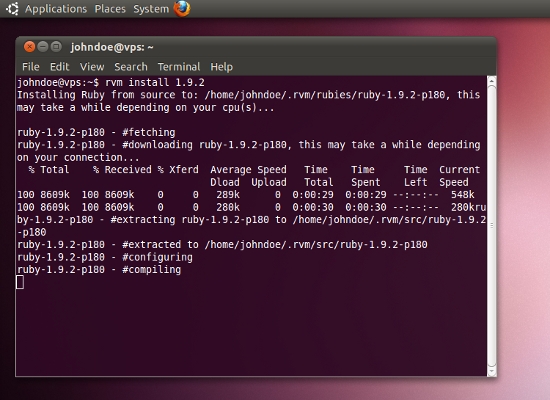
Start using the installed Ruby, and set this version as the default.
$ rvm --default use 1.9.2Check the Ruby and RubyGems versions to see whether they have been properly installed.
$ ruby -v
$ gem -v
If necessary, manually updating RubyGems and the Gems is possible.
$ gem update --system
$ gem update
Install Rails Using RubyGems
Rails Gem itself is the only thing left to put on Ruby on Rails. Installing this is one of the easiest parts of this tutorial. It is installed using RubyGems, invoked by the gem command. When the installation finishes, check the Rails version to see whether Rails has been properly installed.
$ gem install rails
$ rails -v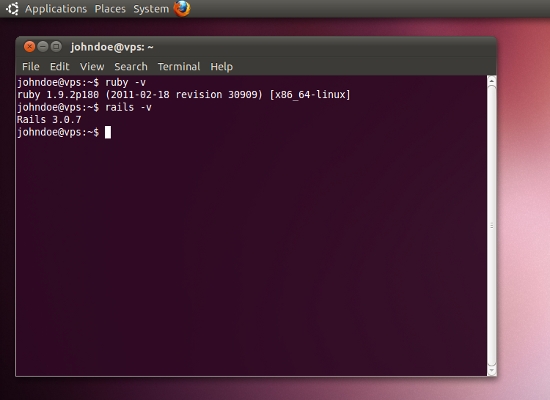
Install Passenger Using RubyGems
Phusion Passenger “makes deployment of Ruby Web applications, such as those built on the revolutionary Ruby on Rails Web framework, a breeze.” It is a module for running Ruby on Rails applications in conjunction with a Web server such as Nginx.
You can install Passenger using RubyGems and then check the Passenger version to see whether Passenger has been properly installed.
$ gem install passenger
$ passenger -v
Install Nginx, And Configure The Passenger Module
Nginx, pronounced “engine x”, is “an HTTP and reverse proxy server, as well as a mail proxy server.” To put it simply, it is a versatile Web server that is low on resources.
In order to let Passenger install Nginx, you need to install a dependency first.
$ sudo apt-get install libcurl4-openssl-devYou can start installing Nginx and configuring the Passenger module by using the following command. Notice that we use rvmsudo instead of sudo, because the regular sudo does not work on this little program.
$ rvmsudo passenger-install-nginx-moduleThe program will check the dependencies first and then ask whether you want the program to download the Nginx source code or to download it yourself. Choose option 1 (have the program download the Nginx source code for you), and hit “Enter.” You can leave everything in the default settings, so just make your way through the installation process.
In the end, you will be presented with two screens. The first shows how to configure Nginx to work with Passenger; this was already done by the program. The second shows how to configure Nginx to deploy an application. We will come back to this example later in the tutorial.
You could start Nginx by hand…
$ sudo /opt/nginx/sbin/nginx… but using a start-up script is preferable. (Because Nginx gets compiled from source, it does not come with a start-up script.) With a start-up script, we can not only start Nginx, but also stop, reload and restart it. In addition, Nginx will be started automatically if the VPS reboots unexpectedly. Therefore, we need to download a little start-up script for Nginx to the home directory using Wget. Wget is a simple command line program that enables us to download files from the Internet. You do not need to understand the rest of the commands. They simply move the script to the right location, make it executable and make sure that Nginx starts when the system boots.
$ cd
$ wget https://smashingmagazine.com/files/nginx
$ sudo mv nginx /etc/init.d/nginx
$ sudo chmod +x /etc/init.d/nginx
$ sudo /usr/sbin/update-rc.d -f nginx defaults
From now on, the following commands can be used to start, stop, reload and restart Nginx.
$ sudo /etc/init.d/nginx start
$ sudo /etc/init.d/nginx stop
$ sudo /etc/init.d/nginx reload
$ sudo /etc/init.d/nginx restart
Install PostgreSQL
PostgreSQL is “a sophisticated object-relational DBMS, supporting almost all SQL constructs, including subselects, transactions and user-defined types and functions.”
Install PostgreSQL together with a dependency. This dependency will be needed to install the “pg” Gem later on, which is responsible for the connection between PostgreSQL and Ruby on Rails.
$ sudo apt-get install postgresql libpq-devConfigure PostgreSQL
When the packages have been installed, move on to configuring PostgreSQL by securing psql. psql is the PostgreSQL interactive terminal, and it is used for administrative database tasks.
By default, you do not need a password to log into psql. We’ll change this by editing the authentication method and then reloading the PostgreSQL configuration. But first, assign a password to superuser “postgres”. Log into psql, assign a safe password to “postgres,” and then log out of psql.
$ sudo -u postgres psql
# password postgres
# q
Now change the authentication configuration by changing ident to md5. This ensures that a password is needed to log into psql and that the password is encrypted. The two relevant lines, which need to be edited, can be found near the end of the configuration file. After that, reload the changed configuration into PostgreSQL.
$ sudo nano /etc/postgresql/8.4/main/pg_hba.conf
$ sudo /etc/init.d/postgresql reload
Most other PostgreSQL settings are stored in another configuration file. These settings can also be optimized, but that is beyond the scope of this tutorial. Keep in mind that the PostgreSQL configuration needs to be reloaded in order for the changes to take effect.
$ sudo nano /etc/postgresql/8.4/main/postgresql.confThe VPS is now installed. You can log out.
$ logoutTesting The VPS
To make sure everything works, we’ll develop a very small application on the local development machine and deploy it to the VPS using Capistrano. This process consists of the following steps:
- Open two terminal windows, one for the local development machine and one for the VPS.
- Log into the VPS using SSH (VPS).
- Create a database user for the test application (VPS).
- Create a database for the test application (VPS).
- Create a test application using PostgreSQL as the database (local).
- Configure the database connections for the test application (local).
- Generate a simple scaffold for the test application (local).
- Initialize Git as version control for the test application (local).
- Add all the files of the test application to the Git version control list (local).
- Take a version snapshot of the current application using Git (local).
- Initialize Capistrano as a deployment tool for the test application (local).
- Remove the default Capistrano deployment configuration file, and create a new one (local).
- Set up the VPS to deploy the test application using Capistrano (local).
- Check the VPS set-up for deploying the test application using Capistrano (local).
- Deploy the test application with Capistrano (local).
- Edit the Nginx configuration to work with the test application (VPS).
- Reload Nginx (VPS).
- Check the test application in a Web browser (local).
Once we have verified that everything works, we’ll go through the following steps:
- Delete the database for the test application (VPS).
- Delete the database user for the test application (VPS).
- Restore the default Nginx configuration (VPS).
- Reload Nginx (VPS).
- Remove the test application (VPS).
- Log out of the VPS (VPS).
- Remove the test application (local).
- Close both terminal windows.
Unlike part 1 of this tutorial, some of these steps have to be performed on the local development machine, and other steps have to be performed on the VPS. Therefore, we will open two terminal windows on our local development machine: one for the local development machine itself, and one with a connection to the VPS. The conventions used to test the VPS are shown below in Box 2.1. The database user name and the database name are derived from the name of the application.
Box 2.1 Name of the application:test_appName of the VPS database user:test_appPassword of the VPS database user:bananaName of the VPS database:test_app_productionName of the VPS system user:johndoeVPS IP address:123.456.7.890
Now open two terminal windows, one for the local development machine and one for the VPS. Log into the VPS using SSH:
$ ssh johndoe@123.456.7.890 (VPS)When applications are deployed to a (publicly accessible) VPS, creating a new database user for every single application is good practice. This way, you will prevent multiple applications from viewing, inserting, editing and deleting data from and to each other’s databases, and thus increase security.
Let’s create a database user for the test application using the createuser command. We are using “postgres” as administrator (or superuser) for PostgreSQL. The P flag enables us to provide a password. The > sign stands for the questions that will be prompted.
$ sudo -u postgres createuser -P (VPS)
> Enter name of role to add: test_app
> Enter password for new role: banana
> Enter it again: banana
> Shall the new role be a superuser? (y/n) n
> Shall the new role be allowed to create databases? (y/n) n
> Shall the new role be allowed to create more new roles? (y/n) n
> Password: your-postgres-user-password
Then, create a database for the test application that is owned by the test application user. While you can use Rake to create a database, we will use PostgreSQL so that we can learn some basic PostgreSQL administration.
You can create a new database by invoking the createdb command in conjunction with the O flag, the database user name and the new database name itself. The production that we append to the end of the database name is the default name. Here, you will be prompted for the PostgreSQL superuser password again.
$ sudo -u postgres createdb -O test_app test_app_production (VPS)
> Password: your-postgres-user-password
Now that the database has been set up, it is time to create the actual Ruby on Rails application on your local development machine.
Navigate to your home directory, and create a new Rails application, named test_app and using PostgreSQL as the database back end. The d flag enables you to specify your preferred database software.
$ cd (LOCAL)
$ rails new test_app -d postgresql (LOCAL)
Go into the Rails application directory. Use Nano to edit the database configuration file by adding banana as a password in the production database configuration. Because we have followed the conventions described in Box 2.1, the database user name and the database name have already been taken care of.
$ cd test_app (LOCAL)
$ nano config/database.yml (LOCAL)
Now, generate a basic scaffold. Programming in Rails is beyond the scope of this tutorial, but this command will create a “User” model and a “users” controller. The inputs will consist of a name and an email address, which are both strings in the PostgreSQL database.
$ rails generate scaffold User name:string email:string (LOCAL)Remember when we set up Git in part 1 of this tutorial? Now we’re finally going to use it. We will initialize Git as version control for the test application, add all of the files from the test application to the Git version control list (recursively), and take a version snapshot of the current application using Git. The m flag lets us add a short description of the snapshot.
$ git init (LOCAL)
$ git add . (LOCAL)
$ git commit -m “First commit” (LOCAL)
By now, it is time to deploy the application to the VPS, which we will do using Capistrano.
Initialize Capistrano as a deployment tool for the test application. This will create several files in your Ruby on Rails application directory. Remove the default Capistrano deployment configuration file, and create a new one. The contents of the new Capistrano configuration file can be found in Box 2.2 below.
$ capify . (LOCAL)
$ rm config/deploy.rb (LOCAL)
$ nano config/deploy.rb (LOCAL)
Box 2.2# RVM $:.unshift(File.expand_path('./lib', ENV['rvm_path'])) require "rvm/capistrano" set :rvm_ruby_string, 'default' set :rvm_type, :user # Bundler require "bundler/capistrano" # General set :application, "test_app" set :user, "johndoe" set :deploy_to, "/home/#{user}/#{application}" set :deploy_via, :copy set :use_sudo, false # Git set :scm, :git set :repository, "~/#{application}/.git" set :branch, "master" # VPS role :web, "123.456.7.890" role :app, "123.456.7.890" role :db, "123.456.7.890", :primary => true role :db, "123.456.7.890" # Passenger namespace :deploy do task :start do ; end task :stop do ; end task :restart, :roles => :app, :except => { :no_release => true } do run "#{try_sudo} touch #{File.join(current_path,'tmp','restart.txt')}" end end
Use the cap command to set up the VPS in order to deploy the test application using Capistrano. This will set up some directory structures on your VPS.
When using the cap command, you will need to provide a password when prompted. This is the password of the VPS user that you created at the very beginning of this tutorial. Check the VPS set-up for deploying the test application using Capistrano, and finally, deploy the test application.
Executing the last command might take a while because it installs the required Gems on the VPS and takes care of the database migrations (if there are any). Here you really see the benefit of Capistrano, because it automates tasks such as uploading the latest version of your application, installing the required Gems and performing the database migrations.
$ cap deploy:setup (LOCAL)
$ cap deploy:check (LOCAL)
$ cap deploy:cold (LOCAL)
The last thing to do is tell Nginx where the Ruby on Rails test application is located. So, we need to edit the Nginx configuration file.
An example of the changes you have to make to that file are shown in Box 2.3 below. Only an excerpt of the relevant lines is printed here. Make sure to comment out the last four lines of the excerpt using #. Once you have made the changes, reload the new configuration into Nginx.
$ sudo nano /opt/nginx/conf/nginx.conf (VPS)
$ sudo /etc/init.d/nginx reload (VPS)
Box 2.3 (…)(…)server { listen 80; server_name www.yourdomain.com; root /home/johndoe/test_app/current/public; passenger_enabled on; #charset koi8-r; #access_log logs/host.access.log main; #location / { # root html; # index index.html index.htm; #}
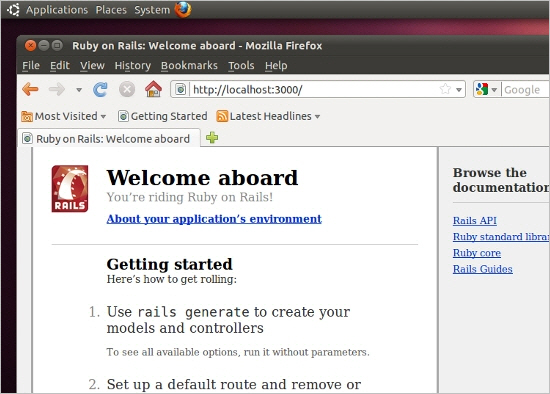
When the deployment and Nginx configuration are done, check the application in a Web browser. Navigate to https://your-vps-ip-address/. The link to the application’s environment will not work in production mode.
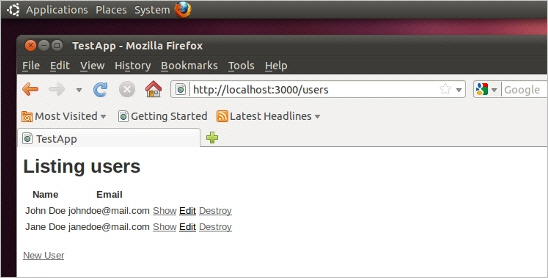
After that, look at https://your-vps-ip-address/users. Create, edit, view and delete some users:
If everything has worked, then the test application database and the test application database user can be removed. The dropdb command removes a PostgreSQL database.
$ sudo -u postgres dropdb test_app_production (VPS)
> Password: your-postgres-user-password
The dropuser command removes a PostgreSQL user.
$ sudo -u postgres dropuser (VPS)
> Enter name of role to drop: test_app
> Password: your-postgres-user-password
Restore the Nginx configuration by copying an example of the (default) Nginx configuration file, overwriting the modified one, and then reload Nginx.
$ sudo cp /opt/nginx/conf/nginx.conf.default /opt/nginx/conf/nginx.conf (VPS)
$ sudo /etc/init.d/nginx reload (VPS)
When that is done, navigate to your home directory on the VPS, and recursively remove the test application.
$ cd (VPS)
$ rm -rf test_app (VPS)
Finally, log out of the VPS.
$ logout (VPS)For the local development machine, we also need to navigate to the home directory and recursively remove the test application. When all of the commands below are entered, you can close both terminal windows. This leaves you with a fresh VPS and local development machine ready for developing and deploying Ruby on Rails applications.
$ cd (LOCAL)
$ rm -rf test_app (LOCAL)
Appendix
Linux Command Line Glossary
The Linux commands used in this tutorial are described here. The list is in alphabetical order and features only the relevant Linux commands. A Linux command usually takes the form of command -option(s) argument(s). For example, rm -r test_app. For a more detailed description, use the manual, which can be accessed using man [command].
sudo [command]Executes a command as an administrative user.adduser [username]Adds a user to the system.adduser [username] [groupname]Adds a user to a specific group.apt-get dist-upgradeIn addition to performing upgrades, this is used to intelligently handle dependencies.apt-get install [package]Installs (or upgrades) packages.apt-get updateResynchronize the package index files from their sources.apt-get upgradeInstalls the newest versions of all packages currently installed.bash < <( curl [location] )A combination of commands used to both obtain and execute a script (from the Internet).cd [location]Changes the current working directory. Without an argument, it goes to the user’s home.cp [file] [location]Copies a file to the specified location (overwriting the existing file silently).chmod +x [file]Makes a file exexutable.logoutLogs out of a shell or SSH session.mv [file] [location]Moves a file to another location.nano [file]Used to edit configuration files.rebootReboots the system.rm [file]Removes a file.rm -rf [directory]Removes a directory (recursively and forced, so it will not prompt).source [script]Forces bash to read the specified script.ssh [username@ipaddress]Logs into a secure shell session.type [command]Displays the kind of command that the shell will execute.wget [location]Obtains a file from the Internet.
Resources
Further Learning
- The Linux Command Line
- The Linux Command Line Book
- Ubuntu Server Guide
- Ruby on Rails Guides
- Ruby on Rails Tutorial
- Ruby on Rails Tutorial Book
- Git Community Book
- Pro Git
- Git Reference
Further Reading
- How To Get Started With Ruby
- Get Started Writing iOS Apps With RubyMotion
- A Guide To Starting Your Own Rails Engine Gem
- How To Set Up An Ubuntu Local Machine For Ruby On Rails
 (al, kw, mrn)