Responsive Web Design: What It Is and How To Use It
Almost every new client these days wants a mobile version of their website. It’s practically essential after all: one design for the BlackBerry, another for the iPhone, the iPad, netbook, Kindle — and all screen resolutions must be compatible, too. In the next five years, we’ll likely need to design for a number of additional inventions. When will the madness stop? It won’t, of course.
In the field of Web design and development, we’re quickly getting to the point of being unable to keep up with the endless new resolutions and devices. For many websites, creating a website version for each resolution and new device would be impossible, or at least impractical. Should we just suffer the consequences of losing visitors from one device, for the benefit of gaining visitors from another? Or is there another option?
Responsive Web design is the approach that suggests that design and development should respond to the user’s behavior and environment based on screen size, platform and orientation. The practice consists of a mix of flexible grids and layouts, images and an intelligent use of CSS media queries. As the user switches from their laptop to iPad, the website should automatically switch to accommodate for resolution, image size and scripting abilities. In other words, the website should have the technology to automatically respond to the user’s preferences. This would eliminate the need for a different design and development phase for each new gadget on the market.
The Concept Of Responsive Web Design
Ethan Marcotte wrote an introductory article about the approach, “Responsive Web Design,” for A List Apart. It stems from the notion of responsive architectural design, whereby a room or space automatically adjusts to the number and flow of people within it:
“Recently, an emergent discipline called “responsive architecture” has begun asking how physical spaces can respond to the presence of people passing through them. Through a combination of embedded robotics and tensile materials, architects are experimenting with art installations and wall structures that bend, flex, and expand as crowds approach them. Motion sensors can be paired with climate control systems to adjust a room’s temperature and ambient lighting as it fills with people. Companies have already produced “smart glass technology” that can automatically become opaque when a room’s occupants reach a certain density threshold, giving them an additional layer of privacy.”
Transplant this discipline onto Web design, and we have a similar yet whole new idea. Why should we create a custom Web design for each group of users; after all, architects don’t design a building for each group size and type that passes through it? Like responsive architecture, Web design should automatically adjust. It shouldn’t require countless custom-made solutions for each new category of users.
Obviously, we can’t use motion sensors and robotics to accomplish this the way a building would. Responsive Web design requires a more abstract way of thinking. However, some ideas are already being practiced: fluid layouts, media queries and scripts that can reformat Web pages and mark-up effortlessly (or automatically).
But responsive Web design is not only about adjustable screen resolutions and automatically resizable images, but rather about a whole new way of thinking about design. Let’s talk about all of these features, plus additional ideas in the making.
Adjusting Screen Resolution
With more devices come varying screen resolutions, definitions and orientations. New devices with new screen sizes are being developed every day, and each of these devices may be able to handle variations in size, functionality and even color. Some are in landscape, others in portrait, still others even completely square. As we know from the rising popularity of the iPhone, iPad and advanced smartphones, many new devices are able to switch from portrait to landscape at the user’s whim. How is one to design for these situations?
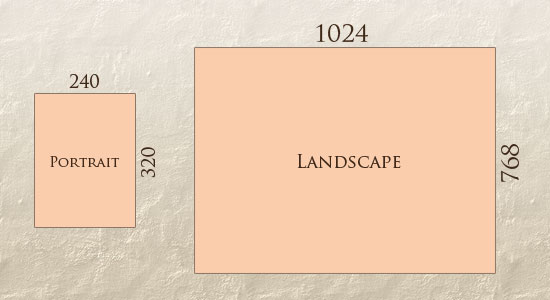
In addition to designing for both landscape and portrait (and enabling those orientations to possibly switch in an instant upon page load), we must consider the hundreds of different screen sizes. Yes, it is possible to group them into major categories, design for each of them, and make each design as flexible as necessary. But that can be overwhelming, and who knows what the usage figures will be in five years? Besides, many users do not maximize their browsers, which itself leaves far too much room for variety among screen sizes.
Morten Hjerde and a few of his colleagues identified statistics on about 400 devices sold between 2005 and 2008. Below are some of the most common:
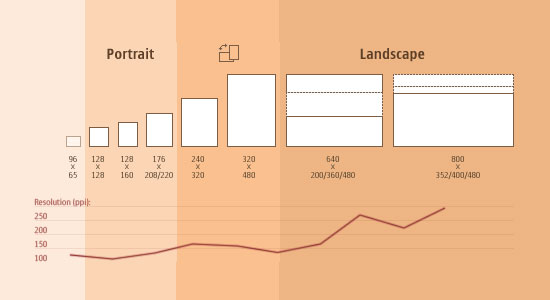
Since then even more devices have come out. It’s obvious that we can’t keep creating custom solutions for each one. So, how do we deal with the situation?
Part of the Solution: Flexible Everything
A few years ago, when flexible layouts were almost a “luxury” for websites, the only things that were flexible in a design were the layout columns (structural elements) and the text. Images could easily break layouts, and even flexible structural elements broke a layout’s form when pushed enough. Flexible designs weren’t really that flexible; they could give or take a few hundred pixels, but they often couldn’t adjust from a large computer screen to a netbook.
Now we can make things more flexible. Images can be automatically adjusted, and we have workarounds so that layouts never break (although they may become squished and illegible in the process). While it’s not a complete fix, the solution gives us far more options. It’s perfect for devices that switch from portrait orientation to landscape in an instant or for when users switch from a large computer screen to an iPad.
In Ethan Marcotte’s article, he created a sample Web design that features this better flexible layout:
The entire design is a lovely mix of fluid grids, fluid images and smart mark-up where needed. Creating fluid grids is fairly common practice, and there are a number of techniques for creating fluid images:
- Hiding and Revealing Portions of Images
- Creating Sliding Composite Images
- Foreground Images That Scale With the Layout
For more information on creating fluid websites, be sure to look at the book “Flexible Web Design: Creating Liquid and Elastic Layouts with CSS” by Zoe Mickley Gillenwater, and download the sample chapter “Creating Flexible Images.” In addition, Zoe provides the following extensive list of tutorials, resources, inspiration and best practices on creating flexible grids and layouts: “Essential Resources for Creating Liquid and Elastic Layouts.”
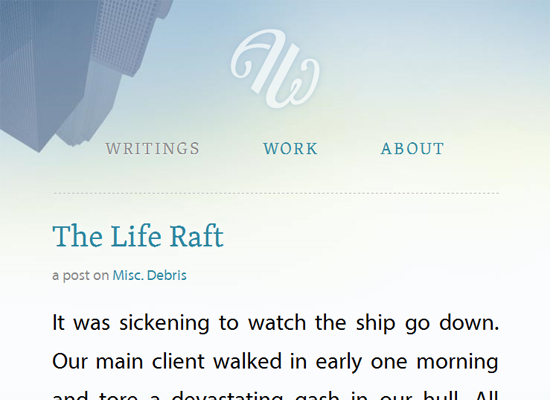
While from a technical perspective this is all easily possible, it’s not just about plugging these features in and being done. Look at the logo in this design, for example:

If resized too small, the image would appear to be of low quality, but keeping the name of the website visible and not cropping it off was important. So, the image is divided into two: one (of the illustration) set as a background, to be cropped and to maintain its size, and the other (of the name) resized proportionally.
<h1 id="logo"><a href="#"><img src="site/logo.png" alt="The Baker Street Inquirer" /></a></h1>
Above, the h1 element holds the illustration as a background, and the image is aligned according to the container’s background (the heading).
This is just one example of the kind of thinking that makes responsive Web design truly effective. But even with smart fixes like this, a layout can become too narrow or short to look right. In the logo example above (although it works), the ideal situation would be to not crop half of the illustration or to keep the logo from being so small that it becomes illegible and “floats” up.
Flexible Images
One major problem that needs to be solved with responsive Web design is working with images. There are a number of techniques to resize images proportionately, and many are easily done. The most popular option, noted in Ethan Marcotte’s article on fluid images but first experimented with by Richard Rutter, is to use CSS’s max-width for an easy fix.
img { max-width: 100%; }
As long as no other width-based image styles override this rule, every image will load in its original size, unless the viewing area becomes narrower than the image’s original width. The maximum width of the image is set to 100% of the screen or browser width, so when that 100% becomes narrower, so does the image. Essentially, as Jason Grigsby noted, “The idea behind fluid images is that you deliver images at the maximum size they will be used at. You don’t declare the height and width in your code, but instead let the browser resize the images as needed while using CSS to guide their relative size”. It’s a great and simple technique to resize images beautifully.
Note that max-width is not supported in IE, but a good use of width: 100% would solve the problem neatly in an IE-specific style sheet. One more issue is that when an image is resized too small in some older browsers in Windows, the rendering isn’t as clear as it ought to be. There is a JavaScript to fix this issue, though, found in Ethan Marcotte’s article.
While the above is a great quick fix and good start to responsive images, image resolution and download times should be the primary considerations. While resizing an image for mobile devices can be very simple, if the original image size is meant for large devices, it could significantly slow download times and take up space unnecessarily.
Filament Group’s Responsive Images
This technique, presented by the Filament Group, takes this issue into consideration and not only resizes images proportionately, but shrinks image resolution on smaller devices, so very large images don’t waste space unnecessarily on small screens. Check out the demo page here.
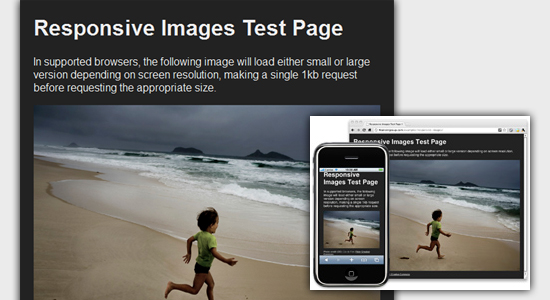
This technique requires a few files, all of which are available on Github. First, a JavaScript file (rwd-images.js), the .htaccess file and an image file (rwd.gif). Then, we can use just a bit of HTML to reference both the larger and smaller resolution images: first, the small image, with an .r prefix to clarify that it should be responsive, and then a reference to the bigger image using data-fullsrc.
<img src="smallRes.jpg" data-fullsrc="largeRes.jpg">
The data-fullsrc is a custom HTML5 attribute, defined in the files linked to above. For any screen that is wider than 480 pixels, the larger-resolution image (largeRes.jpg) will load; smaller screens wouldn’t need to load the bigger image, and so the smaller image (smallRes.jpg) will load.
The JavaScript file inserts a base element that allows the page to separate responsive images from others and redirects them as necessary. When the page loads, all files are rewritten to their original forms, and only the large or small images are loaded as necessary. With other techniques, all higher-resolution images would have had to be downloaded, even if the larger versions would never be used. Particularly for websites with a lot of images, this technique can be a great saver of bandwidth and loading time.
This technique is fully supported in modern browsers, such as IE8+, Safari, Chrome and Opera, as well as mobile devices that use these same browsers (iPad, iPhone, etc.). Older browsers and Firefox degrade nicely and still resize as one would expect of a responsive image, except that both resolutions are downloaded together, so the end benefit of saving space with this technique is void.
Stop iPhone Simulator Image Resizing
One nice thing about the iPhone and iPod Touch is that Web designs automatically rescale to fit the tiny screen. A full-sized design, unless specified otherwise, would just shrink proportionally for the tiny browser, with no need for scrolling or a mobile version. Then, the user could easily zoom in and out as necessary.
There was, however, one issue this simulator created. When responsive Web design took off, many noticed that images were still changing proportionally with the page even if they were specifically made for (or could otherwise fit) the tiny screen. This in turn scaled down text and other elements.
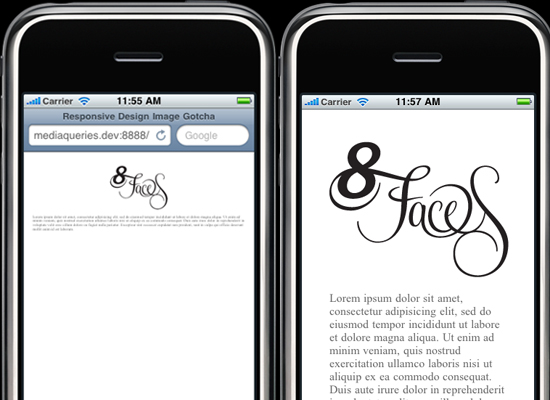
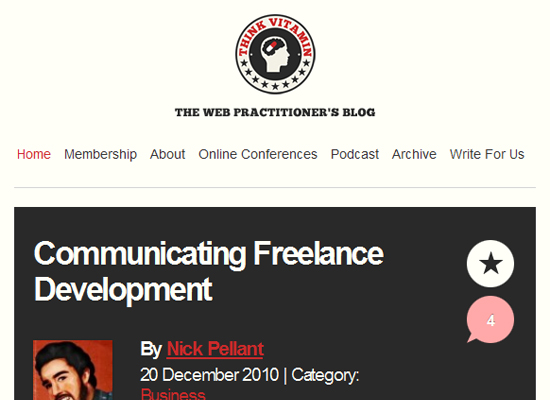
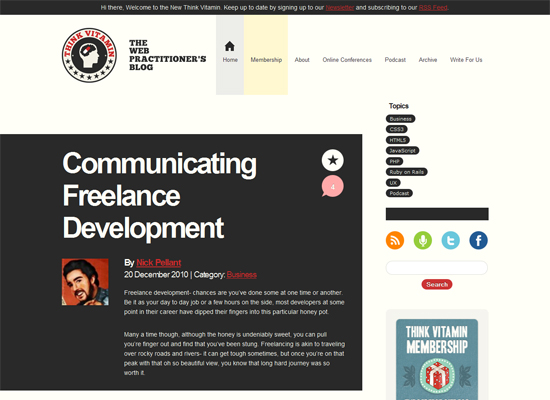
(Image: Think Vitamin | Website referenced: 8 Faces)
Because this works only with Apple’s simulator, we can use an Apple-specific meta tag to fix the problem, placing it below the website’s <head> section. Thanks to Think Vitamin’s article on image resizing, we have the meta tag below:
<meta name="viewport" content="width=device-width; initial-scale=1.0">
Setting the initial-scale to 1 overrides the default to resize images proportionally, while leaving them as is if their width is the same as the device’s width (in either portrait or lanscape mode). Apple’s documentation has a lot more information on the viewport meta tag.
Custom Layout Structure
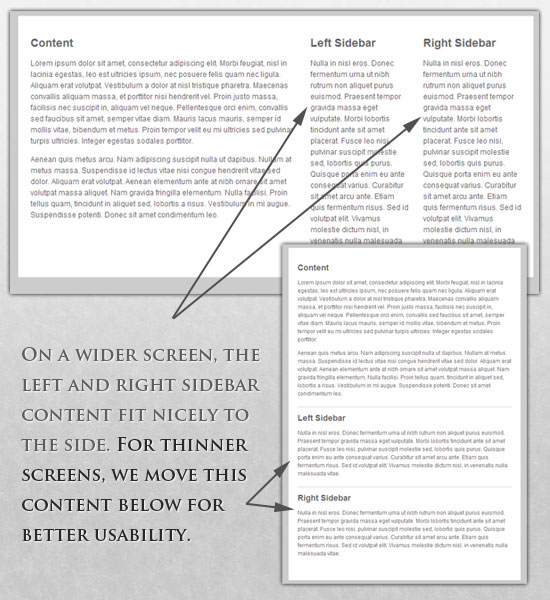
For extreme size changes, we may want to change the layout altogether, either through a separate style sheet or, more efficiently, through a CSS media query. This does not have to be troublesome; most of the styles can remain the same, while specific style sheets can inherit these styles and move elements around with floats, widths, heights and so on.
For example, we could have one main style sheet (which would also be the default) that would define all of the main structural elements, such as #wrapper, #content, #sidebar, #nav, along with colors, backgrounds and typography. Default flexible widths and floats could also be defined.
If a style sheet made the layout too narrow, short, wide or tall, we could then detect that and switch to a new style sheet. This new child style sheet would adopt everything from the default style sheet and then just redefine the layout’s structure.
Here is the style.css (default) content:
/* Default styles that will carry to the child style sheet */
html,body{
background...
font...
color...
}
h1,h2,h3{}
p, blockquote, pre, code, ol, ul{}
/* Structural elements */
#wrapper{
width: 80%;
margin: 0 auto;
background: #fff;
padding: 20px;
}
#content{
width: 54%;
float: left;
margin-right: 3%;
}
#sidebar-left{
width: 20%;
float: left;
margin-right: 3%;
}
#sidebar-right{
width: 20%;
float: left;
}
Here is the mobile.css (child) content:
#wrapper{
width: 90%;
}
#content{
width: 100%;
}
#sidebar-left{
width: 100%;
clear: both;
/* Additional styling for our new layout */
border-top: 1px solid #ccc;
margin-top: 20px;
}
#sidebar-right{
width: 100%;
clear: both;
/* Additional styling for our new layout */
border-top: 1px solid #ccc;
margin-top: 20px;
}

Media Queries
CSS3 supports all of the same media types as CSS 2.1, such as screen, print and handheld, but has added dozens of new media features, including max-width, device-width, orientation and color. New devices made after the release of CSS3 (such as the iPad and Android devices) will definitely support media features. So, calling a media query using CSS3 features to target these devices would work just fine, and it will be ignored if accessed by an older computer browser that does not support CSS3.
In Ethan Marcotte’s article, we see an example of a media query in action:
<link rel="stylesheet" type="text/css"
media="screen and (max-device-width: 480px)"
href="shetland.css" />
This media query is fairly self-explanatory: if the browser displays this page on a screen (rather than print, etc.), and if the width of the screen (not necessarily the viewport) is 480 pixels or less, then load shetland.css.
New CSS3 features also include orientation (portrait vs. landscape), device-width, min-device-width and more. Look at “The Orientation Media Query” for more information on setting and restricting widths based on these media query features.
One can create multiple style sheets, as well as basic layout alterations defined to fit ranges of widths — even for landscape vs. portrait orientations. Be sure to look at the section of Ethan Marcotte’s article entitled “Meet the media query” for more examples and a more thorough explanation.
Multiple media queries can also be dropped right into a single style sheet, which is the most efficient option when used:
/* Smartphones (portrait and landscape) ----------- */
@media only screen
and (min-device-width : 320px)
and (max-device-width : 480px) {
/* Styles */
}
/* Smartphones (landscape) ----------- */
@media only screen
and (min-width : 321px) {
/* Styles */
}
/* Smartphones (portrait) ----------- */
@media only screen
and (max-width : 320px) {
/* Styles */
}
The code above is from a free template for multiple media queries between popular devices by Andy Clark. See the differences between this approach and including different style sheet files in the mark-up as shown in the post “Hardboiled CSS3 Media Queries.”
CSS3 Media Queries
Above are a few examples of how media queries, both from CSS 2.1 and CSS3 could work. Let’s now look at some specific how-to’s for using CSS3 media queries to create responsive Web designs. Many of these uses are relevant today, and all will definitely be usable in the near future.
The min-width and max-width properties do exactly what they suggest. The min-width property sets a minimum browser or screen width that a certain set of styles (or separate style sheet) would apply to. If anything is below this limit, the style sheet link or styles will be ignored. The max-width property does just the opposite. Anything above the maximum browser or screen width specified would not apply to the respective media query.
Note in the examples below that we’re using the syntax for media queries that could be used all in one style sheet. As mentioned above, the most efficient way to use media queries is to place them all in one CSS style sheet, with the rest of the styles for the website. This way, multiple requests don’t have to be made for multiple style sheets.
@media screen and (min-width: 600px) {
.hereIsMyClass {
width: 30%;
float: right;
}
}
The class specified in the media query above (hereIsMyClass) will work only if the browser or screen width is above 600 pixels. In other words, this media query will run only if the minimum width is 600 pixels (therefore, 600 pixels or wider).
@media screen and (max-width: 600px) {
.aClassforSmallScreens {
clear: both;
font-size: 1.3em;
}
}
Now, with the use of max-width, this media query will apply only to browser or screen widths with a maximum width of 600 pixels or narrower.
While the above min-width and max-width can apply to either screen size or browser width, sometimes we’d like a media query that is relevant to device width specifically. This means that even if a browser or other viewing area is minimized to something smaller, the media query would still apply to the size of the actual device. The min-device-width and max-device-width media query properties are great for targeting certain devices with set dimensions, without applying the same styles to other screen sizes in a browser that mimics the device’s size.
@media screen and (max-device-width: 480px) {
.classForiPhoneDisplay {
font-size: 1.2em;
}
}
@media screen and (min-device-width: 768px) {
.minimumiPadWidth {
clear: both;
margin-bottom: 2px solid #ccc;
}
}
There are also other tricks with media queries to target specific devices. Thomas Maier has written two short snippets and explanations for targeting the iPhone and iPad only:
For the iPad specifically, there is also a media query property called orientation. The value can be either landscape (horizontal orientation) or portrait (vertical orientation).
@media screen and (orientation: landscape) {
.iPadLandscape {
width: 30%;
float: right;
}
}
@media screen and (orientation: portrait) {
.iPadPortrait {
clear: both;
}
}
Unfortunately, this property works only on the iPad. When determining the orientation for the iPhone and other devices, the use of max-device-width and min-device-width should do the trick.
There are also many media queries that make sense when combined. For example, the min-width and max-width media queries are combined all the time to set a style specific to a certain range.
@media screen and (min-width: 800px) and (max-width: 1200px) {
.classForaMediumScreen {
background: #cc0000;
width: 30%;
float: right;
}
}
The above code in this media query applies only to screen and browser widths between 800 and 1200 pixels. A good use of this technique is to show certain content or entire sidebars in a layout depending on how much horizontal space is available.
Some designers would also prefer to link to a separate style sheet for certain media queries, which is perfectly fine if the organizational benefits outweigh the efficiency lost. For devices that do not switch orientation or for screens whose browser width cannot be changed manually, using a separate style sheet should be fine.
You might want, for example, to place media queries all in one style sheet (as above) for devices like the iPad. Because such a device can switch from portrait to landscape in an instant, if these two media queries were placed in separate style sheets, the website would have to call each style sheet file every time the user switched orientations. Placing a media query for both the horizontal and vertical orientations of the iPad in the same style sheet file would be far more efficient.
Another example is a flexible design meant for a standard computer screen with a resizable browser. If the browser can be manually resized, placing all variable media queries in one style sheet would be best.
Nevertheless, organization can be key, and a designer may wish to define media queries in a standard HTML link tag:
<link rel="stylesheet" media="screen and (max-width: 600px)" href="small.css" />
<link rel="stylesheet" media="screen and (min-width: 600px)" href="large.css" />
<link rel="stylesheet" media="print" href="print.css" />
JavaScript
Another method that can be used is JavaScript, especially as a back-up to devices that don’t support all of the CSS3 media query options. Fortunately, there is already a pre-made JavaScript library that makes older browsers (IE 5+, Firefox 1+, Safari 2) support CSS3 media queries. If you’re already using these queries, just grab a copy of the library, and include it in the mark-up: css3-mediaqueries.js.
In addition, below is a sample jQuery snippet that detects browser width and changes the style sheet accordingly — if one prefers a more hands-on approach:
<script type="text/javascript" src="http://ajax.googleapis.com/ajax/libs/jquery/1.4.4/jquery.min.js"></script>
<script type="text/javascript">
$(document).ready(function(){
$(window).bind("resize", resizeWindow);
function resizeWindow(e){
var newWindowWidth = $(window).width();
// If width width is below 600px, switch to the mobile stylesheet
if(newWindowWidth < 600){ $("link[rel=stylesheet]").attr({href : "mobile.css"}); } // Else if width is above 600px, switch to the large stylesheet else if(newWindowWidth > 600){
$("link[rel=stylesheet]").attr({href : "style.css"});
}
}
});
</script>
There are many solutions for pairing up JavaScript with CSS media queries. Remember that media queries are not an absolute answer, but rather are fantastic options for responsive Web design when it comes to pure CSS-based solutions. With the addition of JavaScript, we can accomodate far more variations. For detailed information on using JavaScript to mimic or work with media queries, look at “Combining Media Queries and JavaScript.”
Showing or Hiding Content
It is possible to shrink things proportionally and rearrange elements as necessary to make everything fit (reasonably well) as a screen gets smaller. It’s great that that’s possible, but making every piece of content from a large screen available on a smaller screen or mobile device isn’t always the best answer. We have best practices for mobile environments: simpler navigation, more focused content, lists or rows instead of multiple columns.
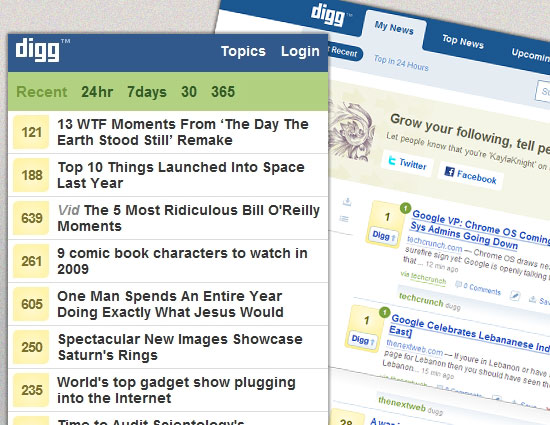
Responsive Web design shouldn’t be just about how to create a flexible layout on a wide range of platforms and screen sizes. It should also be about the user being able to pick and choose content. Fortunately, CSS has been allowing us to show and hide content with ease for years!
display: none;
Either declare display: none for the HTML block element that needs to be hidden in a specific style sheet or detect the browser width and do it through JavaScript. In addition to hiding content on smaller screens, we can also hide content in our default style sheet (for bigger screens) that should be available only in mobile versions or on smaller devices. For example, as we hide major pieces of content, we could replace them with navigation to that content, or with a different navigation structure altogether.
Note that we haven’t used visibility: hidden here; this just hides the content (although it is still there), whereas the display property gets rid of it altogether. For smaller devices, there is no need to keep the mark-up on the page — it just takes up resources and might even cause unnecessary scrolling or break the layout.
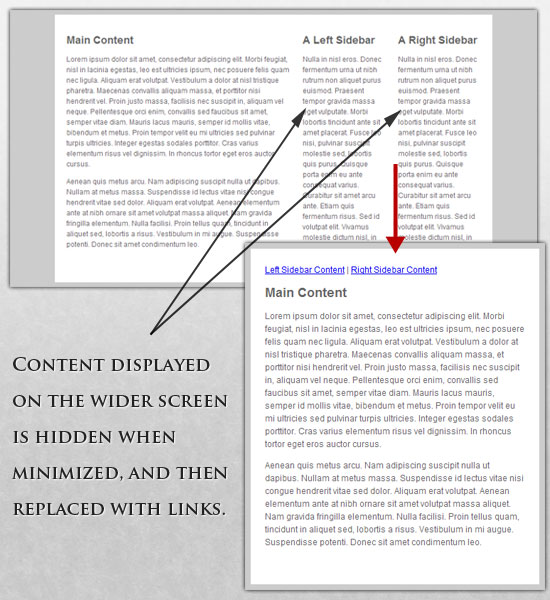
Here is our mark-up:
<p class="sidebar-nav"><a href="#">Left Sidebar Content</a> | <a href="#">Right Sidebar Content</a></p>
<div id="content">
<h2>Main Content</h2>
</div>
<div id="sidebar-left">
<h2>A Left Sidebar</h2>
</div>
<div id="sidebar-right">
<h2>A Right Sidebar</h2>
</div>
In our default style sheet below, we have hidden the links to the sidebar content. Because our screen is large enough, we can display this content on page load.
Here is the style.css (default) content:
#content{
width: 54%;
float: left;
margin-right: 3%;
}
#sidebar-left{
width: 20%;
float: left;
margin-right: 3%;
}
#sidebar-right{
width: 20%;
float: left;
}
.sidebar-nav{display: none;}
Now, we hide the two sidebars (below) and show the links to these pieces of content. As an alternative, the links could call to JavaScript to just cancel out the display: none when clicked, and the sidebars could be realigned in the CSS to float below the content (or in another reasonable way).
Here is the mobile.css (simpler) content:
#content{
width: 100%;
}
#sidebar-left{
display: none;
}
#sidebar-right{
display: none;
}
.sidebar-nav{display: inline;}
With the ability to easily show and hide content, rearrange layout elements and automatically resize images, form elements and more, a design can be transformed to fit a huge variety of screen sizes and device types. As the screen gets smaller, rearrange elements to fit mobile guidelines; for example, use a script or alternate style sheet to increase white space or to replace image navigation sources on mobile devices for better usability (icons would be more beneficial on smaller screens).
Below are a couple of relevant resources:
Touchscreens vs. Cursors
Touchscreens are becoming increasingly popular. Assuming that smaller devices are more likely to be given touchscreen functionality is easy, but don’t be so quick. Right now touchscreens are mainly on smaller devices, but many laptops and desktops on the market also have touchscreen capability. For example, the HP Touchsmart tm2t is a basic touchscreen laptop with traditional keyboard and mouse that can transform into a tablet.

Touchscreens obviously come with different design guidelines than purely cursor-based interaction, and the two have different capabilities as well. Fortunately, making a design work for both doesn’t take a lot of effort. Touchscreens have no capability to display CSS hovers because there is no cursor; once the user touches the screen, they click. So, don’t rely on CSS hovers for link definition; they should be considered an additional feature only for cursor-based devices.
Look at the article “Designing for Touchscreen” for more ideas. Many of the design suggestions in it are best for touchscreens, but they would not necessarily impair cursor-based usability either. For example, sub-navigation on the right side of the page would be more user-friendly for touchscreen users, because most people are right-handed; they would therefore not bump or brush the navigation accidentally when holding the device in their left hand. This would make no difference to cursor users, so we might as well follow the touchscreen design guideline in this instance. Many more guidelines of this kind can be drawn from touchscreen-based usability.
A Showcase Of Responsive Web Design
Below we have a few examples of responsive Web design in practice today. For many of these websites, there is more variation in structure and style than is shown in the pairs of screenshots provided. Many have several solutions for a variety of browsers, and some even adjust elements dynamically in size without the need for specific browser dimensions. Visit each of these, and adjust your browser size or change devices to see them in action.
Art Equals Work
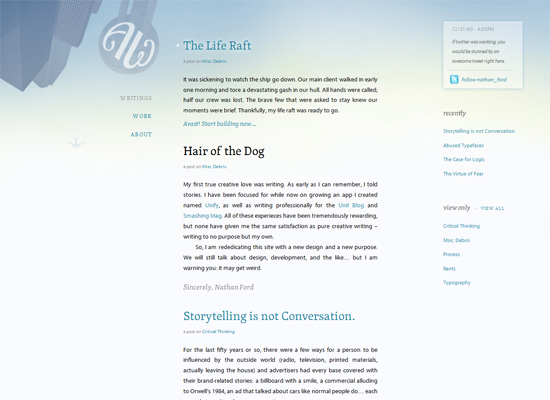
Art Equals Work is a simple yet great example of responsive Web design. The first screenshot below is the view from a standard computer screen dimension. The website is flexible with browser widths by traditional standars, but once the browser gets too narrow or is otherwise switched to a device with a smaller screen, then the layout switches to a more readable and user-friendly format. The sidebar disappears, navigation goes to the top, and text is enlarged for easy and simple vertical reading.
Think Vitamin
With Think Vitamin, we see a similar approach. When on a smaller screen or browser, the sidebar and top bar are removed, the navigation simplifies and moves directly above the content, as does the logo. The logo keeps its general look yet is modified for a more vertical orientation, with the tagline below the main icon. The white space around the content on larger screens is also more spacious and interesting, whereas it is simplified for practical purposes on smaller screens.
8 Faces
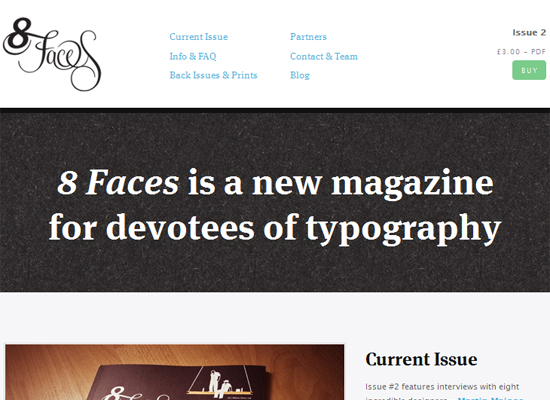
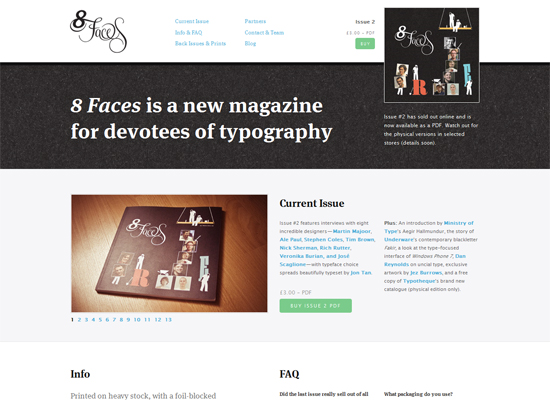
8 Faces’ website design is flexible, right down to a standard netbook or tablet device, and expands in content quantity and layout width when viewed on wider screens or expanded browsers. When viewed on narrower screens, the featured issue on the right is cut out, and the content below is shortened and rearranged in layout, leaving only the essential information.
Hicksdesign
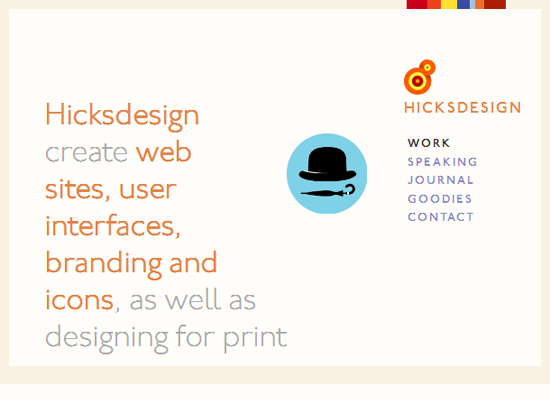
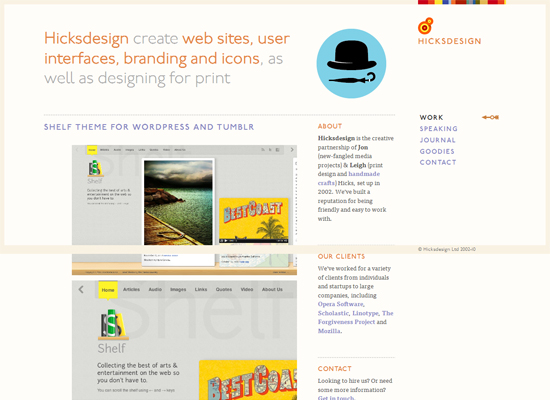
The Hicksdesign website has three columns when viewed on a conventional computer screen with a maximized browser. When minimized in width, the design takes on a new layout: the third column to the right is rearranged above the second, and the logo moves next to the introductory text. Thus, no content needs to be removed for the smaller size. For even narrower screens and browser widths, the side content is removed completely and a simplified version is moved up top. Finally, the font size changes with the screen and browser width; as the browser gets narrower, the font size throughout gets smaller and remains proportional.
Information Architects
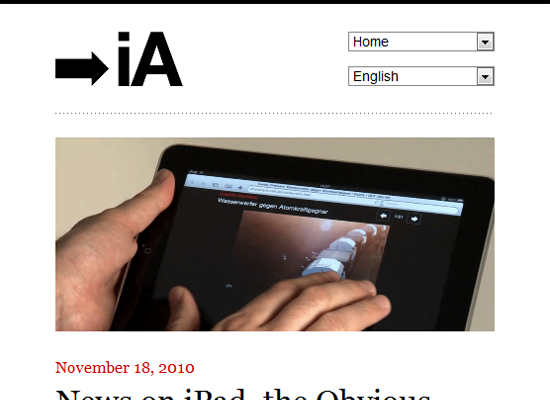
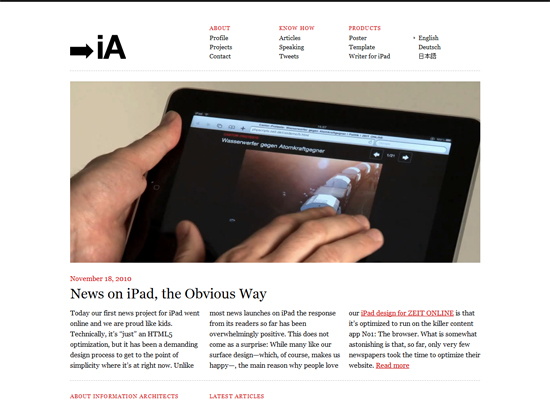
Here is a great example of a flexible image. The image in this design automatically resizes after certain “break” points, but in between those width changes, only the side margins and excess white space are altered. On smaller screens and minimized browsers, the navigation simplifies and the columns of navigation at the top fall off. At the design’s smallest version, the navigation simplifies to just a drop-down menu, perfect for saving space without sacrificing critical navigation links.
Garret Keizer
The website for Garret Keizer is fully flexible in wider browsers and on larger screens: the photo, logo and other images resize proportionally, as do the headings and block areas for text. At a few points, some pieces of text change in font size and get smaller as the screen or browser gets narrower. After a certain break point, the layout transforms into what we see in the second screenshot below, with a simple logo, introductory text and a simple vertical structure for the remaining content.

Simon Collison
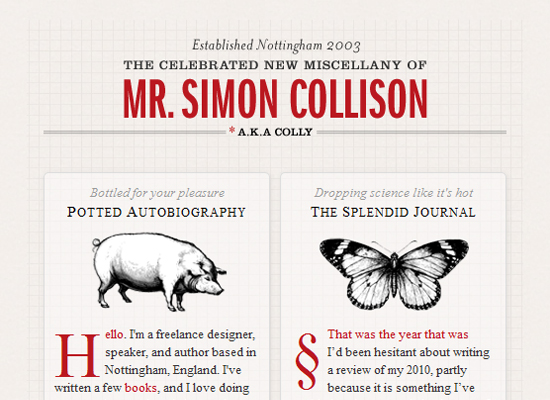
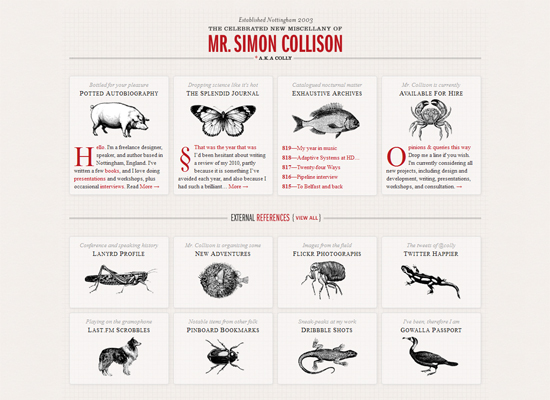
With four relatively content-heavy columns, it’s easy to see how the content here could easily be squished when viewed on smaller devices. Because of the easy organized columns, though, we can also collapse them quite simply when needed, and we can stack them vertically when the space doesn’t allow for a reasonable horizontal span. When the browser is minimized or the user is on a smaller device, the columns first collapse into two and then into one. Likewise, the horizontal lines for break points also change in width, without changing the size or style of each line’s title text.
CSS Tricks
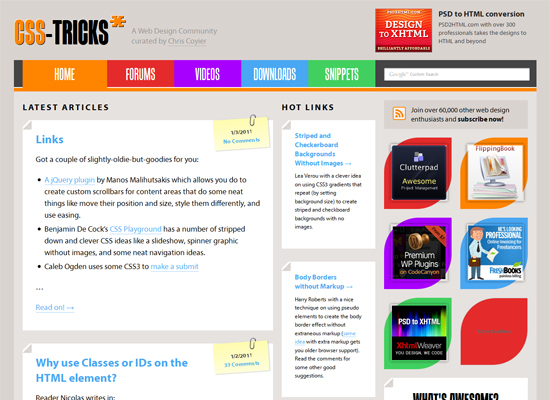
On the CSS Tricks website, like many other collapsible Web designs, the sidebars with excess content are the first to fall off when the screen or browser gets too narrow. On this particular website, the middle column or first sidebar to the left was the first to disappear; and the sidebar with the ads and website extras did the same when the browser got even narrower. Eventually, the design leaves the posts, uses less white space around the navigation and logo and moves the search bar to below the navigation. The remaining layout and design is as flexible as can be because of its simplicity.
Tee Gallery
As one can see, the main navigation here is the simple layout of t-shirt designs, spanning both vertically and horizontally across the screen. As the browser or screen gets smaller, the columns collapse and move below. This happens at each break point when the layout is stressed, but in between the break points, the images just change proportionally in size. This maintains balance in the design, while ensuring that any images (which are essential to the website) don’t get so small that they become unusable.

City Crawlers: Berlin
When varied between larger screen sizes and browser widths, this design remains flexible. It also remains flexible after a few layout pieces collapse into a more vertical orientation for small screens and narrow browsers. At first, the introductory image, logo and navigation image links resize proportionally to accommodate variations in screen and browser widths, as do the blocks of content below. The bottom columns of content eventually collapse and rearrange above or below other pieces, until (at the narrowest point) they are all stacked vertically. In the layout for the smallest screen and narrowest browser, the slideshow is left out altogether, the navigation is moved below the logo and other images are also removed.
Ten by Twenty
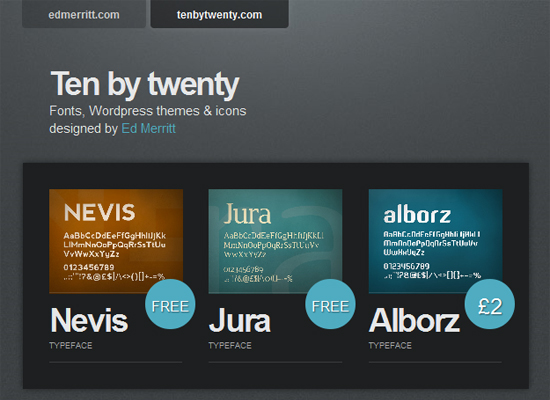
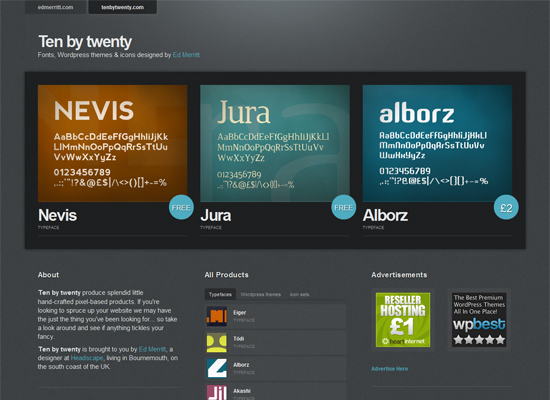
Ten by Twenty is another design that does not resort to changing layout structure at all after certain break points, but rather simplifies responsive Web design by making everything fully flexible and automatically resizing, no matter what the screen or browser width. After a while, the design does stress a bit and could benefit from some rearrangement of content. But overall, the image resizing and flexible content spaces allow for a fairly simple solution that accommodates a wide range of screen sizes.
Hardboiled Web Design
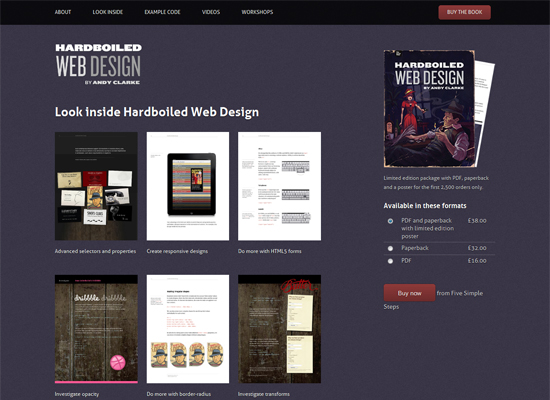
On wide screens and browsers, all of the content on this simply designed website is well organized into columns, sidebar and simple navigation up top. It’s a fairly standard and efficient layout. On smaller screens, the sidebar is the first to drop off, and its content is moved below the book previews and essential information. Being limited in space, this design preserves its important hierarchy. Whereas on a wider screen we’d look left to right, on a narrower screen we’d tend to look from top to bottom. Content on the right is moved below content that would appear on the left on a wider screen. Eventually, when the horizontal space is fully limited, the navigation is simplified and stacked vertically, and some repeated or inessential elements are removed.
Teixido
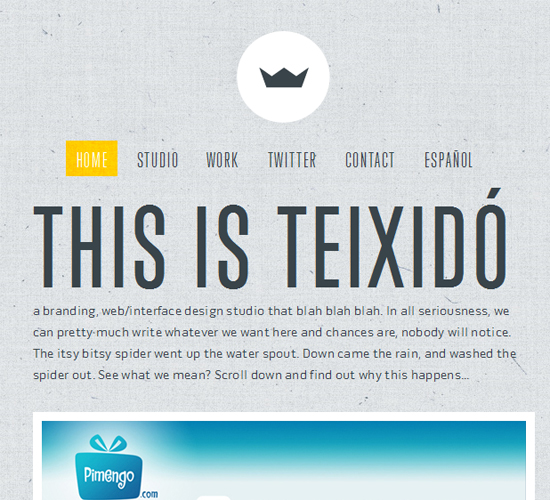
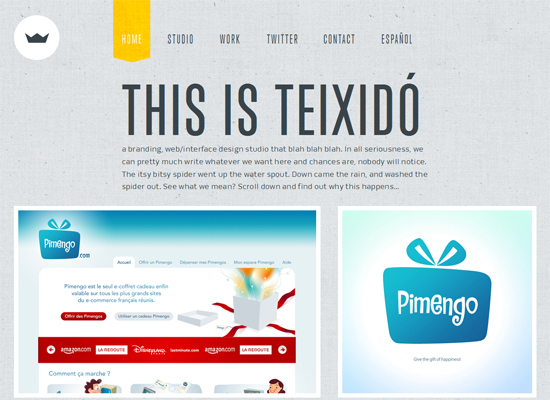
This design features a complex layout that looks inspired by a print style. When viewed on a standard wide computer screen, more portfolio pieces are featured and spanned horizontally across the page. As one moves down the page, more graphics and imagery span the space. On a smaller screen, the portfolio piece is cut down to one, and then eventually left out altogether for very small screens and narrow browsers. The visualizations below collapse into fewer columns and more rows, and again, some drop off entirely for very small screens. This design shows a creative and intelligent way to make a not-so-common layout work responsively.
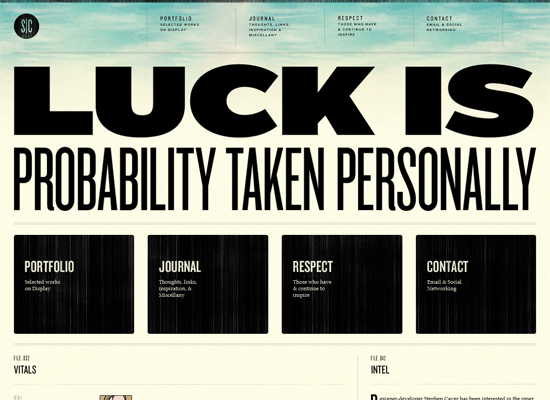
Stephen Caver
This design has three main stages at which the design and layout collapse into a more user-friendly form, depending on how wide the screen or browser is. The main image (featuring type) is scaled proportionally via a flexible image method. Each “layout structure” is fully flexible until it reaches a breaking point, at which point the layout switches to something more usable with less horizontal space. The bottom four columns eventually collapse into two, the logo moves above the navigation, and the columns of navigation below are moved on top or below each other. At the design’s narrowest stage, the navigation is super-simplified, and some inessential content is cut out altogether.
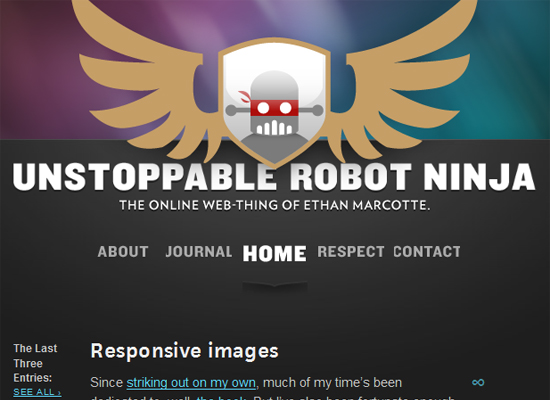
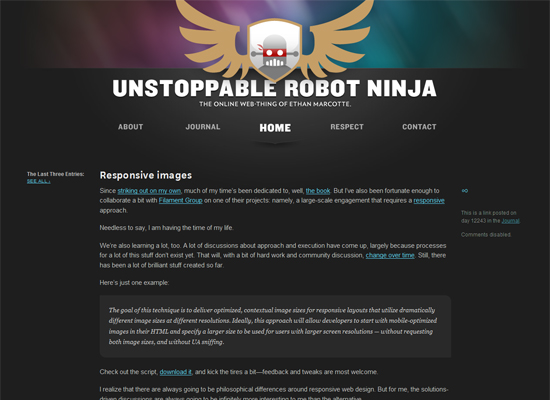
Unstoppable Robot Ninja
This layout does not change at all; no content is dropped or rearranged; and the text size does not change either. Instead, this design keeps its original form, no matter what the change in horizontal and vertical space. Instead, it automatically resizes the header image and the images for the navigation. The white space, margins and padding are also flexible, giving more room as the design expands and shrinks.
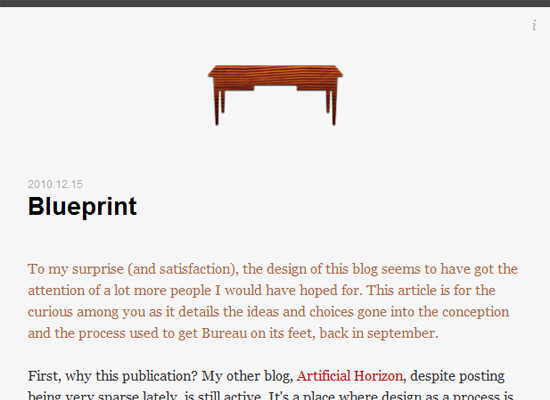
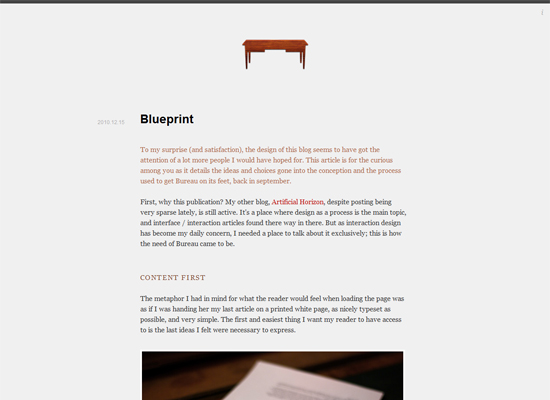
Bureau
This is perhaps the simplest example of a responsive Web design in this showcase, but also one of the most versatile. The only piece in the layout that changes with the browser width is the blog post’s date, which moves above the post’s title or to the side, depending on how much horizontal space is available. Beyond this, the only thing that changes is the width of the content area and the margin space on the left and right. Everything is centered, so a sense of balance is maintained whatever the screen or browser width. Because of this design’s simplicity, switching between browser and screen widths is quick and easy.
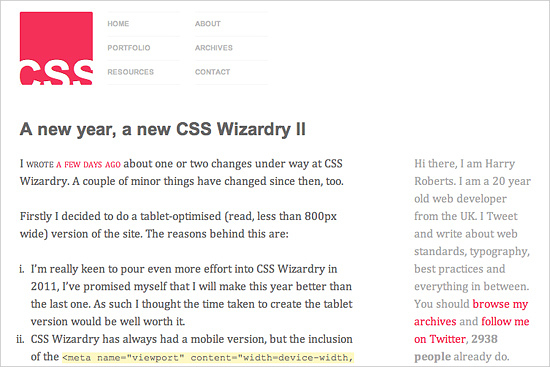
CSS Wizardry
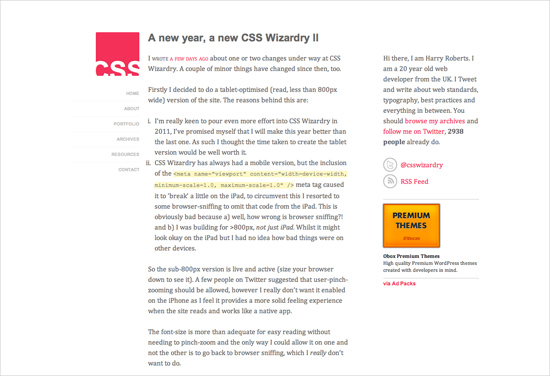
Harry Roberts shows that responsive design can also have quite humble uses. If the user has a large viewport, the website displays three columns with a navigation menu floating on the left. For users with a viewport between 481px and 800px, a narrow version is displayed: the navigation jumps to the top of the site leaving the area for the content column and the sidebar. Finally, the iPhone view displays the sidebar under the content area. Harry also wrote a detailed article about the CSS styles he added to the stylesheet in his article “Media queries, handier than you think“. A nice example of how a couple of simple CSS adjustments can improve the website’s appearance across various devices.
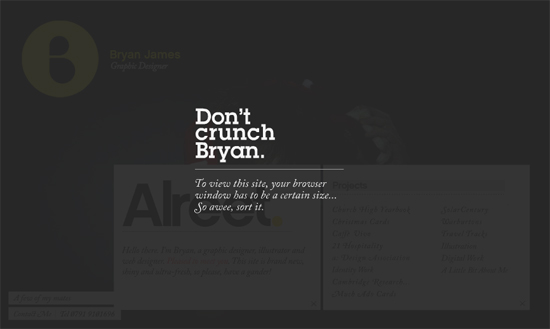
Bryan James
This last design by Bryan James shows that responsive Web design need not apply only to static HTML and CSS websites. Done in Flash, this one features a full-sized background image and is flexible up to a certain width and height. As a result of the design style, on screens that are too small, the background image gets mostly hidden and the content can become illegible and squished. Instead of just letting it be, though, a message pops up informing the user that the screen is too small to adequately view the website. It then prompts the user to switch to a bigger screen. One can discuss if the design solution is good or bad in terms of usability, but the example shows that Flash websites can respond to user’s viewport, too.
Conclusion
We are indeed entering a new age of Web design and development. Far too many options are available now, and there will be far too many in the future to continue adjusting and creating custom solutions for each screen size, device and advancement in technology. We should rather start a new era today: creating websites that are future-ready right now. Understanding how to make a design responsive to the user doesn’t require too much learning, and it can definitely be a lot less stressful and more productive than learning how to design and code properly for every single device available.
Responsive Web design and the techniques discussed above are not the final answer to the ever-changing mobile world. Responsive Web design is a mere concept that when implemented correctly can improve the user experience, but not completely solve it for every user, device and platform. We will need to constantly work with new devices, resolutions and technologies to continually improve the user experience as technology evolves in the coming years.
Besides saving us from frustration, responsive Web design is also best for the user. Every custom solution makes for a better user experience. With responsive Web design, we can create custom solutions for a wider range of users, on a wider range of devices. A website can be tailored as well for someone on an old laptop or device as it can for the vast majority of people on the trendiest gadgets around, and likewise as much for the few users who own the most advanced gadgets now and in the years to come. Responsive Web design creates a great custom experience for everyone. As Web designers, we all strive for that every day on every project anyway, right?
Further Resources
- Responsive Web Design, A List Apart
- CSS Media Query for Mobile is Fool’s Gold, Cloud Four
- Designing for a Responsive Web with Heuristic Methods, Design Reviver
- Examples Of Flexible Layouts With CSS3 Media Queries, Zoe Mickley Gillenwater
- The Big Web Show #9: Responsive Web Design, 5by5 Studios
- How to Use CSS3 Media Queries to Create a Mobile Version of Your Website, Smashing Magazine
- Application: Rapid Prototyping of Adaptive CSS and Responsive Design, ProtoFluid
- Handcrafted CSS: More Bulletproof Web Design, Dan Cederholm (printed book)
- Flexible Web Book, Zoe Mickley Gillenwater (printed book)
(al) (vf)


TSS
January 12th, 2011 7:42 amMost useful this! I think it’s time Smashing Mag went responsive too :-)
Vitaly Friedman (editor-in-chief of Smashing Magazine)
January 12th, 2011 7:44 amWe are going to. The site is being prepared to go responsive over the next couple of days.
TSS
January 13th, 2011 3:02 amLovely, looking forward to unsuccessfully trying to break it :-)
Luke
December 9th, 2011 3:25 pmWell overdue Smashing redesign? Awesome, can’t wait!
Amit
April 19th, 2013 12:25 pmI am a regular reader at smashing mag and its always good to read the great posts they write. Now the experience of reading here is even much better as smashing mag went responsive, an awesome gift by smashing mag. Thanks.
After reading this, I wrote some about responsive web design on my own website here: expertvillagemedia.com/responsive-web-design/
Thanks
Amit
Jian Adornado
January 12th, 2011 7:53 amGreat article! Very helpful most especially these days where we have different screen sizes (tablets, laptops and mobile devices). This is great for usability and user experience.
Christian Schulze
January 12th, 2011 8:00 amWonderful Information, thank you.
But I have one big problem: CSS-Solutions (CSS3 Medie Queries) are simple and beautiful but not the holy grail. On mobile devices bandwidth plays a big role and every non visible div must be loaded in the background. So if I don’t want a sidebar to be shown on mobile, isn’t it better to exclude it on a server side level (PHP) rather than just hiding it out with CSS?
And this makes the whole thing a lot more complex. But it’s the future. Let’s go and explore!
Vladimir Carrer
January 12th, 2011 8:24 amGreat article. About the media queries I proposed “Bulletproof CSS3 media queries” http://www.vcarrer.com/2010/07/bulletproof-css3-media-queries.html pure CSS solution that works for 90% of market browsers and simple JavaScript (just few lines of code) solution for older browsers that doesn’t natively support media queries.
Richard Grey
January 12th, 2011 8:33 amI’ve also created my website in “responsive” style, but I call him “adaptive”. I’ve created different styles for standard and wide screens but not for small. May be after this post and ThinkVitamin videos I’ll complete my css and for this resolutions.
BPM
January 12th, 2011 8:45 amRead Ethan’s brilliant original article at http://www.alistapart.com/articles/responsive-web-design/
This is the greatest article I’ve read in years. Everything I believe in.
Regards, B
James
January 12th, 2011 8:52 amI like these articles about the possibilities of mobile design, but most of these techniques would not work with the bulk of small screen mobile devices on the market. This article basically instructs on how to design for CSS3 capable iPhone/iPad type devices, and designers would be sorely disappointed to attempt these techniques for clients that are, say, BlackBerry based. In my experience most “smart” mobile devices don’t even read media stylesheets. The fact is that while these techniques work on newer devices, separate domains (like m.facebook.com) with mobile specific templates always work and provide a more consistent experience across devices. I’ll echo Mr. Shultze’s comment that doing a separate site also allows you to compress images for faster page loads, and fast loading time is the #1 factor to be considering in mobile design. Designers are the only users who really care about design, everyone else want’s their pages to load fast. Thanks for writing this, and I don’t mean to demean your efforts because the article is very good at showing what is new. I would just like to see some case studies of real world mobile sites instead of a bunch of design for design’s sake blogs and studio sites.
Gustavo
January 12th, 2011 9:13 amI see your point there but theres a tendency in wich mobile devices will have a css friendly browser, your case of blackberry sounds like a good plan for today devices, even new blackberry devices like torch, I guess is named, already have a web-kit based browser and of course is css friendly, is probably where most of mobile devices will head in short time.
Regards.
BPM
January 13th, 2011 7:16 am“Designers are the only users who really care about design, everyone else want’s their pages to load fast.”
Nonsense. Everyone wants good design AND their pages to load fast. I’d say that’s a part OF good design.
BPM
January 13th, 2011 7:55 amThere’s a funny debate going on here about mobile sites versus responsive sites.
I see plenty of reason to do both. My blackberry has the suckiest browser ever. I do appreciate a decent mobile site. (Most mobile versions of sites are a lame afterthought, as many here notice. Not many do a decent job designing the mobile version.)
As for the regular website, the issue remains that there are countless browser window sizes, proportions, zoomed text settings, etc that your site could be viewed at. I just don’t understand how you could NOT address that in some way, be it classic fluid design, or more responsive design.
Fixed width layouts almost always strike me as lazy design. I think most designers, consciously or not, just find out the size of the client’s monitor and accommodate that. You don’t have to deal with explaining all these issues, and avoid all the extra work. Its as easy as designing a print flyer.
But to me the result is like having every TV display the same sized movie. If you buy a 55″ flatscreen, you just get lots of space around your movie. Hey the most common TV size is 27″!
I don’t want to design for print. Print is static and lifeless. To me the coolest part about web design is that it can be interactive and dynamic. You can design something that changes itself to be as ideal as possible for everyone. That is very cool!
Accommodating different monitors is just the beginning too. How does your site PRINT? And what about the mobile version? How is it for vision impared? What does Googlebot see? For Pete’s sake you can design a site that works in multiple languages! There is no end to how far you can go, and what go most designers produce? The bare minimum. A static solution that breaks if you change the type size 20%.
To me all this stuff is ‘design’. Its not the decoration part, at least not primarily.
Regards, B
André R.
January 12th, 2011 8:52 amDid this article just ignore the “Rethinking the Mobile Web” slides?
http://www.slideshare.net/bryanrieger/rethinking-the-mobile-web-by-yiibu
Like pointed out by others media queries only work in a few % of mobile clients, unless your ignorant and just target iphone and android or aim for finishing the site in 2015 you really shouldn’t depend on them for any website that aims to be available to a global mobile audience.
Just think “mobile first” (aka aim for the most basic models and browsers with your first stylesheet and add full fledge desktop/tablet styling for devices that supports it, using media queries + js for IE/older clients)
Andy Reid-McGlinn
January 12th, 2011 8:53 amGreat article, I particularly liked the showcase as I don’t have a smart phone/tablet so only see sites on desktop/laptop.
I’ve been using the ‘Less Framework’ recently, very useful!
http://lessframework.com/
tim callender
January 12th, 2011 8:56 amI read the Marcotte piece when it was originally posted. At first, I expected this article to simply be a rehash, or – horrors! – plagarized. Instead, you expand and discuss so much more than Marcotte had. It’s perfect for someone like me who needs more detail in order to learn. Well done, Kayla, and thank you!
Gustavo
January 12th, 2011 9:07 amWoah one of the best articles I’ve read in a long time. Thank you Kayla.
Daniel
January 12th, 2011 9:34 amI was wondering if there are any experiences with embedded videos?
Riccardo
January 12th, 2011 9:49 amThanks, Kayla, for an excellent article. There’s a lot of useful information, ideas, and examples.
Phild
January 12th, 2011 9:50 amThis is an exciting time for web peeps.
I’m hoping to nail these techniques as quick as
possible as this isn’t the ‘future’ – it’s the ‘now’
Chris Robinson
January 12th, 2011 9:59 amGreat post, some really nice example sites as well. Going to be using some of these techniques in one of my upcoming premium WordPress themes.
David Platt
January 12th, 2011 11:07 amInteresting. A few things to note.
It seems to me that most of these sites are STRIPPED of design in order to accommodate different formats. there is a noticeable lack of integration among elements and they seem to be floating without a visual “anchor” (there are exceptions here of course). It seems to me that this move towards flexible sites is a move away from design and towards a content-only conclusion.
Also, these flexible sites remove visual reinforcement cues that are important in a site. In other words, if I see a button on the upper right side and I shrink the browser window, all the elements shift and the button is no longer there. Thus, the user becomes disoriented.
So it goes…
-dp
James
January 12th, 2011 11:38 amOh, I also wanted to add that I thought it was odd that an article about using css and javascript to change the layout of a web page would use digg.com as an example. Digg.com is a great example of using a separate mobile site to change layout and display less content (http://m.digg.com/news vs http://digg.com/news). Sorry but they aren’t using display:none like the text below the image suggests, it’s a completely different layout and css.
Matthew
January 12th, 2011 1:50 pmThanks for sharing this awesome insight!
I will be defiantly using this for my next portfolio. =)
DPC
January 12th, 2011 2:38 pmBrilliant.
Rhett Soveran
January 12th, 2011 3:09 pmGreat article. I would love to Smashing’s thoughts, or perhaps you’ve covered this and I missed it, on plugins like WP-Touch that will auto-load a mobile theme for most mobile browsers. To Kayla’s point, it probably doesn’t solve all the problems, but it seems like a great solution to me without requiring a lot of design/dev knowledge.
Sidenote: If you ever wanted someone to write such an article, I’d be interested. ;)
Vitaly Friedman
January 12th, 2011 3:27 pmJust sent you an e-mail, Rhett.
Jesus Leon
January 12th, 2011 3:21 pmVery interesting and valuable information. It is in deed a work of Web Developers AND Web Designers to work on this. A great layout from the designers with responsive design and usability in mind (as David Platt comments) can help and save a lot of work-time to the developers, and create a better experience to the users.
Thanks for the post!
GerardJota
January 12th, 2011 3:30 pmThe first thing that struck me when I started in web design a couple of years ago was the flexibility of space and the possibilities of creating a design that would fit all screen sizes, and this was before the smartphone and the tablet. Before, the problem was small screens versus big screens and now the problem is still the same.
A designer has always needed to design for all the possible formats. S/he has a brief for a project and the project has to be developed for a flyer, a poster and a catalogue, for example.
This is what designers should do, it’s not about photoshop or html/css or tweeting your breakfast. We have to think about the consequences, it’s what we are taught to do.
Maybe the web needs real designers, not just people who design pretty things.
Tom Pain
January 12th, 2011 4:42 pmI have inadvertently been building a responsive site for the past few months (my portfolio). The content is browser size adaptive via jQuery. I didn’t specifically design it to be device adaptive, rather browser size adaptive as I wanted it to be 100% width (sort of!).
These methods do however pose their own set of problems and pitfalls, accommodating the highest to lowest of resolutions while maintaining a consistent quality is difficult, as is working with various aspect ratios and a wildly varying size of images.
I found this a LOT more time consuming than the 960 system i generally work to but this may just have been my approach.
Brett Jankord
January 12th, 2011 6:19 pmNice article Kayla. I’ve only worked with a few clients that were interested in doing a mobile site. The solution I’ve gone with is to direct the user at the server level based on checking user agents and screen sizes, then sending them to a mobile version. Your article has sparked my interest to look back into other solutions for mobile/tablet websites.
Joey
January 12th, 2011 6:30 pmmake two html templates for each page plus intelligent css.
You can’t do everything good by using the css only.
Just look at what you’ve got in your pocket : is mail for iphone just a little adaptation of mail for OS X ? Of course not.
The main problem with this article is that the examples are very simple websites.
Now try to adapt the NYT with you little CSS tricks…
Making a website mobile implies a lot of work. The number of items per page can’t be the same. The number of links in your pager must change and be easy to pick with one finger. Everything must be adapted.
One more thing : people will ask more things from touch interfaces, because it’s easier to manipulate them with fingers if they’re well made. Just try the Twitter app for iPad, it’s just perfect to use. The desktop version is really poor in comparison, the Mac App is poor in comparison.
But hey, it’s not just some CSS tricks that make it possible. It real hard work.
Meher Ranjan
January 12th, 2011 10:50 pmGood to see this article on Smashing Magazine. Recently I read about responsive web design from different sites. But this is one good place to read about it now.
I experimented this concept on a project and it worked out pretty well also.
I’d be interested if Smashing needs someone to write such a detailed article and provide insights on a topic.
Eivind Uggedal
January 12th, 2011 11:48 pmJust yesterday I released a gallery of sites using responsive web design. Take a look if you need inspiration for your own responsive designs: http://mediaqueri.es
Renato Bello
October 19th, 2012 4:11 amVery interesting and inspirational. Thanks for sharing.
Ben
January 13th, 2011 12:46 amWhile this may be applicable to some designs and great for scaleability – you will have trouble applying this to more complex designs.
James
January 14th, 2011 9:10 am@Ben,
I think you’re on to something here to a certain extent, pretty much all the examples in the article are designers blogs or pretty simplistic layouts which are pretty easy to “make responsive” but I’d like to see more attention given to bigger sites where it’s more than a few basic text and image pages.
I’m thinking things like ecommerce or holiday sites for example which often feature big tables of product sizing/options or flight schedules. I don’t doubt that it can be done and I did enjoy the depth of the article but I’d love to see some different examples if possible :)
J.
Tez
January 13th, 2011 1:03 amIt is an interesting article, but every “mobile” specific site I have visited so far is intensely frustrating and leads me to use my computer instead, or fake my user agent string if that allows access to the “full” site (if possible).
I have an Android device which is capable of Flash, and can zoom in and out of a page layout. I have yet to find a website with a “mobile” layout which is superior and easier to use than a “full” layout.
For example Ebay only supplies low quality images to mobile browers, this is fine in a multi-item display, but after selecting the item you still only have low quality images available, which makes it impossible to assess the quality of the object.
Amazon loses all of its faceting search functionality and you have to navigate several pages to find information such as reviews and comments unlike the full design.
These two major websites border on useless from a mobile device.
Other sites even have page re-direction to a mobile version which (although not necessarily the case, but in my experience) leads to external links failing to work and navigating to data you know exists intensely frustrating.
Further to this even your example websites have major issues. Think Vitamin for example is very bad. It loses functionality on handheld devices. It is not possible to perform a search when the device has a specific resolution. I am quite happy to need to scroll sideways to access a search, if you do not consider the functionality that useful why are you letting it clutter up the design in the first place?
Lucian
January 13th, 2011 7:07 amI agree. Most of times I turn off the mobile version myself so I can preserve original functionality. The Safari from Iphone does a great job at resizing.
Jon Huot
January 13th, 2011 1:15 amInteresting read! We also included responsive web design in our predictions for the main trends in web design and development in 2011: blog.codemyimage.com/what-will-2011-bring-to-web-design
Joram
January 13th, 2011 2:37 amWhile I do understand the need for resizable images and such, wasn’t the whole idea of “full fledged internet on the mobile devices”, being able to actually view the original website in all it’s glory?
I mean, that’s why we can zoom in and out on smartphones and iPad’s and such right? Some countries/providers have data limits, but for most people they’re enough and a very large amount of people (including non-webdesigners/-coders) want to browse the same website that they also visit on their desktop/laptop computer.
Fernando de Sá
January 13th, 2011 4:28 amExcelente artículo, hemos estado trabajando en web’s compatibles con dispositivos móviles y habíamos visto ¡solo algunos! de estos puntos.
Kurt Schlatzer
January 13th, 2011 5:54 amThere is a company that has solved this issue, but unfortunately your commenting rules won’t allow me to share that information.
Tom
January 13th, 2011 6:05 amExcellent article, nice overview of techniques. Thanks!
IE8man
January 13th, 2011 6:43 amEthan Marcotte’s demo web site worked very well but unfortunately on IE8 most of the other examples did not.
Hugo
January 13th, 2011 7:30 amDon’t miss this 2004 experiment.
Chris Nager
January 13th, 2011 8:36 amThis is one of the most inspiring and educational articles I have read on Smashing Magazine. This is an extensive guide/walkthrough for creating responsive sites. Great stuff! Please keep articles like this coming.
wordtoyourtom
January 13th, 2011 8:40 amPeople definitely need to start catching up with this strategy…nice article.
David
January 13th, 2011 9:32 amCreating websites that are future-ready right now! Funny, that’s my slogan.
Barry La Vette
January 13th, 2011 11:30 amGreat article. So much information to digest. I’d love to go to a multi-day seminar on this topic alone.
pguru
January 13th, 2011 12:46 pmloved it …. brief and to the point
alasdair
January 13th, 2011 4:02 pmdisplay: none; is not the answer for mobile. Everything you hide with CSS is still downloaded by the browser. This is not good for those on limited data tariffs.
But it seems the alternative is two separate internets; one for desktop, one for web. Remember the days of one stylesheet for one browser, another for another? We cannot go back there—we’ve only just got out.
Redirecting mobile users to mobile sites is bad for lots of reasons: it’s really annoying as @Tez points out; you can’t share URLs; no incentive is given to browser vendors / phone manufacturers to improve the quality of their rendering engines. So the progressions we’ve been enjoying over the last few years come to an abrupt halt and we all go back to spending two-thirds of our professional lives cross-browser checking. Nah-uh.
This article is two-thirds of the answer, but by advocating hidden data and serving high-res images to mobile devices with just a percentage max-width applied it gives ammunition to the pro-mobile web lobby.
The answer does involve media queries and responsive web design. But it also must involve some server-side detection. It’s as easy as “is the word ‘Sybian’ or ‘Blackberry’ or ‘iPad’ etc in the http_user_agent?” If so, don’t serve the flash object, serve an image instead.
We can’t have two internets. “Mobile developers” are not a different breed—it shouldn’t be a different industry. We need to unite around media queries, but couple it with comprehensive server-side detection to make sure people on limited data tariffs aren’t getting screwed. One web, one site, one standard. Let’s do this!
LA
January 13th, 2011 5:06 pmGreat article. The low vs. high resolution image loading using data-fullsrc is a very neat trick and should always be implemented….especially since the days of unlimited data packages for mobile devices are numbered. We as web developers need to be conscious of this fact and design responsibly.
What Creative
January 14th, 2011 4:23 amGreat article… Thanks a lot for linking to our article on Designing for Touch Screen – appreciate it!
Anthony
January 14th, 2011 7:07 amThis has been an extremely helpful article, and an issue I have noticed more and more recently myself. Even those who are not necessarily “tech-savvy” are using their phones, iPods and iPads to view websites today, and it’s an issue that cannot be ignored as it was in the past. I will most definitely be using this information for my next site!
lhartman
January 14th, 2011 4:30 pmGreat article! Thanks for breaking it down like this!
Maciek
January 15th, 2011 4:32 pmExtremely helpful article, nice overview of modern techniques, Keep up the good work guys :)
Adam
January 16th, 2011 1:04 amAnyone know any responsive web designs that use the 960 Grid System as their base?
Thanks for yet another wonderful article.
Adam
January 16th, 2011 1:27 amAh, found one here:
http://davidturner.name/demos/responsive-web-design-960-grid-style/
Any more out there?
David Turner
January 18th, 2011 12:26 pmHey Adam,
Glad you found my Flexible 960 Grid Demo. It’s pretty much just mixing the 960 CSS Framework in with a selection of @media queries.
It’s nice having the control over things that the 960 Frameworks provide whilst maintaining the flexibility to fit the site to the browser your site is being viewed on.
If you want any help breaking down my code (or even just a look at a less compressed version of the CSS) lemme know and I’ll see what I can do.
Ailin Hernández
January 16th, 2011 8:22 pmAfter reading the article, all I could think was… Is Smashing Magazine really using these Responsive Web Design principles?
Today is the first time, since weeks, I visit Smashing Magazine and found out the site changed its structure and design. Very beautiful colors an structure, but also, one fail. I’m on a 13″ screen MacBook and I had to zoom out to see the ad of the Smashing Book in the background. Was that supposed to be for 17″ screens? Because if it did, you are not thinking of the full user experience for users with small screens.
After all, lets remember it was YOU, writer from Smashing Magazine, the one that wrote that “Responsive Web design is the approach that suggests that design and development should respond to the user’s behavior and environment based on screen size, platform and orientation.”.
So that’s my point regarding the new design.
Now, on the other hand, the article was awesome; the examples, the code, everything!
:)
Kristine Schachinger
January 16th, 2011 9:13 pmGreat article just wish someone at List Apart and here would have done a little more research and not renamed what others have already been advocating. Responsive Design is really a subset of what others have been touting as Universal Design > which is all of this with the inclusion of accessibility at the WCAG AA level.
If you use these principles along with CSS and W3C Semantic HTML + WCAG AA Accessibility standards you can use one code with a set of style sheets to work on any platform.
However, very happy for the addition of these techniques though – Thank you for posting all of this it is a wealth of information.
David Cole
January 17th, 2011 1:35 amThis article is fantastic – probably a better, more well rounded introduction than the original Ethan Marcotte article.
If Smashing readers are looking for some more inspiration, they could do a lot worse than to check out this round up of 30 of the best responsive web designs:
http://www.mayfielddigital.co.uk/blog/web-round-up/best-responsive-web-design-examples-and-resources/
Evan Shajed
January 17th, 2011 1:09 pmSimply awesome … I had gone through few of these tricks before but it was confusing. Really will help a lot for accessibility assurance for web design…
Thanks for this post Kayla.
Evan
seimedia
January 18th, 2011 12:04 pmA great article on the power of fluidity. The downturn in desktop sales necessitates an increase fluid applications for mobile devices.
Sebastian Tissot Dreijer
January 18th, 2011 3:12 pmhttp://maketodayhappy.com
This is another great example.
Marc
January 20th, 2011 11:22 pmA lot of thinking and nice solutions. But anyway: there is not a lot, that I hate more than websites, that do not look like I am used to see them on my computer, when I visit them with my iPad or iPhone. Please, please, please leave them alone!
iPhone and iPad have enough user friendly options to use every website!
We users do not need everything what is possible to make with CSS and HTML!
Come on, give us a break and serve one site with one design. It is really annoying to learn how to use a site every time you are changing the user agent or hardware!
Karin Patterson
January 21st, 2011 4:59 pmThanks Kayla! As I wander through the complexities of new techniques, I REALLY appreciate this very clearly written and well-organized article!
Michael Richard Murphy
January 27th, 2011 8:40 amThanks for the great article Kayla! In addition to all the rest of the great tips, the flexible image section was just what I needed to solve a problem today!
Tej
February 7th, 2011 2:34 amSounds good, but I don’t think applications always need to take up the full available space. Mobile apps are great because they’re focussed on what users are interested in – and the functionality is stripped down to the core important stuff. I just posted about this – http://scaryevilcomputer.com/2011/02/07/one-size-doesnt-fit-all/
Kurt
March 4th, 2011 11:31 amDoes anyone know if anyone is able to apply this to HTML emails?
DanTreasure
May 9th, 2011 5:32 pmHey Kurt,
You might find this article useful: http://www.emailonacid.com/blog/details/C13/media_queries_in_html_emails
Michael
March 10th, 2011 1:29 pmThis is a wonderful article – thanks Kayla. I think I’m more interested in breaking away from the old and tired 960-980 barrier. I want to design pages that look WOW on 1920 without losing the 1024s (and smaller).
Aritz Alvarez
March 14th, 2011 1:30 amNice Article
Zach
April 27th, 2011 12:50 pmGreat Article.
Does anyone know of any sliders/feature-boxes/banners/ that have been developed with this in mind to scale along with the page?
DanTreasure
May 9th, 2011 5:30 pmExcellent article. Just a quick question, is it possible to make line-height responsive?
I’ve tried a couple of times but can never get it to work – as in, the line-height does not adjust when the browser is resized.
Cheers,
Dan
Ryan
July 1st, 2011 1:29 pmAnother nice example of a responsively designed website is the designer/developer job board at http://www.findbacon.com
fahad
July 24th, 2011 1:58 pmthanks for giving us a new dimension to think
Rachel
July 25th, 2011 9:18 amVery good article! I need to get more involved with responsive design – however I have found that only a handful of my clients even consider mobile sites unless I mention them (of course, the second I mention it they want me to do it – go figure). But I’m going to have to switch gears soon and make this a staple in all my designs – this job is a never-ending learning curve! Thank goodness Smashing Magazine is here to help!
Bethany Davidson
August 29th, 2011 9:38 amThanks for the article. This is an excellent perspective on the elements of design!
PaulKreks
September 1st, 2011 10:48 amThere is a comment about here :
http://stackoverflow.com/questions/6844020/way-to-do-content-adaptation-to-mobile
Saurabh Shah
September 6th, 2011 11:52 pmThanks for sharing a post. This is an excellent post.
Daniel Abell
September 7th, 2011 6:36 amGreat Article, have pointed people to it over at a recent blog entry of mine located here http://www.danielabell.co.uk/Site/Blog/Entries/2011/9/2_Contrast_rebellion.html, as wanted to get the word out! Usability over design all the way!
Ricardo
September 23rd, 2011 1:15 pmIt´s time to learn again… terrific article!
Johnny
October 26th, 2011 5:23 amAll of this new new new stuff is hurting my already overloaded brain. After 33 years in the design business, it would be better for me to just hand over the tech part of my design business to a web techie. I’ll design good, solid designs and let them make them “fluid” so I don’t have to fill my head with yet more programming nonsense that will simply be outmoded in another five years. It’s getting impossible to keep up while also keeping clients happy, paying bills, living life and keeping good employees.
——————–
This is going to be my new business model:
Web Design = graphic designer (who already knows the client’s branding and style)
who then hands the design to:
Web Tech = technical web person (who knows nothing of the client’s branding and style but does know technical stuff)
who then makes the design work on multiple devices
———–
To use this article’s author’s example: Think of an architecture firm.
You have interior designers, interior architects and architectural tech people.
I’ve never seen an architectural firm where the guy that’s designing the building is also the guy that figures out where all the electrical and HVAC stuff goes and how much concrete the foundation needs and what kind of insulation the house should have, etc. It would be great to have all that knowledge base, but it’s also quite impractical. Same goes for a graphic designer, we wear enough hats already, don’t expect us to now also become technical gurus. There’s not enough time in the day to handle all these various job functions.
As well, those who know tech usually aren’t that great of designers and vice versa. It’s typical left-brain/right-brain division.
Ah, off to another client meeting to try to explain to them why their website looks like crap on their mobile phone….
dhaval
November 7th, 2011 4:12 amHey Guys !!!!!
http://freecsstemplates.in/
Here you’ll find a number of free JQ-CSS templates I’ve Edited from the Free css templates, all of which are:
Included Jquery Slider
Edited with attractive icons
Released for FREE under the Creative Commons Attribution license
Very lightweight (ie. minimal use of images) and fast loading
Tables-free (ie. no tables used for layout purposes)
W3C standards compliant and valid (XHTML Strict)
Provided with public domain photos, generously provided by PDPhoto.org and Wikimedia Commons
All of my templates are free for any personal or commercial use (provided you follow the license) so you do not have to pay me anything to use them. All I ask is that you link back to my website (see the license for more details). I update my site with new templates regularly so check back for even more free JQ-CSS templates. Have fun :)
Mine Minelli
November 12th, 2011 12:09 pmBrilliant article, to save, study and read it many times.
thanks a lot.
Michael Gersten
November 24th, 2011 8:52 amYUCK.
I just found this article; I came here from the Google Gmail Blog after having issues with the new Gmail layout. Apparently, this is one of the big sources of inspiration for the new Gmail layout.
I have one simple response: This stinks. But not for the reason you are probably thinking.
*** DO NOT CHANGE THE USERS FONT PREFERENCES ***
*** IF YOU THINK YOU NEED TO, THINK TWO MORE TIMES FIRST ***
I saw an amazing idea in here: Make the text bigger on a smaller screen.
I saw an amazing idea in here: Use a different layout for the printer.
To this, I say: Why?
Seriously, Why?
If you have to make the font bigger on a smaller screen, then why did you make it so small in the first place? Why, in fact, did you set font size at all, when each user is expected to set font size as they see fit?
What is special about “print” that it needs to be different than “screen”? If I have a 72 DPI printer (yes, they exist), is it really different than a 72 DPI screen? If I have a 150 DPI screen and a 200 DPI printer, are they effectively identical? If my printer prints in 150 DPI for normal, and 300 DPI for high quality, is it any different in normal than that 150 DPI screen?
If my display changes from 66 DPI to 94 DPI based on my screen settings, can you really say “X pixels is big enough”? Listen to my browser’s settings. I cannot say “14 points”, sadly; I have to say “17 pixels”. Blame firefox for that. Or, blame CSS that sets things in terms of pixels.
Better yet, never use pixels. Never refer to pixel count. *EVER*. At least not without a reference to DPI as well.
Use the user’s font size as a guide. Do Not Assume You Know The End User’s Eye Quality. Do Not Assume You Know The End User’s Screen Quality. If your site is going to override the users preferences, *STOP*.
And if you must, _MUST_ do this, make sure that the end user can easily fetch the CSS that you use. DO NOT PUT IT IN LINE. Put it in a file that the user can access. *STYLISH* is a very nice addon for FireFox (with versions for other browsers now) that lets users change the CSS rules for a website for themselves. Make sure you can let users adjust your site. Make sure that it is easy enough for them — no cryptic (sorry, krip-tick) names to decipher.
Look at that very first example for the Inquirer. Seriously, look at it. What do you see?
(pause here for 30 seconds to let people look)
What I see is a website that arbitrarily assumes it knows user’s spacing preferences.
What browser width do I use? This article even made a reference to people not using a full-screen / maximized browser window. Why not?
Frankly, I have a comfortable reading width. It’s not full screen. But it’s probably not what you think, either.
*** PLEASE LISTEN. PLEASE GET THIS. ***
I’d love to be able to have my browser window at the width that I want.
I cannot.
I constantly find that different sites make different assumptions about how much space to make to borders and spacing and “main text” columns. *AS IF THEY KNOW ME AND MY EYES*.
And here I see that same idea: “As the website designer, you can tell — and are expected to know — how to layout the site on every possible screen for every possible reader, because every reader is the same and [b]only the device changes[/b]“.
That is epic fail. EPIC.
Assume that your typical reader will be 70+ with corresponding eyesight. Still think your layout is good? Should your layout be able to change based on the user?
If you think you need more than one column — if you think you need to control the width of a column — if you think you need to change the layout based on how many pixels wide something is — if you think you need to change the layout based on how many inches something is — if you cannot tell the difference between the two — you are probably doing something wrong.
The idea of saying “For less than full pixel count, use this picture with fewer pixels” is a good idea. But isn’t it better to say “This picture is designed to be x inches” instead of “This picture is designed to be x pixels”? Or do you think that a 300 pixel image should be anywhere from 1 to 4 inches based on the display? Do you really think that how it looks on screen and how it looks on the printer should be different?
And maybe it should. But if so, why? If I have a 7.5 inch wide display, how should your page look at 72 DPI? At 150 DPI? At 300 DPI?
At 72 DPI with 16 pixel fonts? At 150 DPI with 32 pixel fonts? At 300 DPI with 64 pixel fonts? What do you mean your graphics display badly because your CSS is only looking at pixel count?
Now why should screen or printer enter into that question at all? Why should the device’s display width in pixels matter?
Can you really tell that a thin window on a large monitor is the same as a hand-held device? Do you really think it’s different?
You show a use of device resolution version window resolution, and assume that a device with few pixels gets one treatment, but a small window gets a different one. Why? Why not give the small window the same benefit you give to the small device?
Why not let the user have some control? Why do you assume all users of a given device are the same?
Ervin Onley
November 24th, 2011 10:46 amHi man! I fully agree with your thoughts. Thank you for having written this.
Mihaela Darie, MD
November 29th, 2011 9:28 amIf a problem cannot be solve, it means that it is mal formulated.
shah
December 7th, 2011 3:59 amNice Article .thank u
Hey Guys !!!!!
I Have a Problem
In regards to the media queries working on android browser. I Use Dreamweaver CS5.5. When I tested there was no change .
When I tested in landscape view it takes the default web browser screen width it is not device screen width.
ClaraJames
December 12th, 2011 9:19 pmAn eye-opener and thought provoking article for web designers. This will certainly help many like me in pondering over the issues raised by you.
Tonya
December 22nd, 2011 7:28 amYou need to re-read Keir Whitaker’s article. The meta tag does not go “below the website’s section”. He said “add in a meta tag (below) to your site’s head section”.
Nishant
January 4th, 2012 11:57 amVery informative article. Thank you!
Mansi Anand
January 11th, 2012 2:12 pmThanks for the amazing article. Website Flexibility has always been critical for me.
markus
February 1st, 2012 4:40 amThanks for the wonderful posts. I have been following you for a while on my rss reader, thought i would make the effort to say THANK YOU these days.
brian
February 1st, 2012 4:43 amHonestly it really is challenging to discover a worthy blog worth commenting on nowadays, the web is truly too flooded. Love this post, adore your blog. Just thought i would let you know!
jacob
February 1st, 2012 7:32 amSome posts are just mean’t to be commented on, this is 1. Thank you for an exceptional read, so hard to come across these days.
wilson
February 1st, 2012 9:28 amThese days there is too significantly garabage written on blogs, glad to see your blog has kept it is integrety. Thanks
henry
February 1st, 2012 4:30 pmLoyal readers are difficult to come by, but u have just converted me! :)
TJ
February 2nd, 2012 7:55 amI really love this article.
I’m glad to see that responsive design is getting the attention that it deserves. A lot of our clients are opting for responsive design because it’s less time consuming and costly than designing for a native app. You get much of the same functionality and look without having to take into account the many restrictions found when designing and developing native apps.
Responsive design really fills the gap between traditional design and native apps. The examples you highlighted above are great.
Rob
February 8th, 2012 12:19 pmSo, I have a quick question for you web designers. When you get a project for a responsive website, how do you approach it? My company does PSDs first before they do any HTML mark-up. Once approved, then we go straight into the build phase.
It seems to me that with responsive design, both the HTML and the design start at the same time. However, that doesn’t fit the business model. I’m curious as how the community is handling these projects.
David
February 12th, 2012 10:41 amI like responsive webdesgin BUT whats about “Content first” on mobile devices? I saw many responsive website who got right sidebars so thats not a big deal(css float and % for resize). I like left sidebars and content first on mobile devices, so what can I do? Just CSS doesnt work… so I should use media queries and include ma sidebar after content or what?
Hanux Huynh
February 12th, 2012 6:25 pmAbout FLEXIBLE EVERYTHING,
When i resize screen so small, the logo size change small but don’t appear good because the left menu so soft, and have some thing over site. I think this it not good for look.
http://www.alistapart.com/d/responsive-web-design/ex/ex-site-flexible.html
I think must fix min-width in left column (as smart class) so give better the look.
Hanux,
Prodyot
February 13th, 2012 8:28 amBeautiful post.
A thorough piece of research work presented in the simplest possible manner.
Thanks for the post and the attached references.
ashvindx
February 15th, 2012 1:58 amGreat article – clear and elaborate explanation on how to implement it. I think it can also be said that using a content management system is also a help. It makes it easier to integrate (and change) styling whenever the situation changes.
Herbert Weikel
February 18th, 2012 12:42 amThanks for your reason. I love read it
Chris
February 22nd, 2012 1:12 pmI think you need to reread the thinkvitamin article. This meta tag goes in the document head.
cah oblianda
March 14th, 2012 10:52 amYou’ve got a great explanation about this matter, and this is really a great article too.
Sebastien Gignoux
March 28th, 2012 12:31 pmHi Kayla,
Thanks for this post: very clear explanation and a lot of things I can use directly.
I am trying to find out how widespread responsive design has currently become for web designer, do you know of any survey or polls?
Since I haven’t found anything I am trying to do my own poll. Answering it will take only 4 clicks and less than 30 seconds.
If you could just answer it or even spread the word with a twit or something, that would be great. I think the results will interest everybody in the web design community.
Regards
David Rose
March 28th, 2012 1:04 pmI am very interested in utilizing responsive design to develop client websites. In order to show “respectability” to convince my clients, I am wondering who in the corporate world has used this design style. Do you know of any “big” players who have pioneered this technology trend? Also, do you have comments on it’s validity?
Ravi Suryawanshi
April 11th, 2012 3:02 amThanks, Kayla, for an excellent article.
This information, ideas, examples are really useful.
I would like to be one sample zip for demo purpose.
Thanks again.
leo
April 30th, 2012 2:15 pmtesting testing …. that’s the way…
leo
April 30th, 2012 2:34 pmIf I’m using chrome debugger I’m seeing 2 files downloaded on:
http://filamentgroup.com/examples/responsive-images/
not 1 as we want ….
dready
May 2nd, 2012 6:51 amMarvellous! Thanks for these tricks and like someone said: “testing testing …. that’s the way… “. :D Cheers!
armpit anatomy
June 8th, 2012 3:33 pmI just could not depart your site prior to suggesting that I actually enjoyed the usual info an individual supply on your guests? Is going to be again regularly in order to check out new posts
Graham Miller
June 21st, 2012 12:32 pmI think http://www.responsivegridsystem.com/ is worth a look, for someone new to responsive grids.
Thomas Christensen
June 30th, 2012 12:07 pmMany of your Examples DOES NOT work in opera?
But this site works: jyskebank.dk/
What does this site does, tha examaple of this does not catch?
Abhimanyu Rana
July 7th, 2012 5:55 amGreat Article! Thanks for share. I recommend Zurb Foundation Framework, complete tool for responsive designs.
Max
July 8th, 2012 1:28 pmGreat article! Definitely going to start to incorporate this into my new designs. I love the amount of references and examples you provided as well.
Anand
July 17th, 2012 6:08 amExcellent. This will help any one who is looking to create responsive websites. You can check this responsive website as well, http://www.dezvolta.com
Shingo Tamura
July 24th, 2012 2:17 amAwesome article! Thanks! I love how more and more websites are responsively designed these days. For those who are interested here’s my take on it http://shingokko.com/resource/blog-entry/responsively-design-a-blog/example.html
Gonzalo
August 30th, 2012 8:10 amvery complete and very explanatory, thanks!
Wabululky
September 14th, 2012 10:45 pmYou’re wrong )
But it happens. Do not get me wrong.
Daniel Battle
October 13th, 2012 4:19 pmGreat article! I have been researching responsive design as of late and this seems to be the most complete article I have found so far. Thank you.
Brent Hogan
November 19th, 2012 4:03 amWe have added a responsive website tester and examples at http://www.hosteddesign.com.au/responsive-web-design.aspx that may help with practical application of RWD. Hope this helps!
Wydra Jan
November 22nd, 2012 3:24 amIs this tester works ? Im looking some tester now im using http://www.testresponsive.com/ – is he beter ?
Pratik
November 29th, 2012 1:28 amPlease visit http://www.whitelabsit.com for highly professional & modern look Responsive Web Design.
Mike
December 12th, 2012 6:51 amgreat article on web responsive design, I enjoyed reading and very insightful, great use of elements, coding, imagery, graphs, really well put together piece. We built our own responsive website using Twitter Bootstrap recently and found the Bootstrap platform great to work with. You can view our site here http://www.fireskystudios.com
Ezeeonline
December 19th, 2012 11:33 pmhttp://ezeeonline.us/responsive-web-designs/ is the brief explanation of the responsive web design services offered professionally.
spencer
December 27th, 2012 4:26 pmIt’s fantastic reading this on my ipad and seeing responsive design in action at the same time !
Manu
December 28th, 2012 3:02 amYou have also write post. But I have used a great tool to test responsive wed design.
Please have a look http://ruit.mytechlabs.com
It is completely free tool.
Here you can test ui on devices such as iphone,ipad,samsung galaxy android etc. with deffirent relosution on a single page or separate page.
Sara Mompart
January 8th, 2013 2:23 amAbsolutely great! Thanks so much for this useful compilation of info.
As many of you here — I am also triying to improve my “Responsive Web Designs”. I’ll keep working on it!
Congs and good luck.
Mark Rigsby
February 24th, 2013 4:21 amIf you look for a javascript library for responsive web design try responsive.js. It is based on Client side css rendering and not on only javascript callbacks, fluent interface, css templating, easy dynamic brakpoints handling and much more. More info at http://www.responsivejs.com
Tony Smith
February 28th, 2013 5:08 amThank you so much for great article. This article opened my mind for the possibilities.The concept of a responsive design really got me, I had to play around with it on my recent work.I think Responsive website design might turn out as a great way to progressively enhance even small budget projects for mobile devices.
Tony Smith
Melisa Ricks
March 27th, 2013 4:01 amVery nice!
Joe
April 9th, 2013 9:36 amThank you!
Well you were right about predicting what the next few years will bring…here we sit in 2013 with so many mobile devices used for browsing the web, more than ever! Responsive Design is on the tip of every web developers tongue and its certain to become a standard requirement for any company serious about producing an effective, modern website.
We recently posted a blog on the basics of responsive design for all those that may be interested: http://brightbyte.co.uk/responsive-development-the-basics/
Thanks again.
Jamal Hossain
April 17th, 2013 3:06 amVery nice :)