Get Started Developing for Android with Eclipse
There’s a lot to get excited about in mobile application development today. With increasingly sophisticated hardware, tablet PCs and a variety of software platforms (Symbian OS, iOS, WebOS, Windows Phone 7…), the landscape for mobile developers is full of opportunities — and a little complex as well.
So much choice can be overwhelming when you just want to get started building mobile applications. Which platform should you choose? What programming language should you learn? What kit do you need for your planned project? In this tutorial, you’ll learn how to start writing applications for Android, the open-source mobile operating system popularized by Google.
Why Develop for Android?
Android is an open-source platform based on the Linux kernel, and is installed on thousands of devices from a wide range of manufacturers. Android exposes your application to all sorts of hardware that you’ll find in modern mobile devices — digital compasses, video cameras, GPS, orientation sensors, and more.
Android’s free development tools make it possible for you to start writing software at little or no cost. When you’re ready to show off your application to the world, you can publish it to Google’s Android Market. Publishing to Android Market incurs a one-off registration fee (US $25 at the time of writing) and, unlike Apple’s App Store which famously reviews each submission, makes your application available for customers to download and buy after a quick review process — unless the application is blatantly illegal.
Here are a few other advantages Android offers you as a developer:
- The Android SDK is available for Windows, Mac and Linux, so you don’t need to pay for new hardware to start writing applications.
- An SDK built on Java. If you’re familiar with the Java programming language, you’re already halfway there.
- By distributing your application on Android Market, it’s available to hundreds of thousands of users instantly. You’re not just limited to one store, because there are alternatives, too. For instance, you can release your application on your own blog. Amazon have recently been rumoured to be preparing their own Android app store also.
- As well as the technical SDK documentation, new resources are being published for Android developers as the platform gains popularity among both users and developers.
Enough with the talk — let’s get started developing for Android!
Installing Eclipse and the Android SDK
The recommended environment for developing Android applications is Eclipse with the Android Development Toolkit (ADT) plugin installed. I’ll summarize the process here. If you need more detail, Google’s own developer pages do a good job of explaining the installation and configuration process.
- Download the Android SDK for your platform (Windows, Mac OS X, or Linux).
- Extract the downloaded file to somewhere memorable on your hard drive (on Linux, I use
/opt/local/). - If you don’t already have Eclipse installed, download and install the Eclipse IDE for Java Developers package. For programming, Google recommends using Eclipse 3.5 (Galileo).
- Run Eclipse and choose Help->Install New Software.
- Click Add in the Available Software window.
- Enter
Android Development Toolsin the Name field, andhttps://dl-ssl.google.com/android/eclipse/in the Location field. - Click OK and check Developer Tools in the list of available software. This will install the Android Development Tools and DDMS, Android’s debugging tool.
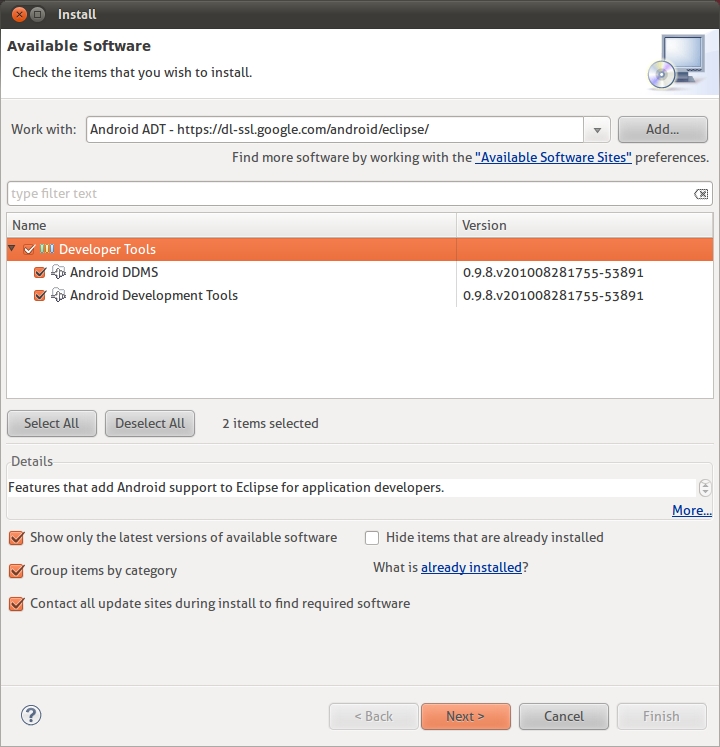
- Click Next and Finish to install the plugin. You’ll need to restart Eclipse once everything is installed.
- When Eclipse restarts, choose Window->Preferences and you should see Android listed in the categories.
- You now need to tell Eclipse where you’ve installed the Android SDK. Click Android and then Browse to select the location where you extracted the SDK files. For example,
/opt/local/android-sdk.
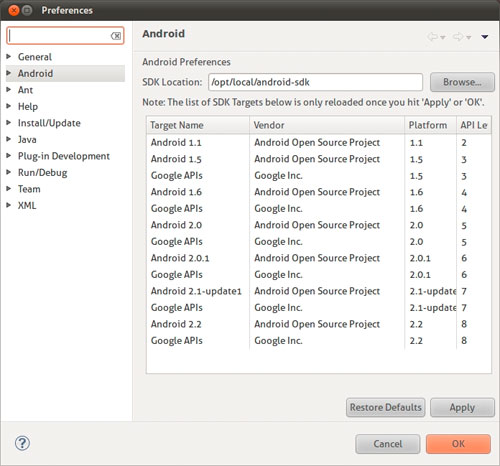
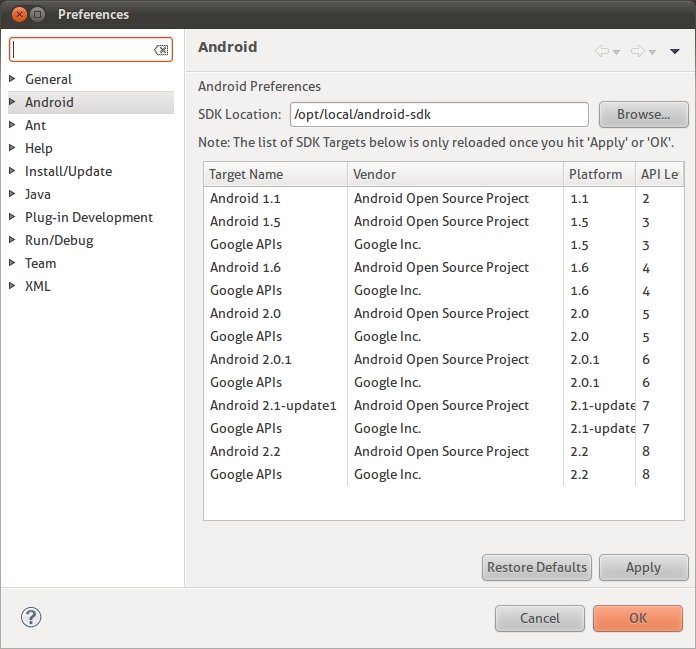
Large view - Click OK to have Eclipse save the location of your SDK.
Targeting Android Platforms
Before you can start writing applications for Android, you need to download the SDK platforms for the Android devices for which you want to develop apps. Each platform has a different version of the Android SDK that may be installed on users’ devices. For versions of Android 1.5 and above, there are two platforms available: Android Open Source Project and Google.
The Android Open Source Project platforms are open source, but do not include Google’s proprietary extensions such as Google Maps. If you choose not to use the Google APIs, Google’s mapping functionality won’t be available to your application. Unless you have a specific reason not to, I’d recommended you to target one of the Google platforms, as this will allow you to take advantage of Google’s proprietary extensions.
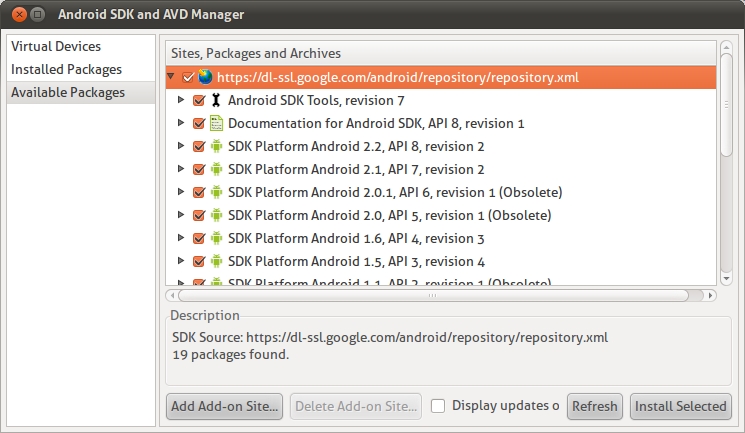
- Choose Window->Android SDK and AVD Manager.
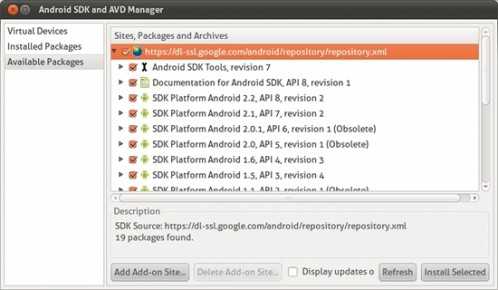
- Click Available Packages in the left column and check the repository to show a list of the available Android platforms.
- You can choose which platforms to download from the list, or leave everything checked to download all the available platforms. When you’re done, click Install Selected and follow the installation instructions.
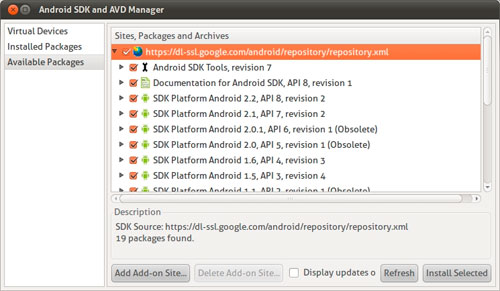
Large image
Once everything has been successfully downloaded, you’re ready to start developing for Android.
Creating a New Android Project
Eclipse’s New Project Wizard can create a new Android application for you, generating files and code that are ready to run right out of the box. It’s a quick way to see something working, and a good starting point from which to develop your own applications:
- Choose File->New->Project…
- Choose Android Project
- In the New Project dialog, enter the following settings:
Project Name: BrewClock Build Target: Google Inc. 1.6 (Api Level 4) Application Name: BrewClock Package Name: com.example.brewclock Create Activity: BrewClockActivity Min SDK Version: 4
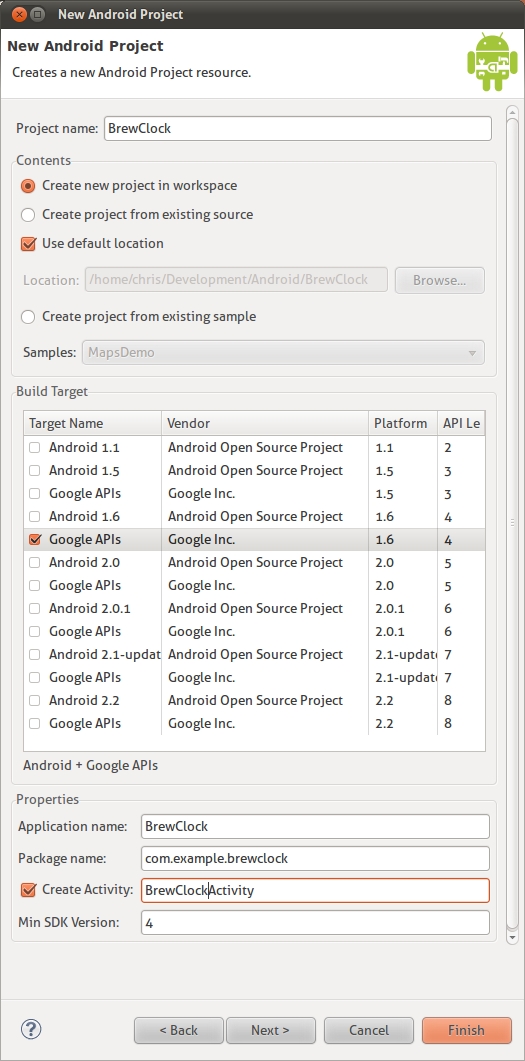
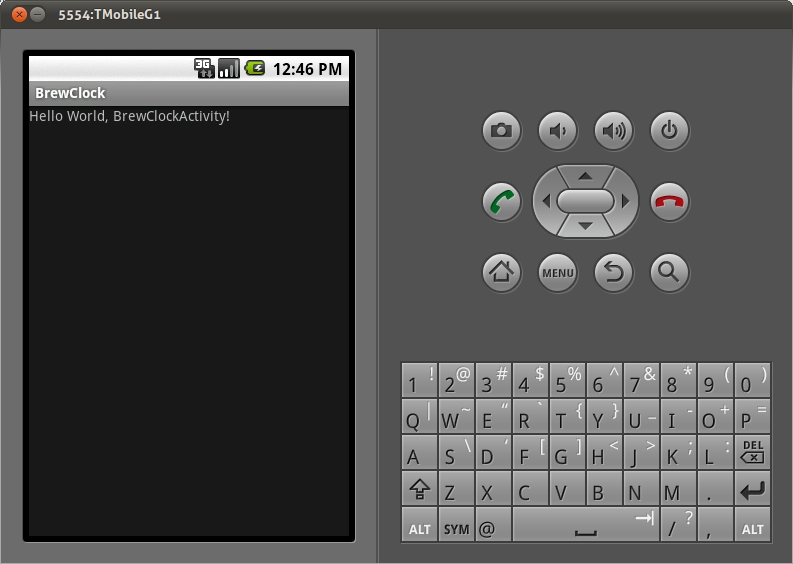
After clicking Finish, Eclipse will create a new Android project that’s ready to run. Notice you told Eclipse to generate an Activity called BrewClockActivity? This is the code that Android actually uses to run your application. The generated code will display a simple ‘Hello World’ style message when the application runs.
Packages
The package name is an identifier for your application. When the time comes and you are willing to publish on Android Market, it’s exactly this identifier that will be used to track your application for updates, so it’s important to make sure it’s unique. Although we’re using the com.example.brewclock namespace here, for a real application it’s best to choose something like com.yourcompanyname.yourapplication.
SDK Versions
The Min SDK Version is the earliest version of Android on which your application will run. With each new release of Android, the SDK adds and changes methods. By choosing an SDK version, Android (and the Android Market) knows that your application will only run on devices with a version of Android later or equal than the specified version.
Running Your Application
Now let’s try running the application in Eclipse. As this is the first run, Eclipse will ask what type of project you are working on:
- Choose Run->Run or press Ctrl+F11.
- Choose Android Application and click OK.
Eclipse will now try to run the application on an Android device. At the moment, though, you don’t have any Android devices running, so the run will fail and you’ll be asked to create a new Android Virtual Device (AVD).
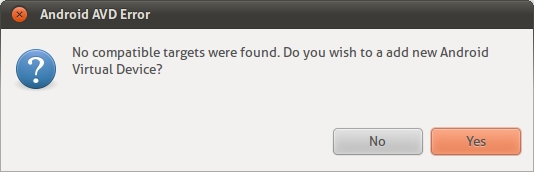
Android Virtual Devices
An Android Virtual Device (AVD) is an emulator that simulates a real-world Android device, such as a mobile phone or Tablet PC. You can use AVDs to test how your application performs on a wide variety of Android devices, without having to buy every gadget on the market.
You can create as many AVDs as you like, each set up with different versions of the Android Platform. For each AVD you create, you can configure various hardware properties such as whether it has a physical keyboard, GPS support, the camera resolution, and so on.
Before you can run your application, you need to create your first AVD running the target SDK platform (Google APIs 1.6).
Let’s do that now:
- If you haven’t tried to run your application yet, click Run now (or hit Ctrl+F11)
- When the target device warning pops up, click Yes to create a new AVD.
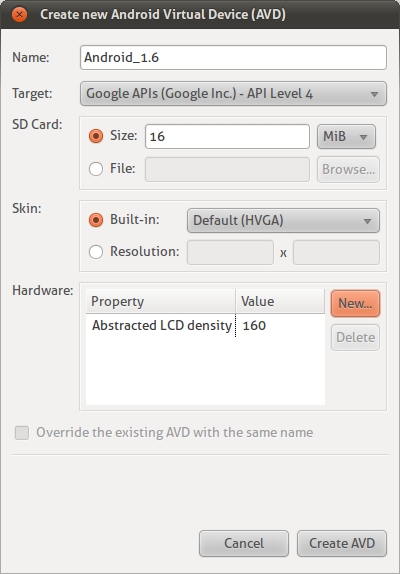
- Click New in the Android SDK and AVD Manager dialog that appears.
- Enter the following settings for the AVD:
Name: Android_1.6 Target: Google APIs (Google Inc.) - API Level 4 SD Card Size: 16 MiB Skin Built In: Default (HVGA) - Click Create AVD to have Android build your new AVD.
- Close the Android SDK and AVD Manager dialog.
Running the Code
Try running your application again (Ctrl+F11). Eclipse will now build your project and launch the new AVD. Remember, the AVD emulates a complete Android system, so you’ll even need to sit through the slow boot process just like a real device. For this reason, once the AVD is up and running, it’s best not to close it down until you’ve finished developing for the day.
When the emulator has booted, Eclipse automatically installs and runs your application:
Building Your First Android Application
Testing generated code is all well and good, but you want to start building a real application. For this, we’ll step through a simple design process and build an application that you can deploy to your Android device.
Most developers (myself included) like a constant supply of good tea or coffee. In the next section of this article you’ll build a simple tea counter application to track how many cups of tea (brews) the user has drunk, and let them set a timer for brewing each cup.
You can download the complete code for this tutorial on GitHub.
Designing the User Interface
One of the first steps to building any Android application is to design and build the user interface. Here’s a quick sketch of how the application’s interface will look:
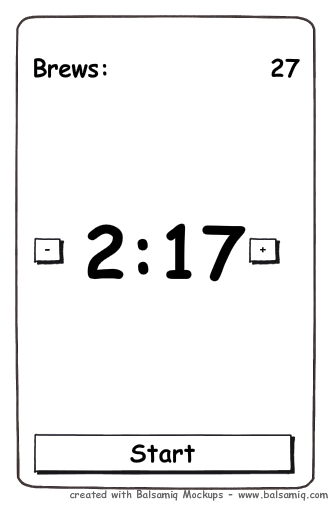
The user will be able to set a brew time in minutes using the + and - buttons. When they click Start, a countdown will start for the specified number of minutes. Unless the user cancels the brew by tapping the button again, the brew count will be increased when the countdown timer reaches 0.
Building the Interface
Android user interfaces, or layouts, which are described in XML documents, can be found in the res/layouts folder. The template code that Eclipse generated already has a simple layout declared in res/layouts/main.xml which you may have seen previously while the application was running on the emulator.
Eclipse has a graphical layout designer that lets you build the interface by ‘dragging’ and ‘dropping’ controls around the screen. However, I often find it easier to write the interface in XML and use the graphical layout to preview the results.
Let’s do this now by changing main.xml to match the design sketch above:
- Open
res/layouts/main.xmlin Eclipse by double-clicking it in the Package Explorer. - Click the
main.xmltab along the bottom of the screen to switch to XML view.
Now change the content of main.xml to:
# /res/layouts/main.xml
<?xml version="1.0" encoding="utf-8"?>
<LinearLayout
xmlns:android="http://schemas.android.com/apk/res/android"
android:orientation="vertical"
android:layout_width="fill_parent"
android:layout_height="fill_parent">
<LinearLayout
android:orientation="horizontal"
android:layout_width="fill_parent"
android:layout_height="wrap_content"
android:padding="10dip">
<TextView
android:layout_width="wrap_content"
android:layout_height="wrap_content"
android:textSize="20dip"
android:text="Brews: " />
<TextView
android:layout_width="fill_parent"
android:layout_height="wrap_content"
android:text="None"
android:gravity="right"
android:textSize="20dip"
android:id="@+id/brew_count_label" />
</LinearLayout>
<LinearLayout
android:orientation="horizontal"
android:layout_width="fill_parent"
android:layout_height="wrap_content"
android:layout_weight="1"
android:gravity="center"
android:padding="10dip">
<Button
android:id="@+id/brew_time_down"
android:layout_width="wrap_content"
android:layout_height="wrap_content"
android:text="-"
android:textSize="40dip" />
<TextView
android:id="@+id/brew_time"
android:layout_width="wrap_content"
android:layout_height="wrap_content"
android:text="0:00"
android:textSize="40dip"
android:padding="10dip" />
<Button
android:id="@+id/brew_time_up"
android:layout_width="wrap_content"
android:layout_height="wrap_content"
android:text="+"
android:textSize="40dip" />
</LinearLayout>
<Button
android:id="@+id/brew_start"
android:layout_width="fill_parent"
android:layout_height="wrap_content"
android:layout_gravity="bottom"
android:text="Start" />
</LinearLayout>
As you can see, Android’s XML layout files are verbose, but allow you to control virtually every aspect of elements on the screen.
One of the most important interface elements in Android are Layout containers, such as the LinearLayout used in this example. These elements are invisible to the user but act as layout containers for other elements such as Buttons and TextViews.
There are several types of layout views, each of which is used to build different types of layout. As well as the LinearLayout and AbsoluteLayout, the TableLayout allows the use of complex grid-based interfaces. You can find out more about Layouts in the Common Layout Objects section of the API documents.
Linking Your Layout With Code
After saving your layout, try running your application in the emulator again by pressing Ctrl+F11, or clicking the Run icon in Eclipse. Now instead of the ‘Hello World’ message you saw earlier, you’ll see Android now displays your application’s new interface.
If you click any of the buttons, they’ll highlight as expected, but don’t do anything yet. Let’s remedy that by writing some code behind the interface layout:
# /src/com/example/brewclock/BrewClockActivity.java
...
import android.widget.Button;
import android.widget.TextView;
public class BrewClockActivity extends Activity {
/** Properties **/
protected Button brewAddTime;
protected Button brewDecreaseTime;
protected Button startBrew;
protected TextView brewCountLabel;
protected TextView brewTimeLabel;
...
}
Next, we’ll change the call to onCreate. This is the method that gets called whenever Android starts your application. In the code that Eclipse generated, onCreate sets the activity’s view to be R.layout.main. It’s that line of code that tells Android to decode our layout XML document and display it to the user.
The Resource Object
In Android, R is a special object that is automatically generated to allow access to your project’s resources (layouts, strings, menus, icons…) from within the code. Each resource is given an id. In the layout file above, these are the @+id XML attributes. We’ll use those attributes to connect the Buttons and TextViews in our layout to the code:
# /src/com/example/brewclock/BrewClockActivity.java
...
public class BrewClockActivity extends Activity {
...
public void onCreate(Bundle savedInstanceState) {
super.onCreate(savedInstanceState);
setContentView(R.layout.main);
// Connect interface elements to properties
brewAddTime = (Button) findViewById(R.id.brew_time_up);
brewDecreaseTime = (Button) findViewById(R.id.brew_time_down);
startBrew = (Button) findViewById(R.id.brew_start);
brewCountLabel = (TextView) findViewById(R.id.brew_count_label);
brewTimeLabel = (TextView) findViewById(R.id.brew_time);
}
}
Listening For Events
In order to detect when the user taps one of our buttons, we need to implement a listener. You may be familiar with listeners or callbacks from other event-driven platforms, such as Javascript/jQuery events or Rails’ callbacks.
Android provides a similar mechanism by providing Listener interfaces, such as OnClickListener, that define methods to be triggered when an event occurs. Implementing the OnClickListener interface will notify your application when the user taps the screen, and on which button they tapped. You also need to tell each button about the ClickListener so that it knows which listener to notify:
# /src/com/example/brewclock/BrewClockActivity.java
...
// Be sure not to import
// `android.content.dialoginterface.OnClickListener`.
import android.view.View.OnClickListener;
public class BrewClockActivity extends Activity
implements OnClickListener {
...
public void onCreate(Bundle savedInstanceState) {
...
// Setup ClickListeners
brewAddTime.setOnClickListener(this);
brewDecreaseTime.setOnClickListener(this);
startBrew.setOnClickListener(this);
}
...
public void onClick(View v) {
// TODO: Add code to handle button taps
}
}
Next we’ll add code that handles each of our button presses. We’ll also add four new properties to the Activity that will let the user set and track the brewing time, how many brews have been made, and whether the timer is currently running.
# /src/com/example/brewclock/BrewClockActivity.java
...
public class BrewClockActivity extends Activity
implements OnClickListener {
...
protected int brewTime = 3;
protected CountDownTimer brewCountDownTimer;
protected int brewCount = 0;
protected boolean isBrewing = false;
...
public void onClick(View v) {
if(v == brewAddTime)
setBrewTime(brewTime + 1);
else if(v == brewDecreaseTime)
setBrewTime(brewTime -1);
else if(v == startBrew) {
if(isBrewing)
stopBrew();
else
startBrew();
}
}
}
Notice we’re using the CountDownTimer class provided by Android. This lets you easily create and start a simple countdown, and be notified at regular intervals whilst the countdown is running. You’ll use this in the startBrew method below.
The following methods are all model logic that handles setting the brew time, starting and stopping the brew and maintaining a count of brews made. We’ll also initialize the brewTime and brewCount properties in onCreate.
It would be good practice to move this code to a separate model class, but for simplicity we’ll add the code to our BrewClockActivity:
# /src/com/example/brewclock/BrewClockActivity.java
...
public class BrewClockActivity extends Activity
implements OnClickListener {
...
public void onCreate(Bundle savedInstanceState) {
...
// Set the initial brew values
setBrewCount(0);
setBrewTime(3);
}
/**
* Set an absolute value for the number of minutes to brew.
* Has no effect if a brew is currently running.
* @param minutes The number of minutes to brew.
*/
public void setBrewTime(int minutes) {
if(isBrewing)
return;
brewTime = minutes;
if(brewTime < 1)
brewTime = 1;
brewTimeLabel.setText(String.valueOf(brewTime) + "m");
}
/**
* Set the number of brews that have been made, and update
* the interface.
* @param count The new number of brews
*/
public void setBrewCount(int count) {
brewCount = count;
brewCountLabel.setText(String.valueOf(brewCount));
}
/**
* Start the brew timer
*/
public void startBrew() {
// Create a new CountDownTimer to track the brew time
brewCountDownTimer = new CountDownTimer(brewTime * 60 * 1000, 1000) {
@Override
public void onTick(long millisUntilFinished) {
brewTimeLabel.setText(String.valueOf(millisUntilFinished / 1000) + "s");
}
@Override
public void onFinish() {
isBrewing = false;
setBrewCount(brewCount + 1);
brewTimeLabel.setText("Brew Up!");
startBrew.setText("Start");
}
};
brewCountDownTimer.start();
startBrew.setText("Stop");
isBrewing = true;
}
/**
* Stop the brew timer
*/
public void stopBrew() {
if(brewCountDownTimer != null)
brewCountDownTimer.cancel();
isBrewing = false;
startBrew.setText("Start");
}
...
}
The only parts of this code specific to Android are setting the display labels using the setText method. In startBrew, we create and start a CountDownTimer to start counting down every second until a brew is finished. Notice that we define CountDownTimer's listeners (onTick and onFinish) inline. onTick will be called every 1000 milliseconds (1 second) the timer counts down, whilst onFinish is called when the timer reaches zero.
Avoiding Hard-Coded Text in your Code
To keep this tutorial code simple, I’ve intentionally written label strings directly in the code (e.g. "Brew Up!", "Start", "Stop"). Generally, this isn’t good practice, as it makes finding and changing those strings harder in large projects.
Android provides a neat way to keep your text strings separate from code with the R object. R lets you define all your application’s strings in an xml file (res/values/strings.xml) which you can then access in code by reference. For example:
# /res/values/strings.xml
<string name="brew_up_label">Brew Up!</string>
...
# /res/com/example/brewclock/BrewClockActivity.java
...
brewLabel.setText(R.string.brew_up_label);
...
Now if you wanted to change Brew Up! to something else, you would only need to change it once in the strings.xml file. Your application starts to span dozens of code files which keeps all your strings in one place and makes a lot of sense!
Trying BrewClock
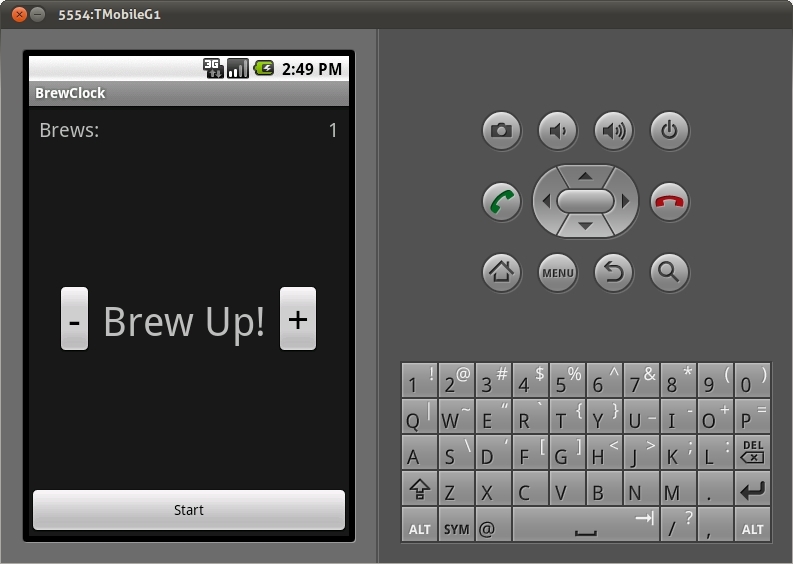
With the code complete, it’s time to try out the application. Hit Run or Ctrl+F11 to start BrewClock in the emulator. All being well, you’ll see the interface set up and ready to time your tea brewing! Try setting different brew times, and pressing Start to watch the countdown.
Summary
In this short introduction to Android, you’ve installed the Android SDK and Eclipse Android Development Tools (ADT) plugin. You’ve set up an emulator, or virtual device that can test your applications. You’ve also built a working Android application which has highlighted a number of key concepts that you’ll use when developing your own Android applications.
Hopefully, this has whet your appetite for building mobile applications, and experimenting in this exciting field. Android offers a great way to start writing applications for a range of current and upcoming mobile devices. If you’ve built or are working on your own mobile app, be sure to let us know about it in the comments!
(ik), (vf)





Martin
October 25th, 2010 5:53 amGreat! Thank you!
Raju
October 25th, 2010 5:58 amCool..Thanks
Tom Hermans
October 25th, 2010 6:02 amGreat article !
Like to see *a lot* more of this !
Already followed a 1-day seminar on building Android apps, and it’s not that easy for someone like me (webdesigner/developer).
Step-by-step tutorials of Smashing quality would come in handy indeed. (or another e-book maybe ? )
Jorgen
October 25th, 2010 6:57 amI totally agree with Tom. I’d love to see a lot more of these type of articles!
huzz
October 26th, 2010 1:22 amI agree too :)
Lucy Liu
February 21st, 2013 10:50 amCheck this out – http://www.appsrox.com/android/tutorials/
My two cents!
eddt
October 25th, 2010 6:02 amThis is a really GREAT snapshot of android development! Smashing!!!
Virat P.
October 25th, 2010 6:07 amGreat tutorial! Can’t wait to get started.
Angelfire
October 25th, 2010 6:17 amSooo much thanks, this is a great tutorial for begginers!!!!
Greetings from Colombia!!!
Karl
October 25th, 2010 6:34 amSorry for diversion, but what desktop font are you using on Ubuntu? It’s really nice!
Klesus
October 25th, 2010 6:48 amSorry for ranting but I can’t let this slip. “An SDK is built on Java” should probably be “THIS SDK is built on Java”. Describing SDK as something that is written for Java is just… wrong, as an SDK could be for any language.
Chris Blunt
October 25th, 2010 7:01 amThanks to everyone for your comments!
@Karl The font I’m using now is “Ubuntu”, the new default in 10.10 Maverick. The designers, DaltonMaag, have some other stunning fonts available.
@Klesus Thanks for pointing out the typo, I’ve updated the post.
Fábio Santos
October 25th, 2010 7:08 amJust in time =D
I think Android is getting everyday more and more developers, and that post have become just in the right time for me =D
Maybe one day you guys start a new site, droidtuts+
TKS!
Brett Kromkamp
October 25th, 2010 7:16 amCheckout the following Android tutorial: http://www.quesucede.com/page/show/id/conway_game_of_life_android.
It walks the developer through building Conway’s Game of Life – the problem space is small enough to allow the developer to only focus on Google Android while still including sufficient elements to make for both an interesting and valid learning experience.
Brett Kromkamp
ximo
October 25th, 2010 7:28 amThanks for this article!
Though I think I saw “Comic Sans” somewhere…
=S
Mohawk Kellye
October 25th, 2010 11:27 amI got the same uncomfortable feeling when I saw that too…
ZizzelDaZuz
October 25th, 2010 7:54 amThanks for this! How upward compatible are the different platforms? If I decide to write something for 1.6 (your example) will it run on 2.2 as well? I guess this shouldn’t be a problem but I’m completely new to Android so don’t shoot me :-)
Daniel
October 25th, 2010 10:39 amUpward compatibiliy is not a problem yet, but some things are deprecated and could not be available on future phones.
ZizzelDaZuz
October 25th, 2010 10:51 pmThanks, Daniel!
Laura
October 25th, 2010 7:54 amUseful stuff, thanks :) I have to ask if you used any of the articles here: http://mikeyhogarth.wordpress.com/ as a reference? They cover a lot of the same points.
Sam
October 25th, 2010 7:56 amSweet post Chris. Once devs are ready to publish and would like extra help on promoting their app(s) they should take a peek at the lightweight GamerShots SDK to include in their projects – http://gamershots.com/developer
Chris Blunt
October 25th, 2010 9:00 am@ZizzelDaZuz It depends on what features of the SDK your app uses, but my experience has been that Android has good upward-compatibility.
I’ve run into minor problems such as changing file storage paths in 2.2, but the changes are very well-covered in the SDK docs. Your code can query the current device to discover platform and capabilities, and act appropriately.
D. Troy
October 25th, 2010 9:22 amA really clear, concise and well explained tutorial, which has proven to be extremely helpful as I’ve been struggling getting started with Android. More from this author please!
Dhruv
October 25th, 2010 9:56 amJust Awesome
pioSko
October 25th, 2010 11:27 amGreat article. Thank you.
I’m just starting with Android… with mobile apps… and this was perfect timing.
I have a few errors popping up in Eclipse. I think I followed your tutorial to the dot, but I’m not sure now. would it be possible for you to post the full contents of BrewClockActivity.java? This may help others, aswell :)
Scott
October 25th, 2010 11:34 amThis is a great tutorial. Can you write a tutorial for Android development using PhoneGap next?
Chris Blunt
October 25th, 2010 11:54 am@pioSko: Thanks :) The source code for the tutorial is available at http://github.com/cblunt/brewclock
@Scott: Not tried PhoneGap – looks interesting though!
jcesar
October 25th, 2010 3:45 pmI followed your tutorial and it is very useful, thank you very much
I found a mistake, you writed
brewLabel.setText(R.string.brew_up_label);
but it should be
brewTimeLabel.setText(R.string.brew_up_label);
It is very complete, but I miss a point where you explain how to put the app image.
A tip for the web developers interested in developing android apps, take a look to phonegap, it is very useful for creating “native” iphone and android apps using html, css and javascript (and even blackberry, wm and symbian)
Lester Bambico
October 25th, 2010 4:21 pmI have a feeling this article was written to somehow express a “hate” toward Jobs’ recent prescon. Great response (slap) in his face.
Keep up the good work SM.
Charles
October 25th, 2010 5:16 pmThat’s nice!
Web Designer Houston
October 25th, 2010 8:06 pmThis is a really GREAT snapshot of android development! Smashing!!!
I totally agree with Tom. I’d love to see a lot more of these type of articles!
Thanks for sharing this!!!
rehaan
October 25th, 2010 9:56 pmgreat article i really want to try Android :)
Chris Blunt
October 25th, 2010 10:49 pmThanks, really appreciate all the comments! :)
@Laura Hadn’t seen that blog, but would like to add it to a list of useful resources for Android developers that I’m compiling.
Laura
October 26th, 2010 5:41 amSounds good – will keep an eye out for that! :)
Laura
October 26th, 2010 6:06 amOh yeah, one thing I thought might be handy to mention in your article was this
http://mikeyhogarth.wordpress.com/2010/09/29/android-beginner-top-tip-dont-run-from-xml-files/
Absolutely will drive beginners NUTS – basically it’s possible to break the ADT to a point where you have to fix it manually, the above article describes symptoms and solution :)
Cheers again for the article!
W3Planting
October 25th, 2010 11:05 pmGreat article although i installed the Eclipse & Android on my PC but really cant build anything special i got inspired and get a direction on how to build a application after looking at your sample demo :)
Eko S
October 25th, 2010 11:25 pmWow, this a great post….I’m interested in becoming an Android developer.
Thanks…
alantakashi
October 26th, 2010 1:21 amAwesome tutorial. Thanks Chris!
Dirk
October 26th, 2010 2:42 amJust what i was looking for. Thanks a lot!
Magnus
October 26th, 2010 3:06 amThank you very much for this! More Android stuff @ SM!
Marek
October 26th, 2010 3:39 amThanks!
Very useful article :)
Looking fwd to more android tips
Anoyne here knows how to connect HTC Hero 2.1 with IntelliJ Idea [windows] into debug mode? Win can`t detect phone in that mode :-/
Tim Pelling
October 26th, 2010 4:04 amThis is a really useful article, thanks
I have used Titanium by Appcelerator (http://www.appcelerator.com) to develop apps for Android and iPhone. It works well and is a good way to develop apps for multiple platforms. Maybe Smashing Mag can do an article on Titanium?
Day
October 26th, 2010 4:10 amBrilliant article, more like this please! :)
Leyton Jay
October 26th, 2010 4:12 amPerfect, I was looking for a novice intro for Eclipse on Windows. Thanks again!
Ozory
October 26th, 2010 4:14 amThank you man !!! Very helpfull !!!
manraj
October 26th, 2010 7:54 amThanks a lot for posting this tutorial, i would love to see more articles on Android development here.
K@reem
October 26th, 2010 11:38 amThanks a lot its so helpful tutorial.
alex
October 26th, 2010 4:24 pmvery good tutorials for starting with.
Thanks for sharing.:D
alex
October 26th, 2010 9:15 pmtx, any chance of converting this tutorial with Netbeans???
Ganesh
October 27th, 2010 6:58 amHey Hi,
Nice article.
I am an amateur at Eclipse and android and I am getting this error on running your code.
Java Model Exception: Java Model Status [gen [in BrewClock] does not exist]
at org.eclipse.jdt.internal.core.JavaElement.newJavaModelException(JavaElement.java:502)
at org.eclipse.jdt.internal.core.Openable.generateInfos(Openable.java:246)
at org.eclipse.jdt.internal.core.JavaElement.openWhenClosed(JavaElement.java:515)
at org.eclipse.jdt.internal.core.JavaElement.getElementInfo(JavaElement.java:252)
at org.eclipse.jdt.internal.core.JavaElement.getElementInfo(JavaElement.java:238)
at org.eclipse.jdt.internal.core.PackageFragmentRoot.getKind(PackageFragmentRoot.java:477)
at org.eclipse.jdt.internal.ui.packageview.PackageExplorerContentProvider.processDelta(PackageExplorerContentProvider.java:645)
at org.eclipse.jdt.internal.ui.packageview.PackageExplorerContentProvider.handleAffectedChildren(PackageExplorerContentProvider.java:791)
at org.eclipse.jdt.internal.ui.packageview.PackageExplorerContentProvider.processDelta(PackageExplorerContentProvider.java:734)
at org.eclipse.jdt.internal.ui.packageview.PackageExplorerContentProvider.handleAffectedChildren(PackageExplorerContentProvider.java:791)
at org.eclipse.jdt.internal.ui.packageview.PackageExplorerContentProvider.processDelta(PackageExplorerContentProvider.java:734)
at org.eclipse.jdt.internal.ui.packageview.PackageExplorerContentProvider.elementChanged(PackageExplorerContentProvider.java:124)
at org.eclipse.jdt.internal.core.DeltaProcessor$3.run(DeltaProcessor.java:1557)
at org.eclipse.core.runtime.SafeRunner.run(SafeRunner.java:42)
at org.eclipse.jdt.internal.core.DeltaProcessor.notifyListeners(DeltaProcessor.java:1547)
at org.eclipse.jdt.internal.core.DeltaProcessor.firePostChangeDelta(DeltaProcessor.java:1381)
at org.eclipse.jdt.internal.core.DeltaProcessor.fire(DeltaProcessor.java:1357)
at org.eclipse.jdt.internal.core.DeltaProcessor.resourceChanged(DeltaProcessor.java:1958)
at org.eclipse.jdt.internal.core.DeltaProcessingState.resourceChanged(DeltaProcessingState.java:470)
at org.eclipse.core.internal.events.NotificationManager$2.run(NotificationManager.java:291)
at org.eclipse.core.runtime.SafeRunner.run(SafeRunner.java:42)
at org.eclipse.core.internal.events.NotificationManager.notify(NotificationManager.java:285)
at org.eclipse.core.internal.events.NotificationManager.broadcastChanges(NotificationManager.java:149)
at org.eclipse.core.internal.resources.Workspace.broadcastPostChange(Workspace.java:313)
at org.eclipse.core.internal.resources.Workspace.endOperation(Workspace.java:1022)
at org.eclipse.core.internal.events.AutoBuildJob.doBuild(AutoBuildJob.java:153)
at org.eclipse.core.internal.events.AutoBuildJob.run(AutoBuildJob.java:238)
at org.eclipse.core.internal.jobs.Worker.run(Worker.java:55)
It would be great if you could please help with this.
Thanks,
Ganesh.
Chris Blunt
October 27th, 2010 12:48 pm@Ganesh Not seen that before. A couple of things to try: When creating the new project (or importing the code into a project), be sure to choose “Android Project” in the New Project dialog.
Also check the project is being built automatically by Eclipse (Project->Build Automatically is checked), sometimes cleaning the project files (Project->Clean…) helps.
Ganesh
October 28th, 2010 1:37 amHi,
Tried both of them but no change.
What I observed was that even for a Hello World! example it is giving this error. Need to look at my Eclipse installation.
Thanks for the help.
Looking forward to further articles from you.
Regards,
Ganesh Bhat.
MikeyHogarth
October 27th, 2010 8:39 amGreat article man! I’m dabbling in android development myself at the moment too. If you get a chance to write another article, one thing I’d really love to hear is a decent balanced argument on is whether there’s an e-commerce based future in app development. Personally, I think it’s going to be limited to games and applications rather than the whole “me too” boom that occurred with websites – the problem is that companies (in my experience) all *want* an app without stopping to think whether they *need* one. On balance I’d say that the future of mobile based e-commerce is going to be mobile optimized websites – everyone’s gonna want one of those in the next few years!
Anyway I’ll stop rambling now. Keep up the good work dude!
Ganesh
October 28th, 2010 1:47 amHey Hi,
Thanks for the help.
Just want to add that I always get this error when I create a new project.
Failed to load properties file for project ‘BrewClock’
Am i missing some step here?
Please let me know.
Thanks Again,
Ganesh.
Sean Bengry
October 28th, 2010 5:03 amGreat article Chris!
Philip
October 28th, 2010 8:56 amThis tutorial was very frustrating for me. I got the layout done and it works well, but then when I move on to the next part and type everything exactly as you have it, many of the things are underlined in red and it says there are errors. Also, I don’t understand the relationship between the different sets of code you have written.
For example, when you said:
“We’ll use those attributes to connect the Buttons and TextViews in our layout to the code:”
What does that mean? It seems like every new code you start begins with “# /src/com/example/brewclock/BrewClockActivity.java ” so that confuses me a lot, are you overwriting the code you put in previously? It seems like you are writing over the old code since it has the same line numbers (1-22). Or am I creating multiple pages of code? Please help.
Chris Blunt
November 2nd, 2010 3:10 am@Philip Thanks for the feedback, in future posts I’ll try to make changes to the source code easier to follow.
I’ve started each block of code with a comment to show which file is being edited (# /src/com/example/brewclock….). You should not enter these comments into your code, they are just for reference. I do this as I’ve often found myself frustrated with tutorials and docs in the past that give you a chunk of code, but leave you guessing where to put it – especially when a project spans multiple files.
Generally, you should not be overwriting any code, although some lines of code may change (such as “implements OnClickListener” which is added to the BrewClockActivity class declaration).
I’ve used ellipses (…) to show where existing code should be left alone.
It’s sometimes difficult to get a complete view of the code in a tutorial such as this, so I’d also recommend following the complete source code on github (http://github.com/cblunt/brewclock/tree/tutorial_part_1).
Nik
November 3rd, 2010 12:30 pmI’ve seen other tutorials where the current code is left black, and the newly entered code for step X is colored green, deletions might be in red…
MikeyHogarth
October 29th, 2010 1:16 am@Philip Regarding your “attributes connect the buttons etc..” question, you can define your layout either computationally or using XML – if you go for the latter (and, to facilitate a decent seperation of concerns it’s reccomended you do) then you need to get references to the elements from your XML in your source code if you want to perform any interactions on them. If you’re from a web background, it’s the exact same principle as defining an ID for an HTML element and then accesing it from javascript using “document.getElementByID” or “$(#element)”.
I personally think this article is pretty good, and I really ordinarily wouldn’t do this, but I have been writing articles myself on android which cover almost the same points as this one does but go through everything a bit more slowly and in a bit more detail. Someone’s already linked to it above but here it is again.
http://mikeyhogarth.wordpress.com/articles/
If linking to external articles / your own work is frowned upon by this community (don’t really post here that often) then please accept my apologies and feel free to moderate or delete this post.
-Mikey xx
Tam Mains
October 29th, 2010 1:45 pmUnfortunately, I am already using Eclipse Helios (J2EE developers). I installed the Android Development tools in Eclipse but when I open windows/preferences android does not appear as an option.
So I am kind of stuck at the first hurdle :(
Anyone any ideas – OS Linux/Ubuntu
Chris Blunt
November 6th, 2010 12:55 amHi Tam,
I’m also using Ubuntu and ran Helios Eclipse for a while, although there were a few issues with the Android SDK.
Although you’re running Helios, you can still download Eclipse 3.5 from eclipse.org, extract it to a separate folder (e.g. /opt/local/eclipse-3.5) and then run it separately from 3.6, for example by running /opt/local/eclipse-3.5/eclipse. You should then be able to follow the tutorial. Hope this helps!
Antoine Martin
November 1st, 2010 11:14 amGreat article :)
Give us more like that ;)
wHiTeHaT
November 1st, 2010 1:50 pmI dont want to spoil this article , but for everyone new to android and not knowing anything abouth java,or any code related, for these persons i have a verry good and fun to use program made by some google team members.
It is called Appinventor (AI) , it is a Google Beta program what requires inventation.I’m one of the few but growing beta users.
Anyway forget my bad englisch and take a look:
http://appinventor.googlelabs.com/about/
PS:I dont work for google, i asked several times if they had a job for me but never got a response lol
Grtzzz wHiTeHaT
Ash
November 2nd, 2010 1:04 amHi Chris:
Thanks for this fantastic article.
I’ve never seen a more straight forward tutorial on anything!
This is surely a talent in itself, which I am sure, comes from years of doing what you are passionate about!
Hoping to see more content from you!
Cheers and all the best for Plymouth Software!
Ash
Chris Blunt
November 6th, 2010 12:50 amThanks Ash, appreciate your comments. I’m writing the next part of this tutorial at the moment, so keep an eye out on Smashing Mag :)
Cory Kaufman
November 4th, 2010 6:57 amHi,
I was able to get my initial app up and running following the directions, but don’t see any Hello World message. Did I miss a step? I would have expected to have written the Hello World text in the Activity class but didn’t see directions for that.
Cory
Chris Blunt
November 6th, 2010 12:45 amHi Cory,
The “Hello World” message is contained in the strings.xml resource and read by the layout.xml file (I’ve copied the relevant lines below). You don’t need to write the message anywhere in your code.
The BrewClockActivity that onCreate() method loads in and displays layout.xml (which contains the TextView). If you’re not seeing the message, check the code in your BrewClockActivity.java file matches below:
// com/example/brewclock/BrewClockActivity.java package com.example.brewclock; import android.app.Activity; import android.os.Bundle; public class BrewClockActivity extends Activity { /** Called when the activity is first created. */ @Override public void onCreate(Bundle savedInstanceState) { super.onCreate(savedInstanceState); setContentView(R.layout.main); } }Hope this helps, feel free to contact me if it still doesn’t work.
Vadim Zapolski
November 6th, 2010 2:07 pmThanks a lot, Chris.
After this post I think I’ll finally start some Android development.
I’ve completed this tutorial using IDEA and it works well too!
I’ve noticed some mistakes (or maybe these are not mistakes in Android SDK) – you’re using == operator to check which button has been clicked. I’m not sure as it works in Android, but in Java SDK this should be better replaced with .equals() – this will guarantee the correctness. And again – I’m just thinking as Java developer – I’m not an Android developer yet and I don’t know how the == is treated in Android platforms
Rupin
November 8th, 2010 10:40 pmThanks Chris..
All instructions were a perfect spot on…followed it step by step and it worked without a hitch…
Daniel R.
November 14th, 2010 4:52 amSince having my android-running HTC Legend, I always wondered how to build apps myself. Having a lot of other things to be done currently, I didn’t follow this anymore, thinking it’s a hard way to get into this coding stuff based on Android. You need to know I’m programming for long in PHP and other website languages, as well as in Java for 3 years.
I jumped into this article randomly, and it was mindblowing! I had never thought it’s that easy (and fun) developing for Android. Thank you so much for this tutorial and keep up the great work, Cheers – Daniel.
Foroadicto
December 13th, 2010 8:21 amYou say: “Eclipse has a graphical layout designer that lets you build the interface by ‘dragging’ and ‘dropping’ controls around the screen”
My question is: ¿Where i can get those ‘dragging’ and ‘dropping’ controls in eclipse helios?
Thanx.
Jagat
January 8th, 2011 8:42 amAwesome! Thanks a lot!
Peoplelink
January 18th, 2011 9:59 pmThanks this article is helpful for my projects (peoplelink.in)
Brett Widmann
January 21st, 2011 11:29 amThis was really helpful! Thank you for the great tips. I hope to see more.
iosh
March 11th, 2011 11:54 pmfor awhile i was lost, then i realize that i have to move on with my career… mobile app development? android or apple? I love opensource so it has to be android… i hope SM will put up an article about mobile app development.
Christina
March 23rd, 2011 3:00 pmGreat tutorial. I’m learning android on the mac, and the program is running fine in the emulator, but not in the htc aria that I connected (and that is showing as a usb device in the finder). Any advice how I can get the program to load to the phone?
susRAM
May 26th, 2011 10:38 amHi Christina,
Once you have your project compiled well and running as expected in emulator, then you should find a ‘ .apk ‘ file in your work folder. All you have to do is transfer this file to phone. ( you could load it into the sdcard, or file transfer with bluetooth, send as an email attachment and download it to the mobile….., etc).
Also make sure, you have checked the Unknown sources (Allow installing of non-market apps.), in settings > Application settings.
Cristian
March 29th, 2011 2:35 pmI did this tutorial, but I ended up with a different code than what’s hosted at github. Why would it be that? And my version doesn’t work properly. Has anything changed?
Fernando Agüero
April 6th, 2011 2:44 amGreat article. I wish you write a second chapter.
Thanks ;)
Fernando
April 19th, 2011 10:04 amFernando, there is a 2nd chapter: http://www.smashingmagazine.com/2011/03/28/get-started-developing-for-android-with-eclipse-reloaded/
Aaqil Mahmood
May 9th, 2011 10:32 amThanks you are a good teacher.
If i used your tutorial somewhere I will add your name and link back to this page.
Akshay
May 12th, 2011 6:33 amThanks For such a nice tutorial. And I will wait for the coming next tutorial. I have got the correct information.
James
May 21st, 2011 8:56 amCould you email me the end result of the brewclockactivity then?
Konstantinos
May 14th, 2011 2:21 pmThank you man! Great article!!!
James
May 21st, 2011 8:55 amCould someone email me the end result because I have a couple of errors I cannot resolve.
Kaivan Wadia
June 24th, 2011 5:44 amHey,
i am getting the following error:
View cannot be resolved to a type.
Any advice???
thanks
madhavi
July 25th, 2011 1:18 amnice one for beginners
Pedro Nalin
September 1st, 2011 3:56 pmI dont get it :s I made something wrong, please could someone post the full code of the file # /src/com/example/brewclock/BrewClockActivity.java ??
Thank You !
Rahul Parekh
September 9th, 2011 9:27 amI’ve been thinking about playing around with Android App building and this article will be of great help to get me started. Thanks a lot.
Toma Fernandez
October 24th, 2011 5:34 amThnx aloot for ue great teturial,
i want to debug my app on Galaxy tab , GT-P1000
and my pc OS is windows
maria cristina
October 24th, 2011 9:56 amhello Mr. CHRIS BLUNT
im a student mr. chris and i have to make a thesis and i ‘m going to develop a word game with the concept of text twist but i don’t know how to start with the use of android. Sir with your kind heart will pls help me and guide me in making my game? i want to learn sir please sir teach me how. thanks alot sir..
anfine
October 28th, 2011 12:57 amawesome! thank you.
Robi
November 8th, 2011 7:17 amThanks a lot,Chris.
nice post.
Amod Pusalkar
November 16th, 2011 8:24 amHello Chris,
Just came across your nice post.
This may seem a bit advanced, but I am trying to use an Android tablet (MID 7″ tablet with 3G) with eclipse (instead of using the emulator, I want to use the actual device). However I am facing problem connecting the tablet to my desktop pc. I searched quite a lot on google but could not get the exact fix. I would be glad if you could help me in this regard.
Thanks in advance.
Colin Chin Choy
January 6th, 2012 7:10 amHey
I am following your Tutorial, because for me it seems to be the best broken down as you explain the different aspects and I believe that this is the way to learn effectively, I am having an issue with the following code from your list above:
12 // Setup ClickListeners
13 brewAddTime.setOnClickListener(this);
14 brewDecreaseTime.setOnClickListener(this);
15 startBrew.setOnClickListener(this);
I am using Eclipse and attempting to type it out so as not to copy and paste and this way get myself accustomed to typing out the command and the above lines shows as an error and Eclipse corrects it as the following:
brewAddTime.setOnClickListener((OnClickListener) this);
brewDecreaseTime.setOnClickListener((OnClickListener) this);
startBrew.setOnClickListener((OnClickListener) this);
Iam wondering if I am doing something wrong or just missing something. Could you assist me on this.
Regards
Colin
Sourcebits
January 10th, 2012 11:23 pmIt’s a nice post. mainly you have added the questions and concerns people come up with when they look and Android market and think of Android Game Development .
Jacob K
February 16th, 2012 6:11 amHey mate… love your artickel.. but when try to build it.. i keep having problems with
brewCountDownTimer = new CountDownTimer (brewTime * 60 * 1000, 1000);
it says Cannot instantiate the type CountDoWnTimer???
Any Ideas?? im pretty lost, i dont understand the problem
Fadel
February 24th, 2012 1:08 pm@Jacob K
import android.os.CountDownTimer;
OR
Eclipse : Ctrl+shift+o
zzerri
February 25th, 2012 10:15 amthank you so much for a very well explained tutorial.fortunately i didn’t get serious error except on warning on this part:(findViewById(R.id.etc)on but it’s gone when i modified the strings.xml based on your code.i just learned a lot from this tutorial.you’re a blessing..thank you so much!
chandu
September 19th, 2012 11:08 amecliepes software works in windows xp 32bit?
mahroof
September 30th, 2012 10:41 amthanks a lot for the info
one query i already downloaded SDK and NDK and ADT how i connect with eclipse and
i am student if u have more example project please send to my mail adds
thanks in advance
kiruthika
November 9th, 2012 1:49 amit’s good..
android tutorial
November 23rd, 2012 11:09 amIt’s hard to find knowledgeable people about this subject, but you sound like you know what you’re talking about! Thanks
hari babu
December 21st, 2012 12:13 amI followed the BrewClock Code and layout xml . on running it, i am getting an error message.
Sorry,
The application BrewClock
(process com.example.brewclock) has stopped
unexpectedly.Plese try again.
and it is showing Force Close button.
what might be the reason? I doublechecked bot code and xml, and they are ok. one major issue I encountered and changed by following eclipse quick fix was
the event listening.
// your plan of Setup ClickListeners
brewAddTime.setOnClickListener(this);
brewDecreaseTime.setOnClickListener(this);
startBrew.setOnClickListener(this);
eclipse changed to this
brewAddTime.setOnClickListener((OnClickListener) this);
brewDecreaseTime.setOnClickListener((OnClickListener) this);
startBrew.setOnClickListener((OnClickListener) this);
and finally ai got that error.
omi
February 22nd, 2013 9:36 amThese features are useful in eclipse galileo version but not in eclipse because whenver i tried to make button in eclipse it tries to find some string source and when i write it like (“@string/abc”) , in place of abc ,,when i write anything which i like to show on user interface , then at that time this string keyword also shows,,i dont know how to remove that..????
omi
February 22nd, 2013 9:37 amnot in eclipse classic,,sorry i forgot to mention..
Momo
March 10th, 2013 1:26 amThank you for best Tutorial!!
Tamir
April 1st, 2013 1:54 amGood tutorial for beginners like me. But I need more tuts
Paulo Massa
April 19th, 2013 1:41 amHello, good tutorial but i got some problems, please could you make some changes on it if possible?
Tks!!
ADT 21.1.0 (February 2013)
Dependencies (since december 2011):
Java 1.6 or higher is required for ADT 21.1.0.
Eclipse Helios (Version 3.6.2) or higher is required for ADT 21.1.0.
Source: http://developer.android.com/tools/sdk/eclipse-adt.html
pemo
May 9th, 2013 11:23 pmi am using linux mint os.eclipse support linux mint…
Ben Bemis
June 7th, 2013 3:52 pmI am having trouble with the BrewClockActivity.java part. do you think you could either post/send the full code for it to help me figure it out
cora
June 16th, 2013 5:42 amhey man , i just wanna ask a question . i’m a totally beginner in programming . i just copied the codes you wrote there and i’m having an error with this “setContentView(R.layout.main);” , help me please .
anyway nice post . tnx in advance . ^_^