Mastering CSS Coding: Getting Started
CSS has become the standard for building websites in today’s industry. Whether you are a hardcore developer or designer, you should be familiar with it. CSS is the bridge between programming and design, and any Web professional must have some general knowledge of it. If you are getting your feet wet with CSS, this is the perfect time to fire up your favorite text editor and follow along in this tutorial as we cover the most common and practical uses of CSS.
Overview: What We Will Cover Today
We’ll start with what you could call the fundamental properties and capabilities of CSS, ones that we commonly use to build CSS-based websites:
- Padding vs. margin
- Floats
- Center alignment
- Ordered vs. unordered lists
- Styling headings
- Overflow
- Position
Once you are comfortable with the basics, we will kick it up a notch with some neat tricks to build your CSS website from scratch and make some enhancements to it.
1. Padding vs. Margin
Most beginners get padding and margins mixed up and use them incorrectly. Practices such as using the height to create padding or margins also lead to bugs and inconsistencies. Understanding padding and margins is fundamental to using CSS.
What Is Padding and Margin?
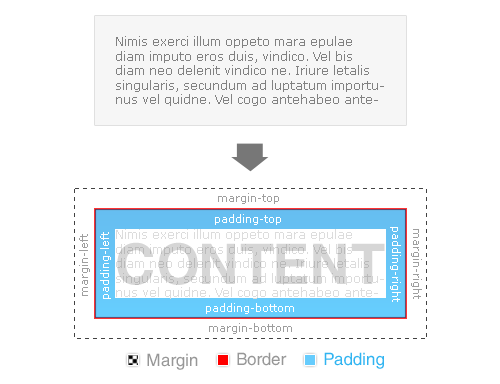
Padding is the inner space of an element, and margin is the outer space of an element.
The difference becomes clear once you apply backgrounds and borders to an element. Unlike padding, margins are not covered by either the background or border because they are the space outside of the actual element.
Take a look at the visual below:
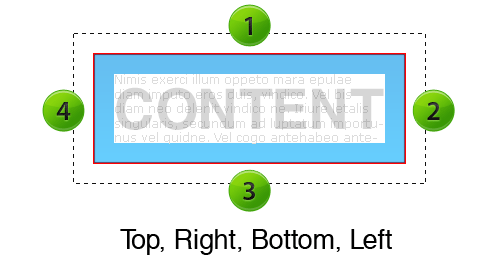
Margin and padding values are set clockwise, starting from the top.
Practical example: Here is an <h2> heading between two paragraphs. As you can see, the margin creates white space between the paragraphs, and the padding (where you see the background gray color) gives it some breathing room.
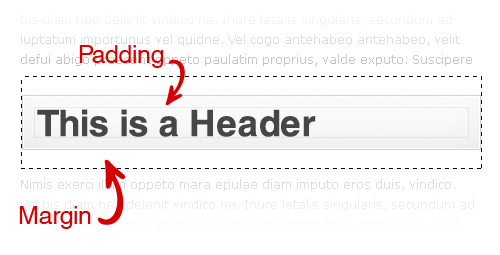
Margin and Padding Values
In the above example of the heading, the values for the margin and padding would be:
margin: 15px 0 15px 0; padding: 15px 15px 15px 15px;
To optimize this line of code further, we use an optimization technique called “shorthand,” which cuts down on repetitive code. Applying the shorthand technique would slim the code down to this:
margin: 15px 0; /*--top and bottom = 15px | right and left = 0 --*/ padding: 15px; /*--top, right, bottom and left = 15px --*/
Here is what the complete CSS would look like for this heading:
h2 {
background: #f0f0f0;
border: 1px solid #ddd;
margin: 15px 0;
padding: 15px;
}
Quick Tip
Keep in mind that padding adds to the total width of your element. For example, if you had specified that the element should be 100 pixels wide, and you had a left and right padding of 10 pixels, then you would end up with 120 pixels in total.
100px (content) + 10px (left padding) + 10px (right padding) = 120px (total width of element)
Margin, however, expands the box model but does not directly affect the element itself. This tip is especially handy when lining up columns in a layout!
Additional resources:
- Box Model
- Margins and Padding
- The Definitive Guide to Using Negative Margins
- CSS Shorthand Guide
- CSS Margin
- CSS Padding
2. Floats
Floats are a fundamental element in building CSS-based websites and can be used to align images and build layouts and columns. If you recall how to align elements left and right in HTML, floating works in a similar way.
According to HTML Dog, the float property “specifies whether a fixed-width box should float, shifting it to the right or left, with surrounding content flowing around it.”
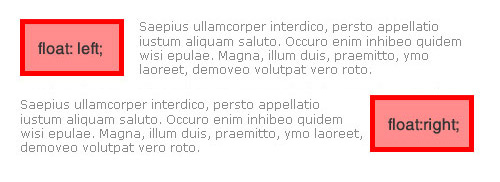
The float: left value aligns elements to the left and can also be used as a solid container to create layouts and columns. Let’s look at a practical situation in which you can use float: left.
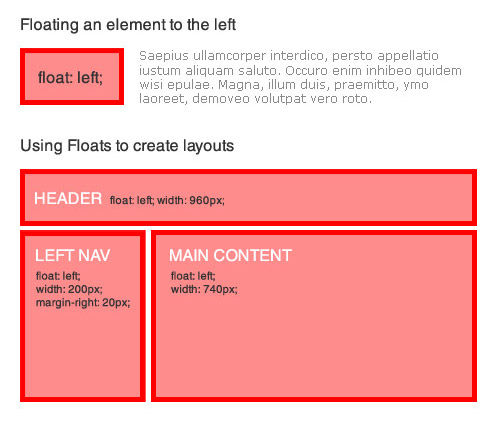
The float: right value aligns elements to the right, with surrounding elements flowing to the left.
Quick tip: Because block elements typically span 100% of their parent container’s width, floating an element to the right knocks it down to the next line. This also applies to plain text that runs next to it because the floated element cannot squeeze in the same line.
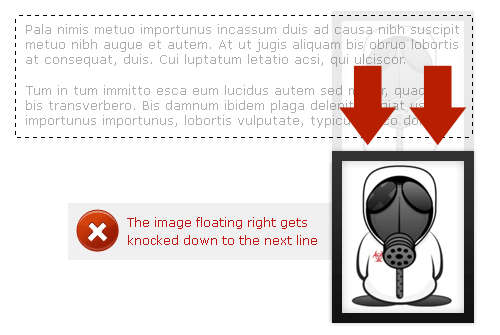
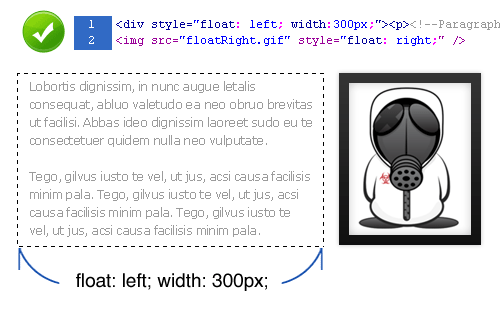
You can correct this issue in one of two ways:
- Reverse the order of the HTML markup so that you call the floated element first, and the neighboring element second.

- Specify an exact width for the neighboring element so that when the two elements sit side by side, their combined width is less than or equal to the width of their parent container.
Internet Explorer 6 (IE6) has been known to double a floated element’s margin. So, what you originally specified as a 5-pixel margin becomes 10 pixels in IE6.

A simple trick to get around this bug is to add display: inline to your floated element, like so:
.floated_element {
float: left;
width: 200px;
margin: 5px;
display: inline; /*--IE6 workaround--*/
}
Additional resources:
- Floatutorial
- Clearing Floats
- CSS Float Theory: Things You Should Know
- CSS-Tricks: All About Floats
- Containing Floats
- W3Schools: Clear
- W3Schools: Float
3. Center Alignment
The days of using the <center> HTML tag are long gone. Let’s look at the various ways of center-aligning an element.
Horizontal Alignment
You can horizontally align text elements using the text-align property. This is quite simple to do, but keep in mind when center-aligning inline elements that you must add display: block. This allows the browser to determine the boundaries on which to base its alignment of your element.
.center {
text-align: center;
display: block; /*--For inline elements only--*/
}
To horizontally align non-textual elements, use the margin property.
The W3C says, “If both margin-left and margin-right are auto, their used values are equal. This horizontally centers the element with respect to the edges of the containing block.”
Horizontal alignment can be achieved, then, by setting the left and right margins to auto. This is an ideal method of horizontally aligning non-text-based elements; for example, layouts and images. But when center-aligning a layout or element without a specified width, you must specify a width in order for this to work.
To center-align a layout:
.layout_container {
margin: 0 auto;
width: 960px;
}
To center-align an image:
img.center {
margin: 0 auto;
display: block; /*--Since IMG is an inline element--*/
}
Vertical Alignment
You can vertically align text-based elements using the line-height property, which specifies the amount of vertical space between lines of text. This is ideal for vertically aligning headings and other text-based elements. Simply match the line-height with the height of the element.
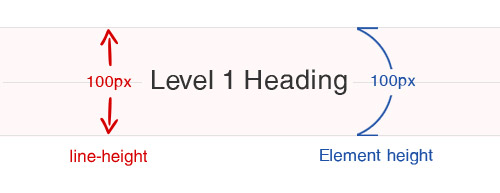
h1 {
font-size: 3em;
height: 100px;
line-height: 100px;
}
To vertically align non-textual elements, use absolute positioning.
The trick with this technique is that you must specify the exact height and width of the centered element.
With the position: absolute property, an element is positioned according to its base position (0,0: the top-left corner). In the image below, the red point indicates the 0,0 base of the element, before a negative margin is applied.
By applying negative top and left margins, we can now perfectly align this element both vertically and horizontally.
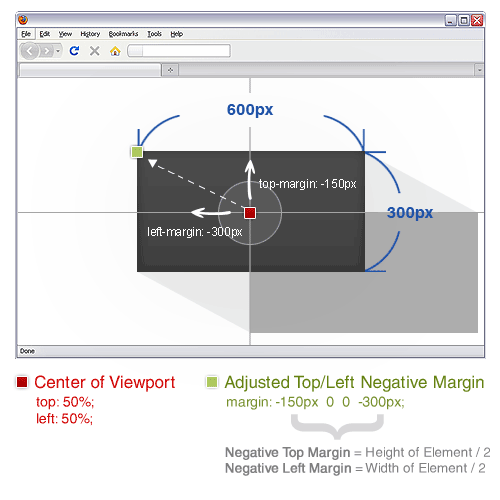
Here is the complete CSS for horizontal and vertical alignment:
.vertical {
width: 600px; /*--Specify Width--*/
height: 300px; /*--Specify Height--*/
position: absolute; /*--Set positioning to absolute--*/
top: 50%; /*--Set top coordinate to 50%--*/
left: 50%; /*--Set left coordinate to 50%--*/
margin: -150px 0 0 -300px; /*--Set negative top/left margin--*/
}
Related articles:
- Vertical Centering With CSS
- Centering Things
- CSS Centering 101
- CSS Centering: Fun for All!
- Two Simple Ways to Vertically Align with CSS
4. Ordered vs. Unordered Lists
An ordered list, <ol>, is a list whose items are marked with numbers.
An unordered list, <ul>, is a list whose items are marked with bullets.
By default, both of these list item styles are plain and simple. But with the help of CSS, you can easily customize them.
To keep the code semantic, lists should be used only for content that is itemized in a list-like fashion. But they can be extended to create multiple columns and navigation menus.
Customizing Unordered Lists
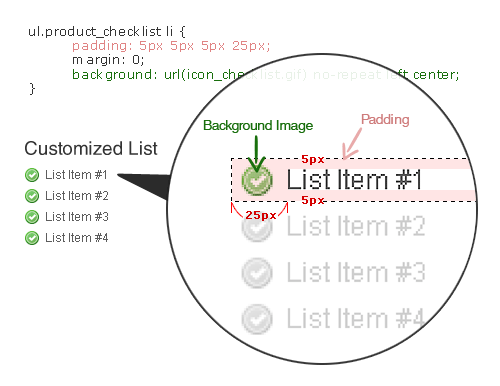
Plain bullets are dull and may not draw enough attention to the content they accompany. You can fix this with a simple yet effective technique: remove the default bullets and apply a background image to each list item.
Here is the CSS for custom bullets:
ul.product_checklist {
list-style: none; /*--Takes out the default bullets--*/
margin: 0;
padding: 0;
}
ul.product_checklist li {
padding: 5px 5px 5px 25px; /*--Adds padding around each item--*/
margin: 0;
background: url(icon_checklist.gif) no-repeat left center; /*--Adds a bullet icon as a background image--*/
}
Resources for list items:
- CSS-Styled Lists: 20+ Demos, Tutorials and Best Practices
- Style Your Ordered List
- CSS Design: Taming Lists
Using Unordered Lists for Navigation
Most CSS-based navigation menus are now built as lists. Here is a breakdown of how to turn an ordinary list into a horizontal navigation menu.
HTML: begin with a simple unordered list, with links for each list item.
<ul id="topnav"> <li><a href="#">Home</a></li> <li><a href="#">Services</a></li> <li><a href="#">Portfolio</a></li> <li><a href="#">About</a></li> <li><a href="#">Contact</a></li> </ul>
CSS: we remove the default bullets (as we did when we made custom bullets) by specifying list-style: none. Then, we float each list item to the left so that the navigation menu appears horizontal, flowing from left to right.
ul#topnav {
list-style: none;
float: left;
width: 960px;
margin: 0; padding: 0;
background: #f0f0f0;
border: 1px solid #ddd;
}
ul#topnav li {
float: left;
margin: 0; padding: 0;
border-right: 1px solid #ddd;
}
ul#topnav li a {
float: left;
display: block;
padding: 10px;
color: #333;
text-decoration: none;
}
ul#topnav li a:hover {
background: #fff;
}
Additional resources:
- CSS-Based Navigation Menus: Modern Solutions
- 30 Exceptional CSS Navigation Techniques
- Using CSS and Unordered List Items to Do Just About Anything
- Nifty Navigation Tricks Using CSS
- Centering List Items Horizontally
- Digg-Like Navigation Bar Using CSS
5. Styling Headings
The heading HTML tag is important for SEO. But regular headings can look dull. Why not spice them up with CSS and enjoy the best of both worlds?
Once you have the main styling properties set for your headings, you can now nest inline elements to target specific text for extra styling.
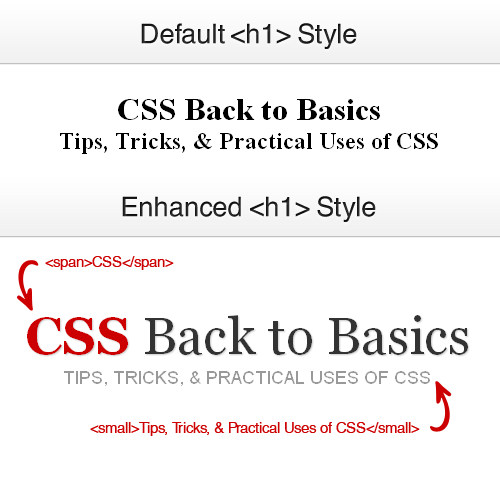
Your HTML would look like this:
<h1><span>CSS</span> Back to Basics <small>Tips, Tricks, & Practical Uses of CSS</small></h1>
And your CSS would look like this:
h1 {
font: normal 5.2em Georgia, "Times New Roman", Times, serif;
margin: 0 0 20px;
padding: 10px 0;
font-weight: normal;
text-align: center;
text-shadow: 1px 1px 1px #ccc; /*--Not supported by IE--*/
}
h1 span {
color: #cc0000;
font-weight: bold;
}
h1 small {
font-size: 0.35em;
text-transform: uppercase;
color: #999;
font-family: Arial, Helvetica, sans-serif;
text-shadow: none;
display: block; /*--Keeps the small tag on its own line--*/
}
Additional typography-related resources:
- 10 Examples of Beautiful CSS Typography, and How They Did It
- 12 CSS Tools and Tutorials for Beautiful Web Typography
- CSS Gradient Text Effect
- 50 Useful Design Tools For Beautiful Web Typography
- 6 Ways to Improve Your Web Typography
- CSS Typography: Contrast Techniques, Tutorials and Best Practices
- 8 Simple Ways to Improve Typography in Your Designs
- How to Size Text in CSS
6. Overflow
The overflow property can be used in various ways and is one of the most useful properties in the CSS arsenal.
What Is Overflow?
According to W3Schools.com, “the overflow property specifies what happens if content overflows an element’s box.”
Take a look at the following examples to see how this works.
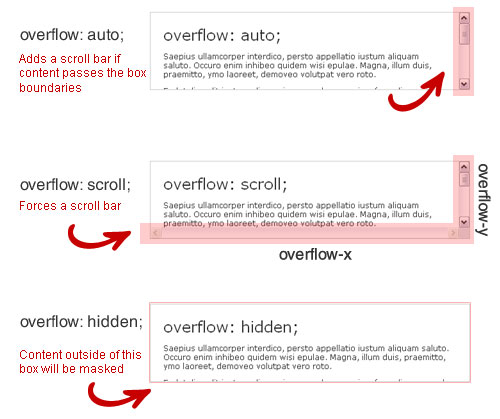
Visually, overflow: auto looks like an iframe but is much more useful and SEO-friendly. It automatically adds a scroll bar (horizontal, vertical or both) when the content within an element exceeds the element’s box or boundary.
The overflow: scroll property works the same but forces a scroll bar to appear regardless of whether or not the content exceeds the element’s boundary.
And the overflow: hidden property masks or hides an element’s content if it exceeds the element’s boundary.
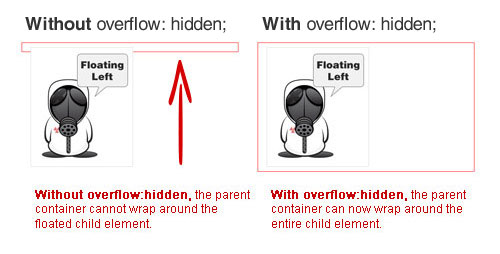
Quick tip: have you ever had a parent element that did not fully wrap around its child element? You can fix this by making the parent container a floated element.
In some cases, though, floating left or right is not a workable solution — for example, if you want to center-align the container or do not want to specify an exact width. In this case, use overflow: hidden on your parent container to completely wrap any floated child elements within it.
Additional resources:
- HTML Dog: Overflow
- W3Schools: Overflow
- CSS Globe: Create Resizing Thumbnails
- CSS-Tricks: CSS Overflow Breakdown
7. Position
Positioning (relative, absolute and fixed) is one of the most powerful properties in CSS. It allows you to position an element using exact coordinates, giving you the freedom and creativity to design out of the box.
You have to do three basic things when using positioning:
- Set the coordinates (i.e. define the positioning of the x and y coordinates).
- Choose the right value for the situation: relative, absolute, fixed or static.
- Set a value for the z-index property: to layer elements (optional).
With position: relative, an element is placed in its natural position. For example, if a relatively positioned element sits to the left of an image, setting the top and left coordinates to 10px would move the element just 10 pixels from the top and 10 pixels from the left of that exact spot.
Relative positioning is also commonly used to define the new point of origin (the x and y coordinates) of absolutely positioned nested elements. By default, the base position of every element is the top-left corner (0,0) of the browser’s view port. When you give an element relative positioning, then the base position of any child elements with absolute positioning will be positioned relative to their parent element — i.e. 0,0 is now the top-left corner of the parent element, not the browser’s view port.
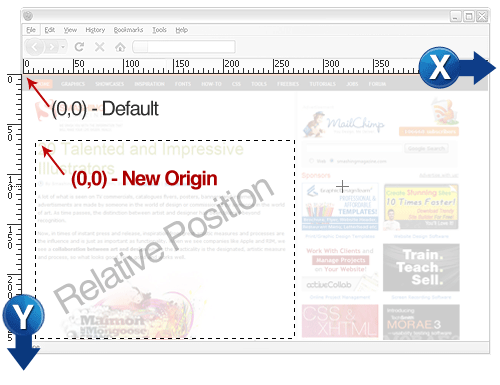
An element with a value of position: absolute can be placed anywhere using x and y coordinates. By default, its base position (0,0) is the top-left corner of the browser’s view port. It ignores all natural flow rules and is not affected by surrounding elements.
The base position of an element with a position: fixed value is also the top-left corner of the browser’s view port. The difference with fixed positioning is that the element will be fixed to its location and remain in view even when the user scrolls up or down.
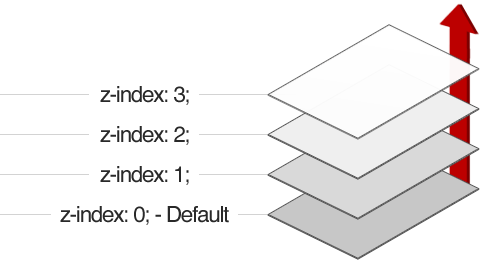
The z-index property specifies the stack order of an element. The higher the value, the higher the element will appear.
Think of z-index stacking as layering. Check out the image below for an example:
Additional resources:
- W3Schools: CSS Positioning
- CSS-Tricks: Absolute, Relative, Fixed Positioning
- Stopping the CSS Positioning Panic
- Learn CSS Positioning in Ten Steps
- In-Depth Coverage of CSS Layers, Z-Index, Relative and Absolute Positioning
Adding Flavor With CSS
Now that you understand the basics, step up your game by adding a bit of flavor to your CSS. Below are some common techniques for enhancing and polishing your layout and images. We’ll also challenge you to create your own website from scratch using pure CSS.
9. Background Images
Background images come in handy for many visual effects. Whether you add a repeating background image to cover a large area or add stylish icons to your navigation, the property makes your page come to life.
Note, though, that the default print setting excludes the background property. When creating printable pages, be mindful of which elements have background images and include image tags.
Using Large Backgrounds
With monitor sizes getting bigger and bigger, large background images for websites have become quite popular.
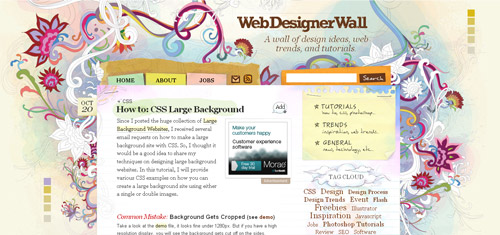
Check out this detailed tutorial by Nick La of WebDesigner Wall on how to achieve this effect:
Also be sure to read the article on Webdesigner Depot about the “Do’s and Don’ts of Large Website Backgrounds.”
Text Replacement
You may be aware that not all standard browsers yet support custom fonts embedded on a website. But you can replace text with an image in various ways. One rather simple technique is to use the text-indent property.
Most commonly seen with headings, this technique replaces structured HTML text with an image.
h1 {
background: url(home_h1.gif) no-repeat;
text-indent: -99999px;
}
You may sometimes need to specify a width and height (as well as display: block if the element is inline).
.replacethis {
background: url(home_h1.gif) no-repeat;
text-indent: -99999px;
width: 100%;
height: 60px;
display: block; /*--Needed only for inline elements--*/
}
Articles on text replacement:
- Nine Techniques for CSS Image Replacement
- Using background-image to Replace Text
- Image Placement vs. Image Replacement
- Revised Image Replacement
CSS Sprites
CSS Sprites is a technique in which you use background positioning to show only a small area of a larger single background image (the larger image being actually multiple images laid out in a grid and merged into one file).
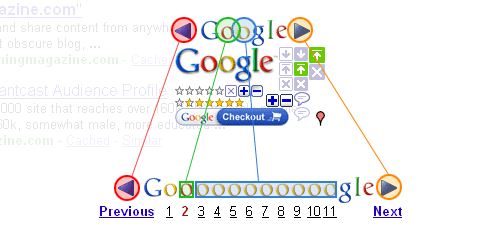
CSS Sprites are commonly used with icons and the hover and active states of images that have replaced links and navigation items.

Why use CSS Sprites? CSS Sprites save loading time and cut down on CSS and and HTTP requests. To learn more about CSS Sprites, check out the resources below!
Articles on CSS Sprites:
- The Mystery Of CSS Sprites: Techniques, Tools and Tutorials
- Advanced CSS Menu
- CSS Sprite Navigation Tutorial
- Creating Easy and Useful CSS Sprites
- Building Faster Websites with CSS Sprites
- CSS Sprites: Image Slicing’s Kiss of Death
- CSS Sprites: How Yahoo.com and AOL.com Improve Web Performance
- What Are CSS Sprites?
10. Image Enhancement
You can style images with CSS in various ways, and some designers have made a lot of effort to create very stylish image templates.
One simple trick is the double-border technique, which does not require any additional images and is pure CSS.
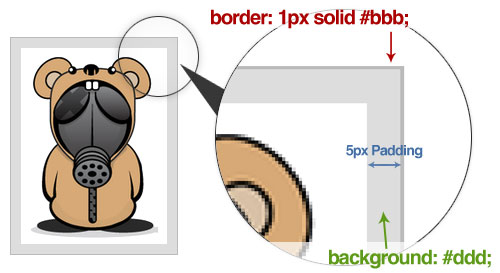
Your HTML would look like this:
<img class="double_border" src="sample.jpg" alt="" />
And your CSS would look like this:
img.double_border {
border: 1px solid #bbb;
padding: 5px; /*Inner border size*/
background: #ddd; /*Inner border color*/
}
Nick La of WebDesigner Wall has a great tutorial on clever tricks to enhance your images. Do check it out!

11. PSD to HTML
Now that you have learned the fundamentals of CSS, it’s time to test your skill and build your own website from scratch! Below are some hand-picked tutorials from the best of the Web.
- Slice and Dice that PSD

- Converting a Design from PSD to HTML

- From PSD to HTML, Building a Set of Website Designs Step by Step

- Coding a Clean and Illustrative Web Design from Scratch
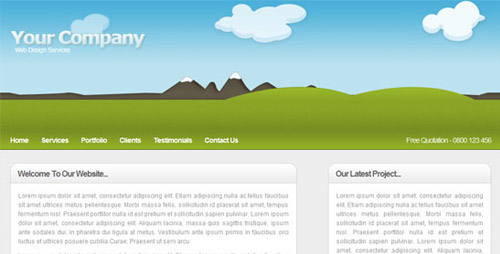
- Build a Sleek Portfolio Site from Scratch

- How To Build Your Own Single Page Portfolio Website

- Converting a Photoshop Mockup: Part Two, Episode One
Conclusion
Developing a strong foundation early on is critical to mastering CSS. Given how fast Web technology advances, there is no better time than now to get up to speed on the latest standards and trends.
Hopefully, the techniques we’ve covered here will give you a head start on becoming the ultimate CSS ninja. Good luck, stay hungry and keep learning!
(al)


M.R.
October 5th, 2009 6:24 amThank you for the nice tutorial.
Ben S
October 5th, 2009 6:25 amNice Review of CSS!
The link to the “shorthand” page on your website is incorrect. It should be http://www.smashingmagazine.com/2008/08/18/7-principles-of-clean-and-optimized-css-code/
Other links to your web site appear broken as well. They work if I replace “media1″ or “media2″ in the url with “www”.
(SM) Thank you, Ben, it was fixed.
timmy
October 5th, 2009 6:26 amGreat tutorial!
Thank you very much…
pieter
October 5th, 2009 6:27 amGreat CSS tips!
RobbieAlpha
October 5th, 2009 6:30 amGreat, love it. I’ll be sending a link to all my employees. Thanks Smashing.
nick
October 5th, 2009 6:30 ampretty sure most of us knew all this already.
Cecil
October 5th, 2009 6:31 amAnother solid article summarizing and clarifying essential css issues. Thanks!
Matt
October 5th, 2009 6:34 amWow, this is going to be in a little of people’s bookmarks bar. Good job.
Gavin Will
October 5th, 2009 6:39 amVery nice clear article..
well done.
Oliver
October 5th, 2009 6:40 amWhat an article!
Thanks for that amount of work!
Cheers, Oliver
Daniel
October 5th, 2009 6:43 amisdanielonline.com Very nicely put together. Thank you.
Pam - Ryvon Designs
October 5th, 2009 6:44 amThanks! I think a lot of beginners and those starting out are in great need of something like this! Your support of the beginner community is wonderful, keep it up!!!
Bleyder
October 5th, 2009 6:44 amBookmarked!!
spritzstuhl
October 5th, 2009 6:51 amlike it! Well done in the usual Smashing way!
Rob Eardley
October 5th, 2009 6:56 amAwesome stuff!
I will sift through this, this evening to see if there is anything that I don’t already know in there :)
thuy
July 26th, 2011 11:39 pmgreat!
Ujjwol
October 5th, 2009 7:01 amI cannot really understand why PSD to HTML is needed.
As far as I know, PSD id the format of photoshop and how is image related with website developement ?
I’m really confused.
sidd
November 29th, 2009 7:12 pmFrontend/User Ineterface/Layouts , there are all usually designed in photoshop and then sliced.The slices are then given functionality (woven into a website) using (x)html/css etc..
elliott
October 5th, 2009 7:03 amGood stuff- But I think the biggest fundamental understanding missing from this intro is the difference between block and inline elements, and how css declarations affect each.
JP
October 5th, 2009 7:06 amAwesome and very useful article.. very good for reference.. thanks so much!!
Phil
October 5th, 2009 7:14 amI usually never comment. But this a a great article.
xethorn
October 5th, 2009 7:16 amThanks a lot for this interesting list of advices.
I found another one, really interesting on anidea.com: http://anidea.com/technology/css-best-practices-for-modern-designs/, it’s more about how to organize your code and reduce the size.
Thanks for you share!
Samuel
October 5th, 2009 7:44 amAFAIK, IE6 will only double the margin in the direction the float is. Ie: if you float your element to the left, only margin-left will be doubled.
And why would you float the header in chapter 2.?
Siddhant Mehta
October 5th, 2009 7:56 amHi All,
Smashing magazine has always been great in giving tips and tricks.
Just this one thing was missing, BASIC CSS understanding.
Even this beginner tutorial would be of great use to professionals!
Thanks you for this.
Gene
October 5th, 2009 7:58 amNice! Hoping for the next article.. Thanks!
designfollow
October 5th, 2009 8:11 amThanks for that amount of work
silverback
October 5th, 2009 8:17 amGrat article, grat overview, thanx SM
albertopy
October 5th, 2009 8:19 amvery nice article!
deepakraj
October 5th, 2009 8:30 amReally a great article.
Can you please post more on javascript too. please
Crompton
October 5th, 2009 8:33 amThanks—perfect timing for me!
Jewen Soyterkijns
October 5th, 2009 8:43 amThe image is semantically linked to the paragraph no? why not add the img inside the paragraph and be gone with any float problem?
Ann
October 5th, 2009 8:47 amThanks, certainly learned some new CSS.
Steve
October 5th, 2009 8:58 amAwesome article. I learned a lot. Thanks
Jad Graphics
October 5th, 2009 9:13 amThanks Soh for this awesome article about CSS. I have been using CSS for a while now, but I still learned something from this article. I never knew that just by adding line height to your text, you can vertically center it. That’s awesome.
Jad Limcaco
Jad Graphics
Slobodan Kustrimovic
October 5th, 2009 9:34 am“In this case, use overflow: hidden on your parent container to completely wrap any floated child elements within it.”
Isn’t clearing the float a better solution for this?
Martin Frobisher
October 5th, 2009 9:35 amVery nice tutorial. I am going to pass it around.
I would add that an absolutely positioned item’s base point is the upper left corner of the browser window unless it is contained within a element that has its own absolute or relative positioning. In that case, the base point is the upper left corner of that element. I think.
Julien L
October 5th, 2009 10:04 amVery interesting, I like well done illustrations and the way things are explained. Thanks !
Afsin
October 5th, 2009 10:08 amWoow! That’s great article. Thank you very much…
teomos
October 5th, 2009 10:21 amYea! It’s great. I’m from Poland. I usually only read smashing articles but now i had to comment this. Really helpful for beginers.
Exorbitans
October 5th, 2009 10:23 amVery nice article, Soh!
But I’ve got one problem working on a new site:
The navigation is set with margin-top: 0 and the container for the content is set with margin: 0 auto, but this is not what I want. I want it to have a margin-top of 80px, but this does not work. In the case with margin: 80px auto the navigation is inside the container. In another case that the container has position: absolute the margin: auto does not work.
Does anyone know how to set a container centered with a topmargin?
Thanks.
Edit:
I just got it and I am going to tell you – might happen that you’ll have the same problem in future:
I set the container with margin: 80px auto. The navigation was this time inside the container, so I gave it a margin-top of -80px and this time it works.
Greetings from Germany.
eriwyn
October 5th, 2009 10:27 amfantastic. Thanks!!!
sharunbaby
October 5th, 2009 10:45 amSuper..
Bryan Hughes
October 5th, 2009 11:13 amExcellent article, even for those who already are very familiar with CSS. Thanks!
Enk.
October 5th, 2009 11:14 amMan, really really really awesome article. I need something exactly like that. Thanks alot ! :)
All for Design
October 5th, 2009 11:32 amGreat article ! Thanks for sharing.
Alexis Brille
October 5th, 2009 11:40 amGo, Soh! :D.
Jean-Francois Monfette
October 5th, 2009 12:13 pmFantastic tutorial. I hope the book will be as good as theses tutorials !
Tom Something
October 5th, 2009 12:14 pmTo Slobodan Kustrimovic, if part of your structural layout relies on floats, I believe clearing a float will clear all parent floats as well. Thus, if you have a left-floated nav bar, clearing a float will push the content down past the nav bar, no matter what internal floats you intended to clear. It’s been a point of frustration for me.
teebee
October 5th, 2009 12:27 pmWhat site is it that the little guy in the gas mask comes from? I know I’ve seen him in a 3×3 grid of icons with him in the center and they ‘grow’ when you hover over them. I want a similar effect in something I’m doing.
John Faulds
October 5th, 2009 12:35 pmThat was my understanding too; it doesn’t affect vertical margins.
@Slobodan Kustrimovic as Tom Something points out, clearing floats with more floats can sometimes cause you problems elsewhere; I’d use overflow over floats in almost all situations except when you want some content to appear outside the boundaries its container.
With regards the styling headings, I believe your use of <small> is incorrect. If you’re using it for presentational purposes, then obviously, that’s wrong, but if you’re using it for the sort of semantics it provides as suggested by the HTML5 spec, namely that it be used for small print, then I’d suggest that the subheading to a heading isn’t small print, it’s another heading.
Sam
October 5th, 2009 12:55 pmI truly love you Smash.
Thanks for this amazing article! It did come at the perfect time for me.
Thiago Cangussu
October 5th, 2009 1:22 pmGreat article. I liked it very much. Thanks for sharing your knowledge.
Marco
October 5th, 2009 1:27 pmThis is soooooooo great! Everything you have to know when you start with CSS. For me it is good to look back and see what I am missing in my workflow. I already saw some things that I will change because of this tut.
Thanks guys
ps: looking forward what will be there in the book :-)
Trevor
October 5th, 2009 2:33 pmFantastic article, I’ve been looking to get a refresher in CSS, and this hit the spot!
macias
October 5th, 2009 2:57 pmwow .. great post… everythin’ in one
Alecme
October 5th, 2009 3:24 pmWhy the rest of us can´t write so clear, punctual and without “bells and..”…
The greatest explanation about CSS, Thank you very, very much…
Bengacreative
October 5th, 2009 4:23 pmVery insight full post. I would have like to see some advance selectors used in the examples. Thanks for the article.
Benga creative
Oliver
October 5th, 2009 4:51 pmas always you get and compile nice articles and wrapped ideas. keep up the good work guys. let’s rock the web world.
Ed in TX
October 5th, 2009 5:06 pmOn “padding vs margin” one thing that took me forever to discover is that when you have two elements with vertical margins that “collide”, you’ll only end up with one margin that is the larger of the two. Drove me nuts trying to figure out why I couldn’t get things to work out. Google “css collapsing margins” for more detail.
james
October 5th, 2009 5:27 pmthanks so much for this tutorial. i’m currently in school studying web design and interactive media. i actually had a mental breakdown trying to do the css for my final project. once i was able to figure out why i was having a mega brain fart i was able to get the css done. the thing this taught me was that i need to learn, or rather focus more on learning css, so i’ve been reading as many tutorials as i possibly can on css. i hope that by the time i’m done with school that i’ll be a css ninja. this tutorial will definitely be a part of my arsenal.
neshama
October 5th, 2009 6:27 pmI’m currently studying graphic design in Buenos Aires, Argentina and I found this article amazingly useful, I’ve been reading a lot about CSS lately since I started working with it on a daily basis and SM has been my starting point for everything. Thanks for being there when needed, when wanted and most of all, when the brain is so fried that you don’t know how the heck you’re gonna find a new idea =)
Once again, Brilliant article
Greetings from South America!
Hein Thu aung
October 5th, 2009 7:48 pmGreat post!
Thank you.
Josh
October 5th, 2009 8:12 pmNicely done Soh! Even us DB guys can learn a few CSS tips and tricks. :-)
shinhwas
October 5th, 2009 9:02 pmThat’s good to begginer!
Bhadra
October 5th, 2009 9:26 pmGreat article!
Just one thing tho, in the Floats section, the image under “Using Floats To Create Layouts” has style as float:left for both LEFT NAV as well as MAIN CONTENT. Shouldn’t the one for MAIN CONTENT be float:right instead?
eXweed
October 5th, 2009 9:31 pmGood Job.
Jayaseelan
October 5th, 2009 9:46 pmA Nice and useful tutorial!
Ounsy Nassar
October 5th, 2009 9:52 pmWoohooo !!
that was AWESOME!
nice post!
WDP
October 5th, 2009 10:05 pmGREAT!!!!
bijon
October 5th, 2009 10:35 pmvery very nice tutorial
Remon
October 5th, 2009 10:54 pmGreat post.
Really awesome.
Niels Matthijs
October 5th, 2009 11:18 pmNice round-up, but in chapter 1 (margins vs paddings) you’re really missing some guidance for usage when there is no border or background, and the same visual effect can be accomplished using either a padding or a margin. That’s where it becomes interesting.
aSeed
October 5th, 2009 11:19 pmIf we have to read only one page about CSS it must be this one ! Some of theses tricks are used on our page aSeed Webdesign
Sylvain Gourvil
October 5th, 2009 11:32 pmNice “tutorial”. Very clear and clever. Always good to read basics :)
bitelemental
October 5th, 2009 11:40 pmExcellent. The power of CSS is incredible!
Safi
October 5th, 2009 11:42 pmSmashing as usual :) thumbs up
Selvam
October 5th, 2009 11:46 pmthanks…..nice tutor
Rainer
October 6th, 2009 12:01 amChapter 6: the container of a floating element needs first the overflow:hidden clearing the float. But older IEs additionally need a height:1% or a zoom:1 (to get hasLayout). Otherwise it doesn’t work.
Richard Kean
October 6th, 2009 12:20 amA great tutorial that I can refer back to and not constantly ask / nag to “how do you do this again!”
Thank you – keep them coming
Nicola
October 6th, 2009 12:21 amgood article. However…
for and using the background technique isnt what id use. Id use list-style-image.
And, for the text replacement, wouldnt the technique be very very bad for accessibility?
สุดเดช
October 6th, 2009 12:22 amnice thx for article
Oliver
October 6th, 2009 12:39 amthx
was refreshing my memory with that
David
October 6th, 2009 12:53 amHallelujah Smash Magazine!
sophy
October 6th, 2009 12:56 amGreat! thank you so much to share this article
Gjergji Kokushta
October 6th, 2009 1:23 amVery nice tutorial, very useful – great job!
Danilo
October 6th, 2009 1:37 amGreat, this kinds of articles is appreciated.
Slavomir
October 6th, 2009 2:11 amVery practical, simple and very useful guide… Thank you!!!
Nikhil Kumar C
October 6th, 2009 2:36 amGood!!!! Excellent article
MaTYO
October 6th, 2009 2:53 amThese articles are great, but people dont understand how to use :
floats, relative and absolute positioning.
Theres alot of bad techniques in this tutorial :(
Meg
October 6th, 2009 3:15 amHello,
This is really one of the nicest tutorial for bigginers.Thanks a lot!!! keep up the good work.
MEG :)
Josh
October 6th, 2009 3:27 am“Even this beginner tutorial would be of great use to professionals!”
What. This is a basic article, not taking away from it but if a professional that uses html/css needs this they are not a professional.
rdam
October 6th, 2009 4:12 amExcellent tutorial, very useful!
please make some articles about ERGONOMIC DESIGN GUIDELINES or STANDARTS! for websites…
thank you
mustafa saraç
October 6th, 2009 4:54 am@Soh Tanaka, welcome to Smashing Magazine. You’re best.
Julius
October 6th, 2009 4:55 amVery nice tutorial for newbies.
Webstandard-Team
October 6th, 2009 5:16 amVery nice overview, but don’t miss this “CSS Shorthand Properties” ressource!
Nishin
October 6th, 2009 5:28 amfantastic article…
i am a beginner and this article cleared my doubts about padding, margin and float.
thanks
Thomas
October 6th, 2009 6:07 amBest CSS tutorial I’ve ever seen, also emphasizes the current trends. Thanks!
Radeksonic
October 6th, 2009 6:13 amNice article!
However, in the thing about floats it says ‘Reverse the order of the HTML markup so that you call the floated element first, and the neighboring element second.’ but this make the semantics suck.
Martin Bentley Krebs
October 6th, 2009 6:19 amThanks for a very helpful article. For those of us who don’t work in or with CSS every day, it’s great to have a resource for “remembering” how to do something in CSS, as well as a place to see what’s currently being used.
teebee
October 6th, 2009 7:22 amI found the link I was looking for. The logo is for DesignBombs and the effect I was wanting is here: http://www.sohtanaka.com/web-design/fancy-thumbnail-hover-effect-w-jquery/ in case anyone else cares. :}
Ken
October 6th, 2009 7:50 amAwesome article on CSS! I just redesigned a website homepage for a client last week, using PSD and CSS, but will go back to add text-shadows for the headers. Thx for the great tips!
Edward B
October 6th, 2009 8:11 amWhat an article! I wish there was something like this a couple of years ago, I’d have made my life easier!
You put it really clear, congrats!
creativele
October 6th, 2009 8:13 amGreat article. I’ve been pondering over this one problem I had for my container, and overflow:hidden did the trick. I’ve been meaning to find a really short/condensed tutorial that teaches almost all there is to know to begin CSS, and I found it. I’ll be sharing this link around, thanks for writing it.
M@
October 6th, 2009 8:23 amWow this article is going to help me out so much, I am more of a print designer but i have noticed that more and more of my clients want web pages as well, and this will help me get the start I need.
Thank You Smashing Magazine.
M@
shylendhar
October 6th, 2009 9:06 amgreat information
NotAlame
October 6th, 2009 9:45 amnice, thanks a lot!
Niels
October 6th, 2009 9:47 amThank for this very useful tutorial! A lot of trying and messing around falls into place now!
Amos Newcombe
October 6th, 2009 9:48 amTo get customized bullets for a list, you go a long way around — and involve background images which are problematic to print — when something like this works even better:
UL { list-style-image: url(http://example.com/bullet.png) }
Is there a reason for that?
Russell
October 6th, 2009 10:03 amText Replacement – This is perfectly SEO friendly, google (as far as I know) doesn’t take ranking points off for negitive indent. It does hate “display:none;” and a few other techniques though;
I always use the following css on elements which will have a graphic background with text to replace the text. The more explicit rules help in consistent rendering across browsers.
html:
[h1]The site title[h1]
css:
h1 {
background: url(image/thesitetitle.jpg) no-repeat 0 0;
height:{the height of the image};
line-height:{the height of the image};
font-size:0.05em;
overflow: hidden;
text-indent:-555px;
width:{the width of the image};
}
Kevin
October 6th, 2009 10:54 amThis really hasn’t been covered before on here? Not even in one of the twenty or so “Top [Some Exorbitant Number] CSS Tutorials” posts on here?
I’d rather see a short article that completely deconstructs a single method or technique, than something that most people visiting this site on a regular basis should already have a pretty solid grasp of.
Kate Ebneter
October 6th, 2009 12:03 pmNice article, really. One thing: Would it be so hard to provide alternative CSS for a printable version? :-)
steven khauo
October 6th, 2009 12:14 pmKeep up the good work sophEr.
Tanya
October 6th, 2009 12:29 pmThis tutorial was really helpful for me. This trick with overflow hidden for wrapping any floated child elements within parent element was exactly what I needed. Thank you very much.
Vamsi
October 6th, 2009 12:47 pmAwesome … kick ass CSS skill booster
Zissan
October 6th, 2009 5:33 pmvery useful for me, thanks!
Nitesh
October 6th, 2009 8:48 pmNice.. Regarding Point no. 6.. — It doesn’t work in IE6.. any solution for this….
Karen
October 6th, 2009 8:52 pmthis is the greatest article i have read in a while. great, great work! :)
Maria Porto
October 6th, 2009 9:41 pmVertical alignment is wrong…. the margin rule is top right bottom left and both top and bottom as right and left must be set as negative like that:
width:600px;
height: 300px;
top: 50%;
left: 50%;
margin:-150px -300px -150px -300px; (or just -150px -300px as heights and sides as the same)
position:absolute;
JSDESIGN
October 6th, 2009 10:11 pm@maria He is not wrong. Your solution works because the right and bottom margin is being ignored by the top and left margin, which results in the same technique as his method.
Jorg
October 6th, 2009 11:14 pmVery basic stuff, but nice tutorials for begniners or to freshen up the ‘ol nugget :)
@Russell: Sure you want to use only 555px in your text indent to hide text? Think fully maxed windows on HD screens, your text might just pop up ;)
Ross Idzhar
October 6th, 2009 11:55 pmI can’t bloody wait for the book!
Onnay Okheng
October 7th, 2009 12:09 amit’s nice bro..
pinow
October 7th, 2009 1:35 amVery good tutorial, nice fresh up :)
Karl Mariner
October 7th, 2009 1:40 amThanks for the post…
Umesh Y k
October 7th, 2009 2:17 amThank !
I am going to do my first Div design by this link. So wish me a good luck .
You guys are great, keep it up.
Anoop
October 7th, 2009 3:19 amGood and informative.
Diego Restrepo
October 7th, 2009 4:51 amVery good job. I had to learn all these issues when documentation as this was not available, nor was it so popular. Congratulations. Highly recommended for beginners.
Steve Fenton
October 7th, 2009 5:13 amGreat article, the only thing I’d add is that if you’re going to use “float” make sure you’ve learnt about “clear” first!
Ben Goode
October 7th, 2009 6:47 amGreat article, thanks!
Daniel Lopes
October 7th, 2009 7:04 amNormally I don’t comment the posts but this one, IMHO, is one of the greatest compilations about most comon doubts of Wed Design. Congrats and thanks ;)
Tai Travis
October 7th, 2009 8:07 amGood summery of important CSS tips however you missed some fundamental tricks a CSS beginner needs such as CSS reset and Conditional Comments.
Also whenever talking about absolute positioning make sure to mention that it has to be within a relatively positioned container. That drove me crazy when I was first starting.
Cheers,
Tai – New Spark Designs
Dean Hayden
October 7th, 2009 9:07 amAnother method of text replacement is to use padding and overflow hidden rather than the minus text indent way. For eg.
h1 {
background: url(img/yourimage.png) no-repeat 0px 0px;
width: 300px(the width of the image) ;
height: 0px;
padding: 20px(the height of the image) 0px 0px 0px;
overflow: hidden;
}
Hussain Cutpiecewala
October 7th, 2009 10:30 amThanks for such a nice tutorial :-)
It will help me lot..
hareesh
October 7th, 2009 11:01 amwhere is the boookkkkkkkkk………….waiting for a long time…..:(
Kuldip
October 7th, 2009 11:23 amVery nice tutorial for beginners…thx a lot…
phh
October 7th, 2009 11:34 amReally great information here. Thanks so much.
fillman
October 7th, 2009 12:15 pmIt’s good to remember for novice that complete width of the elemet is also includes border width so I think better would be changing line
100px (content) + 10px (left padding) + 10px (right padding) = 120px (total width of element)
to
100px (content) + 10px (left padding) + 10px (right padding) + border (even if it’s 0px)= 120px (total width of element)
Onthebuzz
October 7th, 2009 1:49 pmA CSS rehash. Thanks
Niels
October 7th, 2009 2:06 pmI dont need to thank you, to many before me did already. It most be great to post on a website that attracts so much good visitors.
kamal
October 7th, 2009 6:15 pmnice article you got here. Very useful for newbie like me :)
AfTriX
October 7th, 2009 8:52 pmThis one is really helpful for beginner. Thanks a Lot for the Tutorial.
Madeline Ong
October 7th, 2009 9:14 pmGreat post, thank you! Since the title is “Mastering CSS Coding: Getting Started,” can we reasonably expect another post in the same vein? “Mastering CSS Coding: Intermediate Techniques,” for example? :)
tashfeen
October 7th, 2009 11:56 pmnothing new for experienced web designers, but hats off for a well-presented article with all the right information. very impressive!
Roie
October 8th, 2009 2:56 amExcellent post, as usual.
helaene
October 8th, 2009 5:02 amI was surprised to see so many positive comments on this article. It does look like it took a lot of time to compile, but there were many instances where vital information was omitted. A few of these have been mentioned by other commenters, but here are some examples of things I noticed:
1) covering padding/margin without mentioning the fact that margins collapse
2) covering floats without ‘clearing’
3) the 50% position / -left margin method of horizontal centering is listed in the vertical centering section
4)
olandulshould be defined as lists of items wherein the order matters and does not matter (respectively), as opposed to their presentation5) examples would be much more helpful if they were stripped down to their essential code ie. the custom bullets example
6) the heading styling section is not standards compliant. Css seems like an
h1, Back to Basics anh2, and Tips/Tricks anh3. Usingsmalllike this is presentational, rather than semantic.7)
overflow:autorequires a set height8) the
overflow:hiddensuggestion very hackish, and too complex for a beginner’s tutorial – a better solution would be to float the parent as well.9) the text replacement section could be enhanced with a sentence or two about why it is the best method (from an accessibility point of view)
10) vertical centering, sprites and psd->html are definitely not beginner topics. ;)
It is a pretty long list, so again, not a slam – but a suggestion of edits that could be made to the article now, in order to make it more useful for real beginners.
And to the beginners I would say: the two most helpful things I found (by far) when starting to learn CSS were the ‘CSS for Designers’ video series on lynda.com hosted by Molly Holzschlag and Andy Clarke, and the book CSS Mastery by Andy Budd. :)
sharath
October 8th, 2009 5:40 amawesome post.. very informative specially for beginners!
thanks
sharath
paulie
October 8th, 2009 12:31 pmBest article on CSS I’ve ever read. Thank you.
blkdykegoddess
October 8th, 2009 10:49 pmexcellent article. you all never disappoint.
Thapelo
October 8th, 2009 11:41 pmCan’t wait to get started!
tehkemo
October 9th, 2009 12:37 amgreat guide for begginers, thanks for this, I atleast found another great resources for further education, thanks!
Abdul-Basit Munda
October 9th, 2009 11:53 amExcellent Article, very useful
Vallard
October 9th, 2009 3:56 pmBest article on CSS I have ever read. Very clear, clean, and illustrative. Thanks a bunch!
Abdul Akbar
October 10th, 2009 10:54 amThis was really a best article.
I found the following solution for the floating elements very handy. Thanks to smashingmagazine.
http://www.quirksmode.org/css/clearing.html
Alex
October 11th, 2009 6:57 amReally like this summary / reference / how-to article.
Motivating to become a bedder webber :)
#hungry to learn more
nes
October 11th, 2009 4:56 pmwow.. these tips will help me a lot!!! thanks.. :)
Thomas
October 12th, 2009 4:53 amvery good article. It explains quickly thew basics of CSS.
muthiulhaq
October 12th, 2009 9:41 pmexcellent article, very use full thanks……
Sarfraz Ahmed
October 12th, 2009 10:01 pmIt’s great post Chris.
I would actually post a question here !
I’have seen some amazing menu styles on these sites:
http://www.casioexilimlab.com/
http://www.razorbraille.com/
But I’ve no idea to create that. Can we expect your post on this?
If anyone else knows how to do it, please share then.
Thanks
ANTStorm
October 13th, 2009 12:12 amGreat tutorial! This is what all web-related developers must read!
BTW, I think that it’s worth mentioning that position:relative not only sets new origin for absolutely positioned child elements(in fact fixed and absolute positioned elements also do that), but also allows to move element around using left and top properties, keeping the original(0,0) space reserved by that element. I think that is what position:relative is all about.
ian
October 13th, 2009 1:31 amgreat tutorial…
i like it.. thanx..
Selvam
October 13th, 2009 2:41 amNice round up……strong in basics….
karthikeyan Bhaskaran
October 13th, 2009 3:50 amNice Tutorials and Explanations. But some what is missing to explain briefly…….
In CSS Sprites
tolga
October 13th, 2009 1:04 pmvery very very nice all in one css tutorial.
Phuket Website Design
October 13th, 2009 6:42 pmHo Good Tutorial, Thanks a Lot for the Tutorial.
Thanks krab
sunil chandre
October 14th, 2009 2:37 amGreat tutorial!
Thank you very much…!
Liz H
October 16th, 2009 10:37 amI learned a lot; thanks!
beben
October 16th, 2009 12:06 pmyeahhh…it’s a great magazine for blogger..hohohoho
Hung Bui
October 18th, 2009 3:58 amBrilliant. This would be something for me to read again and again to sharpen my CSS skill. Thanks
Pol Moneys
October 19th, 2009 4:12 amthis is a fantastic contribution for all people starting on this sweet css world we are living in.
please keep doing the goodwork, long life to smashingmagazine.com!
thank you once more,
p
Aaron
October 19th, 2009 2:20 pmfor Sarfraz Ahmed: This is most likely Flash animation. It goes WAY beyond css! If you are interested in it, you can visit http://www.adobe.com/products/flash/
Yoav Rios
October 20th, 2009 2:15 ami liked the Post…
are very useful!
really nice
Thank you
Lucy
October 21st, 2009 1:22 amNice, again!
canciller
October 22nd, 2009 6:17 am0 to %100m for me … :))
Rolando A. Petit
October 25th, 2009 12:13 pmThis is one of the best quick and simple write ups I think I have ever seen… very nicely done guys
Santhy
October 26th, 2009 1:27 amVery very useful tutorial. Thanks a bunch !
divone
October 27th, 2009 2:46 pmI’ve translated it to russian. )
http://divone.ru/css-master-klass-osnovnye-priyomy/
deepchand
October 28th, 2009 3:15 amGreatest article that ever seen…..Thanks alot.
Indrek
November 2nd, 2009 4:10 amGreat tips. You definitely put it to the next level thanks to all those wonderful examples and screenshots.
I bet many starting CSS coders would find good tips from this article.
volcanono
November 3rd, 2009 1:24 amreally good and useful article
jann
November 9th, 2009 1:17 pmVery timely article — I needed a ‘refresher’. The writing is very good… illustrative…and has some good tips.
Rajnikant
November 16th, 2009 2:02 amReally nice to start CSS site
mrjuls
November 19th, 2009 2:26 amThank you, it’s one of the best tutorials I’ve ever seen!
pouzeot
November 23rd, 2009 7:41 pmReally useful tutorial. Thank you.
R Aflec
November 26th, 2009 3:45 am“Another great article to read while coding web layouts:
http://www.xhtml-css-code.com/html/things-to-remember-while-coding-a-website-to-make-it-search-engine-friendly
Though, not exactly a psd to html conversion article, but one must keep these tips in mind while coding a PSD into search engine as well as user friendly web layout.
“
Christopher Rees
December 10th, 2009 6:48 amGreat article, and even more importantly… well designed! Graphics are clear and easy to understand, and you did a great job explaining everything.
I would love to see a similar article digging deeper into CSS horizontal navigation with drop downs for certain menu items.
Again, great job and thanks for taking the time to make it visually appealing as well.
Deadly Satsuma
December 15th, 2009 2:31 amGreat article, incredibly well written and easily understood.
Well done!
Lior
December 16th, 2009 6:45 amThis is definitely the best tutorial ever…
Thank you for your great site!
Gerard
December 17th, 2009 12:08 pmThank’s a lot for your time, I have learned a lot ^^
Anoop
December 25th, 2009 10:23 pmGreat article…I have learned something…
Zero
December 27th, 2009 2:35 amGreat and useful articles. I like very much. Thanks smashing team.
mfakira
December 31st, 2009 2:09 amvery nice tutorial
secure-bit
January 21st, 2010 1:52 amGood Article coud use some tipps of css.
sidman25
January 25th, 2010 10:16 amSoh you’re Da man!
I have an exam tomorrow on building sites with CSS and thanks to you I feel much more confident
thank you very much!
Emy
February 2nd, 2010 4:23 pmvery useful tutorial.greeting from romania!
website design arizona
February 5th, 2010 3:32 amCSS is fundamental for evry designer & i found this post very helpfu in browser hacking too…i will definitely share is to my colleagues.
Thanks
drink coasters
February 5th, 2010 3:41 amGreat css tips…
Thanks
Daniel
February 9th, 2010 1:32 pmThanks a lot – great article !
felipe saavedra
February 15th, 2010 5:03 ammuchas gracias…
saludos,
Felipe…
Ste
February 27th, 2010 11:57 amNice article. I found an example of vertical & horizontal aligning a while ago that doesn’t disappear off the top & left of the page if it’s resized too small. Here’s the url: http://www.pmob.co.uk/pob/hoz-vert-center.htm
sytes
March 14th, 2010 10:14 pmThank you
web 2.0 strict css2
sytes.in.th
i have css3 it not support IE8
YeNaingTun
March 16th, 2010 8:21 amIt’s really great and amazing.Before i didn’t know exactly how to solve the problems what i had especially in CSS.But now i have got the solutions after i read your post.
thanks you so much.
:D
Jamarchi
March 20th, 2010 5:37 pmHey man, great tutotial
I have a problem, I have tried to center a layout but I couldn’t, i have used this scrip
width: 867px; /*–Specify Width–*/
height: 750px; /*–Specify Height–*/
position: absolute; /*–Set positioning to absolute–*/
top: 50%; /*–Set top coordinate to 50%–*/
left: 50%; /*–Set left coordinate to 50%–*/
margin: -375px 0 0 -434px; /*–Set negative top/left margin–*/
but the layour isn’t in the top margin, it is up of the top, can you please help me ?
Regards
mehdy
March 23rd, 2010 1:09 amThank you so much for this clear and beautiful tutorial,
i think you should be rewarded for this nice tut
Thanks so much
Harry
April 20th, 2010 11:40 pmAs usual a wonderful post. Didn’t want to comment but I guess it needs and comments are always welcome for the author and for the website as well.
Srinivas
May 2nd, 2010 7:24 pmReally great article, very useful tutorial. Thanks to posting.
Majed
May 3rd, 2010 12:12 amNice tutorial buddy
Eilonvi
May 5th, 2010 11:09 pmBest tutorial ever!!!!
Thank you for the simple, clear comprehensive evrything-i-needed-to-know tutorial
Sid
June 1st, 2010 7:49 pmThis is great! Very well explained and gave me answers to many questions that I had. This has been my homepage for a while haha!
Imam Zatnika W
June 5th, 2010 5:57 amThanks for useful tutorial… ;-) From : Muslim Indonesia
magori
June 11th, 2010 10:59 pmAwesome tutorial i learn a lot
Xcellence IT
July 13th, 2010 8:43 pmGreat article,
thank you
iTechRoom
July 31st, 2010 10:28 pmSimply the great post, Thanks for sharing.
Ugo
August 22nd, 2010 9:26 pmGreat tutorial, very simple yet very comprehensive
Thanks
naveenkumar
August 27th, 2010 1:45 amNice artical…i got many ideas after read this..Thanks a lot..
niid
September 15th, 2010 2:59 amit’s cool………..thanks
Waseem
October 20th, 2010 5:51 amWOW.. Great Tutorial & Bookmarked for sure.
Marlon Amancio
October 27th, 2010 1:48 pmAMAZING!
TANX A LOT !!!!!!!!
Lars Thorén
October 29th, 2010 2:51 amVery impressive walkthrough of some basic principles working with CSS. I think you captured the most essential parts and in a way that even most beginners could grasp and embrace.
Miguel Quintas
December 15th, 2010 4:54 amNice article.. very helpful.
Thanks
Henry
January 13th, 2011 1:59 amVery easy-to-understand and immensely useful tutorial. Thanks!
rajesh
January 26th, 2011 11:45 pmthanks for this g8 tutorial. :) :)
wlancer
February 17th, 2011 5:01 amVery good article
Csscrazy
February 23rd, 2011 1:00 amThanx! Love smashingmagazine because of this
Jeorge Peter
March 2nd, 2011 9:00 pmCss helps a lot to put more attractive tools to navigate sites. It is very useful to learn and use it to make you more efficient.
chris
March 24th, 2011 12:53 amthat was really ..nice round up.. …. tanaka.. san?.. r u japanese…hehehxd..
shashwat
May 10th, 2011 3:04 pmthanks for such a tutorial…
Would try implementing these techniques in my blog..
thank you!!.
boerniboerns
June 2nd, 2011 1:00 amWow. Good Tutorial. It answered a lot of questions I had for years.
Lars Hundere
June 24th, 2011 10:19 amThank you so much for this!
Especially helpful were the FANTASTIC illustrations. Good visual examples seem to me to be awfully rare.
bharat
July 12th, 2011 4:10 ami like this tutorials
Zuby
July 12th, 2011 9:24 pmAwesome stuff!
Joey
August 7th, 2011 7:53 pmWow It’s really great.
arcuznerd
December 8th, 2011 8:06 amAwesome tutorials!
Thanks a lot!
seo
January 31st, 2012 9:35 amPlease let me know if you’re looking for a article author for your blog. You have some really great posts and I believe I would be a good asset. If you ever want to take some of the load off, I’d love to write some material for your blog in exchange for a link back to mine. Please shoot me an e-mail if interested. Thanks!
Rekha
February 29th, 2012 11:09 pmVery helpful. Nice tutorial